When the Lane Ahead Is Clear
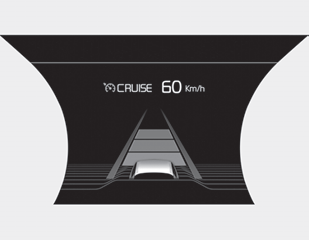
The vehicle will maintain the set speed.
When there is a vehicle ahead of you in your lane
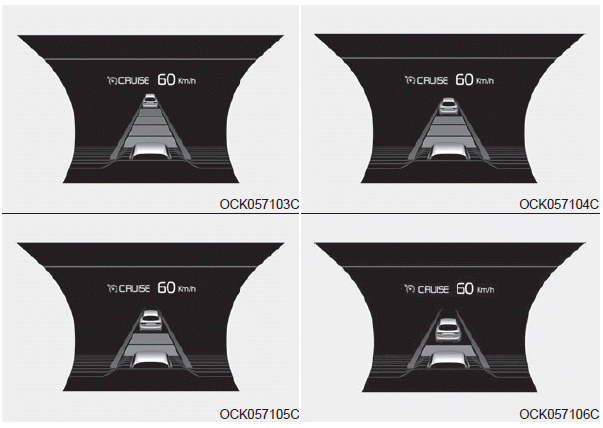
- The vehicle will maintain the set speed when the lane ahead is clear.
- The vehicle will decelerate or accelerate within the set speed to maintain the selected distance when there is a vehicle ahead of you in your lane. (The vehicle icon will appear in front of your vehicle on the LCD display only when an actual vehicle is ahead of you.)
- If the vehicle ahead accelerates, your vehicle will accelerate to the set speed and then maintain a steady cruising speed.
- A warning chime sounds and the LCD display flashes if it is difficult to maintain the selected distance to the vehicle ahead.
- If the warning chime sounds, actively control the vehicle speed by pressing the brake pedal depending on the road conditions ahead and driving conditions.
- Even if the warning chime does not sound, always pay attention to driving conditions to prevent hazardous situations.
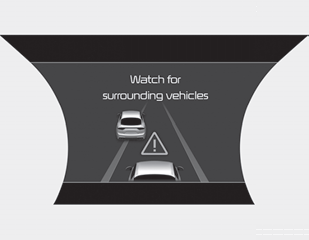
If the vehicle ahead (vehicle speed: less than 30 km/h) moves toward the adjacent lane, a warning chime sounds and a message appears.
Adjust your vehicle speed for vehicles or objects that may suddenly appear ahead by pressing the brake pedal depending on the road and upcoming driving conditions.
In Heavy Traffic
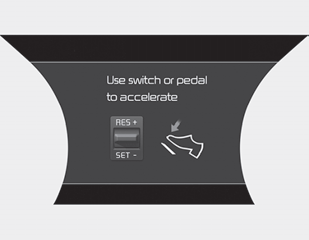
Use the switch or pedal to accelerate
- In heavy traffic, your vehicle will stop if the vehicle ahead stops. Also, if the vehicle ahead starts moving, your vehicle will also start moving. However, if your vehicle has been stopped for more than 3 seconds, press the accelerator pedal or press the RES+ switch to start moving.
- If you press the Smart Cruise Control switch (RES+ or SET-) while Auto Hold and Smart Cruise Control are operating, Auto Hold will be canceled regardless of the accelerator pedal, and the vehicle will start moving. The AUTO HOLD indicator changes from green to white. (If equipped with EPB (Electronic Parking Brake))
Distance Sensor (Radar) to Detect the Vehicle Ahead
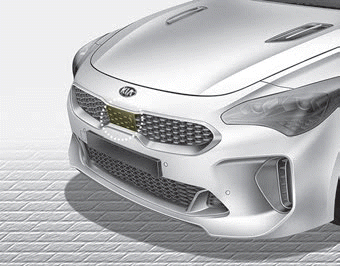
The sensor detects the distance to the vehicle ahead.
If the sensor is covered with dirt or other foreign substances, the vehicle-to-vehicle distance control may not operate properly.
Always keep the sensor clean.
Radar Check Message
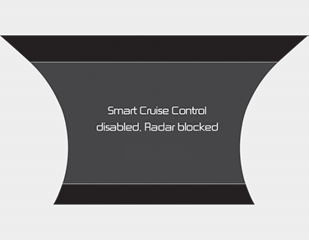
When the sensor lens cover is blocked by dirt, snow, or debris, Smart Cruise Control operation may be temporarily suspended. In this case, a warning message will appear on the LCD display. Remove the dirt, snow, or debris and clean the radar sensor lens cover before using the Smart Cruise Control system. Smart Cruise Control may not operate properly if the radar is completely contaminated, or if any substance is detected after the engine is started (for example, in an outdoor area).
Smart Cruise Control System Malfunction Message
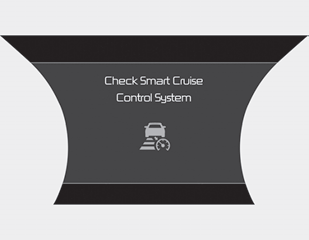
A message will appear when the vehicle distance control system is not operating normally.
Have your vehicle taken to an authorized Kia dealer and have the system inspected.
- Always keep the sensor and bumper clean.
- Use only genuine Kia sensor covers for your vehicle.
- Do not install accessories around the sensor or replace the bumper yourself. This may affect sensor operation.
- An impact to the sensor or the sensor area may cause the sensor to shift slightly out of position, causing the Smart Cruise Control system to not operate correctly without any warning or indication from the cluster. If this occurs, have your vehicle checked by an authorized Kia dealer as soon as possible.
- Use only genuine Kia sensor covers for your vehicle. Do not paint the sensor cover.
- If the front bumper is damaged in the area of the radar sensor, the Smart Cruise Control system may not operate properly.
WARNING! Sensor Damage
To prevent damage to the sensor cover, wash the vehicle with a soft cloth.
Test yourself
A quick Kia Stinger CK quiz: every answer comes with an explanation and a link to the manual page.