Audio System Operating Precautions
WARNING
Always adjust the audio system while the vehicle is stopped. Do not use the audio system controls while driving.
Using the controls while driving is dangerous, as it may distract your attention from the road and cause a serious accident.
If the audio system controls are located on the steering wheel, learn to operate them without looking at them so you can concentrate fully on driving.
CAUTION
For safe driving, set the audio system volume to a level that allows you to hear outside sounds, such as horns and emergency sirens.
CAUTION
Do not use the audio system for an extended period with the engine off. This may drain the battery.
If a mobile phone or CB radio is used in or near the vehicle, these devices may cause interference with the audio system. This is not a sign of system malfunction.
Protect the audio system from liquids of any kind.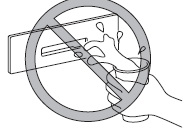
Do not insert any objects other than CDs into the player.
Receiving Radio Broadcasts
AM Radio Reception
AM radio waves diffract around obstacles such as buildings and mountains, and reflect off the ionosphere.
Therefore, they reach greater distances than FM signals.
Two stations may sometimes be received on the same frequency at the same time.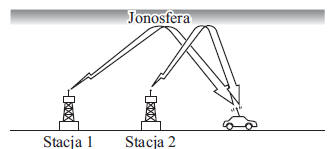
FM Radio Reception
The range of an FM signal is typically about 40–50 km from the transmitter.
Because of the additional encoding required for two-channel audio, an FM stereo signal has a shorter range than a single-channel (mono) FM signal.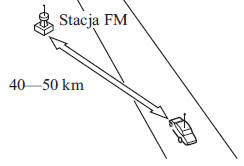
The signal transmitted from an FM transmitter is similar to a beam of light, because it does not bend around obstacles but is reflected by them. Unlike the AM signal, the FM signal does not reach beyond the horizon. Therefore, FM stations cannot be received from as great a distance as AM stations.
Reception of the FM signal may also be affected by weather conditions. High humidity may cause poor reception.
On cloudy days, reception may be better than on sunny days.
Interference
Because the FM signal is reflected by obstacles, both the direct signal and the reflected signal may be received at the same time. This causes a slight delay in reception and may be perceived as intermittent or distorted sound. This problem may also occur near the transmitter.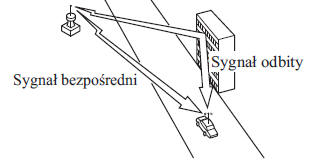
Interruptions/noise
FM transmitter signals travel in a straight line and become weaker in areas between tall buildings, mountains and other obstacles. When driving through such areas, reception conditions may change rapidly, causing unpleasant noise.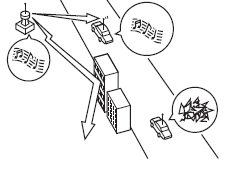
Weak signal
Due to the greater distance from the transmitter, the transmitted signal is weaker in rural areas. Reception in such areas is characterized by intermittent sound.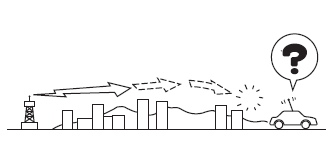
Strong signal
Near transmitters, the signal is very strong. This may cause noise or interruptions in reception.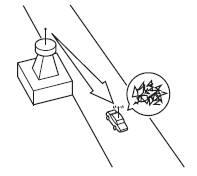
Signal overlap
In an area where two strong signals are broadcast on similar frequencies, the original signal may be temporarily lost and replaced by the second one. This will be accompanied by interference.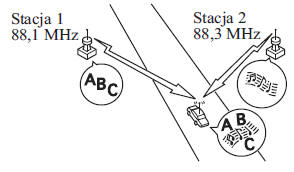
CD player operating precautions
Condensation
Immediately after switching on the heating, when the temperature inside the vehicle is low, the CD or the optical components of the CD player may fog up.
In this case, the CD will be ejected from the player immediately after it is inserted. To prevent this, wipe the CD with a soft cloth.
Fogged optical components will return to normal by themselves after about one hour. Do not use the unit until then.
Operating the CD player
Observe the following recommendations.
- Do not use distorted or cracked CDs. The disc may not be ejected, causing a malfunction.
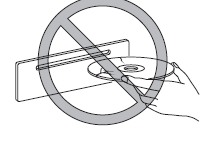
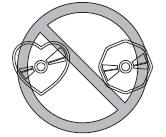
- Do not use discs with non-standard shapes, such as heart-shaped or octagonal discs. The disc may not be ejected, causing a malfunction.
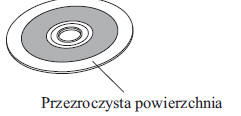
- Do not use CDs with a transparent recording surface.
- A new CD may have sharp inner and outer edges.
Using a CD with sharp edges may prevent it from being correctly loaded and played by the CD player. In addition, the disc may not be ejected, causing a malfunction. Remove sharp edges before using the disc with a ballpoint pen or pencil as shown below. To remove sharp edges, rub the inner and outer edges of the disc with the side of a ballpoint pen or pencil.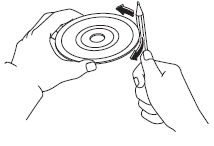
Otherwise, the system may not operate correctly.
The disc may not be ejected, causing a malfunction.
MP3 file usage rules
The unit plays files with the extension (.mp3) as MP3 files.
CAUTION
Do not add an audio file extension to files of another type. Do not change the extension of an audio file. If you do, the unit will not recognize the file correctly, which will result in noise or incorrect operation.
CAUTION
Supply of this product grants only a license for private, non-commercial use and does not grant any license or rights to use the product for any commercial (i.e., for-profit) purpose: broadcasting (via terrestrial, satellite, cable or any other means), streaming or broadcasting over the Internet, intranets and/or other networks, and through other electronic distribution systems such as pay-audio or audio-on-demand applications.
Using the product in such a manner requires a separate license. For detailed information, visit http:// www.mp3licensing.com.
- This audio system supports MP3 files recorded on CD-R/CD-RW/CD-ROM discs.
- When entering the MP3 file name, make sure the extension (.mp3) has been added after the file name.
- The number of characters that can be displayed is limited.
Terms
MP3
Abbreviation of "MPEG Audio Layer 3".
Audio signal compression technology standard defined by the MPEG ISO*1 working group. Using the MP3 format can reduce the size of an audio file by approximately ten times compared to the original file.
*1 International Organisation for Standardisation
WMA File Usage Guidelines
WMA is short for Windows Media Audio and is an audio file format developed by Microsoft.
Audio data can be recorded with a higher compression ratio than MP3 files.
The unit plays files with the extension (.wma) as WMA files.
*Microsoft and Windows Media are trademarks of Microsoft Corporation in the U.S. and other countries.
CAUTION
Do not add an audio file extension to files of another type. Do not change the extension of an audio file. If you do, the unit will not recognize the file correctly, which will result in noise or incorrect operation.
- WMA files that do not meet the above specifications may play incorrectly, and their file name and folder name may be displayed incorrectly.
- The extension may not be added to the file name, depending on the version of the computer's operating system, the recording software and their settings. In this case, add the extension ".wma" at the end of the name and save the file to the disc again.
AAC File Usage Guidelines
AAC is short for Advanced Audio Coding, a digital audio compression format established by the MPEG ISO*1 working group. Audio data can be recorded with a higher compression ratio than MP3 files.
The unit plays files with the extensions (.aac/.m4a/.wav*2) as AAC files.
*1 International Organisation for Standardisation *2 Type C/Type D
CAUTION
Do not add an audio file extension to files of another type. Do not change the extension of an audio file. If you do, the unit will not recognize the file correctly, which will result in noise or incorrect operation.
- AAC files that do not meet the above specifications may play incorrectly, and their file name and folder name may be displayed incorrectly.
- The extension may not be added to the file name, depending on the version of the computer's operating system, the recording software and their settings. In this case, add the extension ".aac", ".m4a" or ".wav*2" at the end of the name and save the file to the memory again.
DVD Player Operating Guidelines
Condensation
Immediately after the heater is switched on, when the interior temperature of the vehicle is low, the DVD disc or the optical components of the DVD player may fog up.
In this case, the DVD disc will be ejected from the player right after it is inserted. To prevent this, wipe the DVD disc with a soft cloth.
Fogged optical components will return to normal by themselves after about one hour. Do not use the unit until then.
DVD Player Operation
Observe the following recommendations.
- Do not use warped or cracked DVD discs. The disc may not eject, causing a malfunction.
- Do not use discs with non-standard shapes, such as heart-shaped discs. The disc may not eject, causing a malfunction.
- Do not use DVDs with a transparent recording surface.
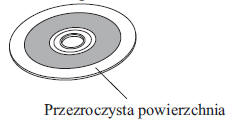
- A new DVD may have sharp inner and outer edges.
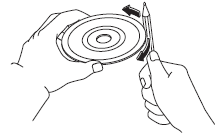
Using a DVD with sharp edges may prevent it from being properly loaded and played by the DVD player. In addition, the disc may not eject, causing a malfunction. Remove sharp edges before use with a pen or pencil as shown below.
To remove sharp edges, rub the inner and outer edges of the DVD with the side of a pen or pencil.
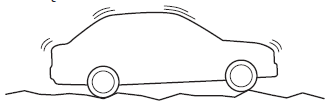
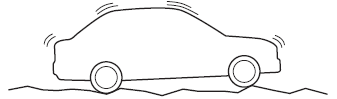
- Sound distortion may occur when driving on uneven road surfaces.
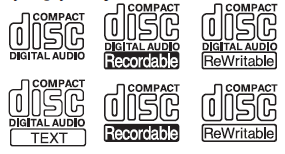
- DVD discs with the logos shown below, or DVD-R/DVD+R/DVD-RW/DVD+RW discs on which video data (DVD-Video/DVD-VR files) is recorded, can be played.

- Use legally recorded discs.
Otherwise, the system may not operate correctly.
- Never touch the recording surface of the DVD. Hold the DVD by its outer edges or by its inner and outer edges.

- Do not stick paper or adhesive tape to the DVD. Protect the recording side (the side without the label) of the disc from scratches. The disc may not eject, causing a malfunction.
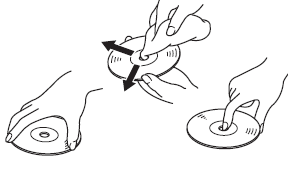
- Dust, fingerprints and dirt can reduce the amount of light reflected by the recording surface, affecting sound quality. If the DVD is dirty, wipe it gently with a soft cloth, from the center toward the edge.
- Do not use disc sprays, antistatic agents or household spray cleaners. Volatile chemicals such as gasoline and solvent can also damage the DVD, so do not use them. Do not use any materials that could damage, deform or dull the plastic when cleaning DVDs.
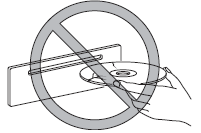
- The DVD player ejects a DVD that is inserted into the slot upside down. Dirty and/or damaged DVDs may also be ejected.
- Do not insert cleaning discs into the DVD player.
- Do not use discs with labels that peel off easily.
- The unit may not play some DVD-R/DVD R/DVD-RW/DVD RW discs recorded on a computer or DVD recorder due to the characteristics of the disc, scratches, fingerprints, dirt, etc., or because dust or condensation has formed on the lenses inside the unit.
- Storing DVDs in a car where they are exposed to direct sunlight or high temperatures may damage DVD-R/DVD R/DVD-RW/DVD RW discs and make them unplayable.
- The unit may not play some CDs recorded on a computer due to the application (recording software) settings used. (For details, consult the software vendor.)
- Carefully read the operating instructions and warnings for DVD-R/DVD+R/DVD-RW/DVD+RW discs.
- Do not use discs with transparent adhesive tape, partially peeled labels, or labels extending beyond the edge of the DVD.
Do not use discs with commercially available DVD-R labels affixed. The disc may not eject, causing a malfunction.
- Playback conditions for DVD-Video may be predetermined by the intention of the disc's software creator. Some functions may not work as the user expects, because the DVD player operates according to the design intent of the disc's software creator. Always read the instructions included with the disc you intend to play.
- Manufactured under license from Dolby Laboratories, Inc. Dolby and the double-D symbol are trademarks of Dolby Laboratories.
CAUTION
Can play video data (DVD-Video/DVD-VR files) recorded on DVD/DVD-R/DVD +R/DVD-RW/DVD +RW discs.
This unit can play dual-layer DVD/DVD-R discs.
The region code for this unit is [3].
DVD-Video/DVD-VR files that do not meet the above specifications may not play correctly, and their file name and folder name may be displayed incorrectly.
Disc markings
The following markings may appear on discs or their packaging:
| Marking | Meaning | |
| PAL | Indicates the color encoding standard of the television signal. | |
 | Indicates the number of audio tracks. | |
The number indicates the number of audio recordings.

The number indicates the number of recorded languages.

The number indicates the number of recorded camera angles (views).


"16:9" indicates widescreen, and "4:3" indicates standard screen.


Glossary
DVD-Video
DVD-Video is a disc content standard defined by the DVD Forum.
It uses "MPEG2", a global standard in digital compression technology, which can compress image data to about 1/40 of its original size for storage.
In addition, variable bit rate encoding is used, which changes the amount of information allocated according to the image shape on the screen. Audio can be stored using Dolby Digital instead of PCM (Pulse Code Modulation), so the sound is more realistic.
Various additional features, such as multi-language availability, further enhance the viewing experience.
DVD-VR
DVD-VR is short for DVD Video Recording Format; it is a video storage standard defined by the DVD Forum.
Multi-angle function
One of the DVD player's functions.
Since scenes may be recorded from multiple camera positions, users can select one of them.
Multi-angle function
One of the DVD player's functions.
Since scenes may be recorded from multiple camera positions, users can select one of them.
Multi-language function
The DVD player allows the audio and subtitles for the same video to be recorded in different languages, and the desired language can be selected freely.
Region code
DVD players and discs are assigned codes for each region, and only discs produced for that region can be played.
A disc cannot be played if the region code assigned to the player is not shown on it.
Furthermore, even if no region code is shown on the disc, playback may be prohibited depending on the region. In this case, it may not be possible to play the disc in this DVD player.
Notes on OGG files
OGG is an audio compression format developed by the Xiph.Org Foundation.
Audio data can be recorded with a higher compression ratio than MP3 files.
This unit plays files with the extension (.ogg) as OGG files.
CAUTION
Do not add an audio file extension to files of another type. Do not change the extension of an audio file. If you do, the unit will not recognize the file correctly, which will result in noise or incorrect operation.
- OGG files that do not meet the above specifications may not play correctly, and their file name and folder name may be displayed incorrectly.
- The extension may not be added to the file name, depending on the computer's operating system version, recording software and its settings. In this case, add ".ogg" to the end of the file name and save the file again.
Notes on USB devices
This unit plays the following audio file types: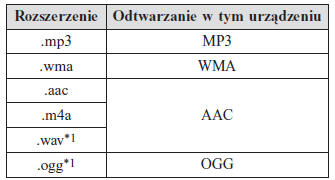
*1 Type C/Type D
CAUTION
Do not add an audio file extension to files of another type. Do not change the extension of an audio file. If you do, the unit will not recognize the file correctly, which will result in noise or incorrect operation.
CAUTION
Depending on the type and condition of the USB device, file playback may not be possible even if the audio file conforms to the standard above.
WMA/AAC files protected by copyright cannot be played on this unit.
The order of music data stored on the device may differ from the playback order.
To avoid loss or damage of data, we always recommend backing up your data.
If the maximum current of 1000 mA is exceeded, the device may not operate or charge while connected.
Do not remove the USB device while USB mode is active (remove it only in FM/AM radio or CD mode).
The unit will not operate if the data is password protected.
MP3/WMA/AAC/OGG*1 files that do not meet the above specifications may not play correctly, and their file name and folder name may be displayed incorrectly.
*1 Type C/Type D
Notes on iPod-type devices
The system supports music files recorded on an iPod.
- iPod is a trademark of Apple Inc.
Depending on the device model or software version, the iPod may not be compatible. An error message is then displayed.
CAUTION
- Remove the iPod from the connector when not in use. The iPod is not designed to withstand extreme temperature changes inside the vehicle. If left in the vehicle, it may be damaged, or its battery may deteriorate due to excessive temperature or humidity.
- If data stored on the iPod is lost while it is connected to the vehicle's system, Mazda cannot guarantee recovery of that data.
- If the iPod battery has deteriorated, charging and track playback may not be possible after it is connected to the vehicle's system.
- For more information on operating the iPod, refer to the instructions supplied with it.
- When an iPod is connected to the USB port, all operations are performed using the audio system. Control using the iPod is not possible.
CAUTION
Images or videos stored on the iPod cannot be displayed on the audio system.
Test yourself
A quick Mazda 2 quiz: every answer comes with an explanation and a link to the manual page.