USB port (models with navigation system)
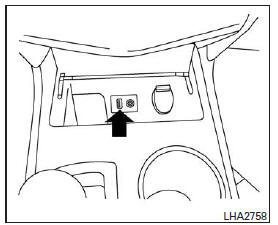
Connecting a device to the USB input jack
WARNING
Do not connect, disconnect or operate the USB device while driving. Doing so may be a source of distraction.
If you are distracted, you could lose control of your vehicle and cause an accident or serious injury.
WARNING
- Do not apply pressure to the USB device when inserting it into the USB port. If you insert the USB device crooked or upside down, you may damage the port.
Make sure the USB device is properly connected to the USB port.
You could damage the port and the cover.
Refer to the device manufacturer's owner's guide for proper use and care of the device.
The USB input jack is located in the center console, below the heating and air conditioning controls. Connect the USB device to the jack.
When a compatible storage device is connected to the USB jack, the compatible audio files stored on it can be played through the vehicle's audio system.
Operation (audio file)
AUX (auxiliary) button:
Place the ignition switch in the ON or ACC (accessory) position, then press the AUX (auxiliary) button to switch to USB mode. If another audio source is playing and a USB memory device is inserted, press the AUX (auxiliary) button until the center display switches to USB memory mode.
If the system was turned off during USB memory playback, press the VOL (volume)/ON-OFF knob to resume USB memory playback.
File playback information:
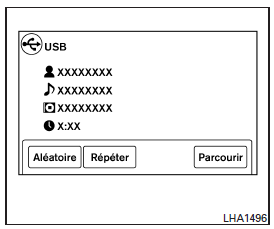
Information about the audio file being played is displayed on the vehicle's audio system screen. Touch the “Browse” key to display the list of folders and files on the USB device. Touch the title of a music track on the screen to start playing it.
 Search buttons:
Press the button During
playback of an audio file on the USB device, press the button to return to the beginning of the current track. Press the button several times
to go back several tracks.
Press the button During
playback of an audio file on the USB device, press the button to skip to the next track. Press the button
several times to skip several tracks. If the last track of a folder on the USB device is skipped, playback continues at the first track of the next folder.
Shuffle and repeat play modes:
| Item | Result | |
| Shuffle and repeat modes | While playing files from a USB device, the play mode can be changed so that tracks are repeated or played in random order. | |
| RDM (random) button | Touch the “Shuffle” key to play the USB device in random order. When shuffle mode is active, it is displayed on the screen. To cancel shuffle mode, touch the “Shuffle” key until it is no longer displayed. | |
| Repeat | Touch the “Repeat” key to repeat playback of the USB device. When repeat mode is active, it is displayed on the screen. To cancel repeat mode, touch the “Repeat” key until it is no longer displayed. | |
Test yourself
A quick Nissan Altima quiz: every answer comes with an explanation and a link to the manual page.