Digital Key Card (if equipped)
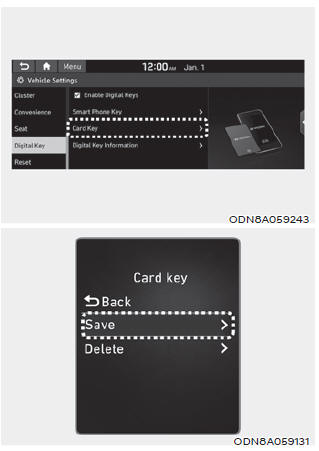
Storing the Digital Key (Card Key)
1. Install the Hyundai Digital Key app on the primary user's smartphone and register the digital key (smartphone). Refer to the digital key (smartphone) registration method.
2. Using the [Pair Card Key] menu on the Digital Key application, activate the Card Key registration mode.
NFC authentication: Enter the NFC authentication menu and touch the smartphone to the outside door handle.
Bluetooth authentication: Enter the Bluetooth authentication menu and press the [OK] button to activate.
If you activate the registration mode, you must complete the card saving process within 5 minutes.
If you have not registered a Digital Key (smartphone), register a Digital Key (Digital Key Card) with two Smart Keys.
3. Place the NFC Card Key on the inside authentication panel (wireless charging pad). The saving process will start automatically.
4. Register the NFC Card Key in the User Settings menu after starting the vehicle.
With navigation screen: From the infotainment system screen menu, go to [Settings] - [Vehicle] - [Digital Key] - [Card Key], then select [Save] from the submenu.
Without navigation screen: From the cluster menu, go to [Digital Key] - [Card Key] and select [Save].
The [Save] button will be disabled if a Digital Key (Card Key) is already saved.
Refer to "Deleting the Digital Key" in this manual and follow the digital key deletion procedure in your vehicle before storing the digital key.
5. If the key is registered, a message will be displayed on the infotainment screen or instrument cluster.
Information
- After the Card Key registration mode is activated, the process must be completed within 5 minutes. After that, you must reactivate it to register again.
- To save a Digital Key (Card Key), the Smart Key (key fob) must be inside the vehicle.
- Once a Card Key is registered, it cannot be reused on another vehicle.
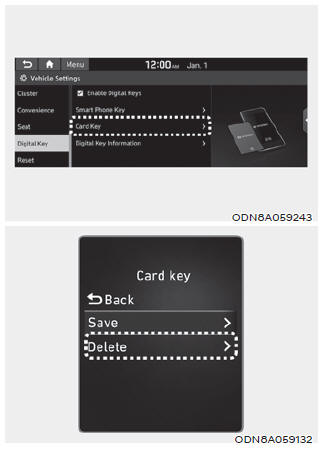
Deleting the Digital Key (Card Key)
Note that the Smart Key must be in your possession and inside the vehicle to delete the Digital Key Card.
1. Access the vehicle using the Smart Key.
2. Start the vehicle, then enter the Digital Key Card function in the User Settings menu on the LCD display or on the navigation infotainment screen (on some models).
With navigation screen: From the infotainment system screen menu, go to [Settings] - [Vehicle] - [Digital Key] - [Card Key], then select [Delete] from the submenu.
Without navigation screen: From the cluster menu, go to [Digital Key] - [Card Key] and select [Delete].
If there is no registered digital key (key card), the [Delete] menu will not be activated.
- To delete a saved Digital Key Card, you must have the Smart Key in your possession and inside the vehicle.
- Note that if the Digital Key Card is deleted, it can be registered again to the same vehicle as long as a new card has not been registered.
- If you try to register a new Digital Key Card, the previously registered card will no longer be active and cannot be re-registered.
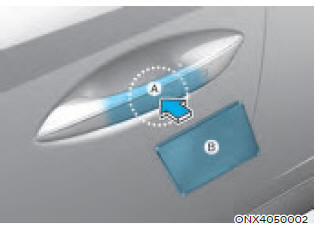
[A]: Door Handle Authentication Panel
[B]: NFC Antenna
NFC Door Lock/Unlock
To unlock the vehicle with the NFC Card Key, touch the Card Key near the NFC sensor on the door handle of the driver's or passenger's door. Hold the Card Key near the sensor area for about 2 seconds. You will hear the doors lock or unlock.
If you unlock your vehicle from the passenger side door handle, all doors will unlock. If you unlock your vehicle from the driver side door handle, either only the driver's door or all doors will unlock, depending on the Two-Press Unlock function setting. Refer to the user settings to change the Driver's Door Unlock Mode.
To lock the vehicle with the NFC Card Key, touch the Card Key near the NFC sensor on the door handle of the driver's or passenger's door.
Before leaving the vehicle, make sure that the vehicle is locked. When using your NFC Card Key on the entrance door handle, listen for the door lock to operate, then pull the handle for 3 seconds to confirm the doors are locked.
Malfunction
When using the NFC Card Key to lock or unlock the vehicle, be sure to touch the Card Key near the center of the door handle to activate the sensor.
Note that you must remove the card from your wallet or purse to use the Card Key correctly. If the Card Key does not touch the door handle sensor area closely, or if it is near other NFC-enabled cards, it may not work.
Note that if you try to use the NFC Card Key to lock the doors, the doors will not lock under the following conditions:
- The Smart Key is inside the vehicle.
- The Engine Start/Stop button is in the ACC or ON position.
- Any door is open (except the tailgate).
If this happens, the alarm will sound for about 3 seconds. Check the vehicle before trying to lock it again.
If you have difficulty locking or unlocking the vehicle with the NFC Card Key, move the Card Key away from the door handle sensor for a few seconds (the Card Key must be more than 4 inches away), then try again.
If the Card Key is damaged or bent, the sensor on the door handle may not recognize the Card Key correctly. In this case, contact your authorized Hyundai dealer to replace the Card Key.
Be careful not to damage the Card Key or expose it to extreme temperatures or direct sunlight for long periods of time.
Note that when the doors have been unlocked using the NFC Digital Key Card, the lock/unlock switch on the driver's door may not be available immediately.
(If you try to lock the doors with the driver's door lock switch, the doors will lock and then immediately unlock when you close the door)
Starting with the Key Card
After placing the registered key card on the interior authentication area (wireless charger), depress the brake pedal and press the ENGINE START/STOP button.
WARNING
- If you do not place the Digital Key (Card Key) accurately in the center of the inside authentication panel (wireless charging pad), the Card Key may not be recognized. If the engine is not running, adjust and place the key again.
- If you overlap and use a key card with NFC support, such as a transportation card or credit card, the key card may not be recognized.
- If the digital key (key card) does not work, move the key approximately 4 in. (0.1 m) away from the door handle authentication area and try touching again.
- The key card may be damaged by impact. It will not work properly if the key is damaged. You must purchase a new card and register it again.
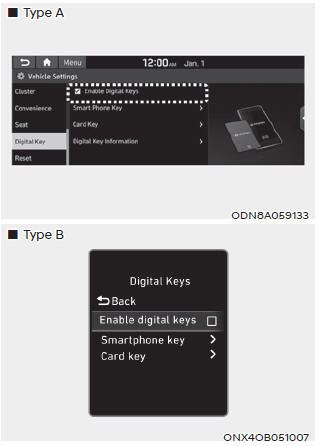
Enabling or Disabling the Digital Key Feature
If you want to temporarily disable the Digital Key function (smartphone app and NFC key card), you can do so in the settings menu.
With navigation screen: On the infotainment screen menu, go to [Settings] - [Vehicle] - [Digital Key] - [Enable Digital Key] (deselect).
Without navigation screen: On the cluster menu, go to [Digital Key] - [Enable Digital Key] (deselect).
Information
To disable the Digital Key function in the user settings menu, you must have the Smart Key with you inside the vehicle.
PLEDGE
If you deselect Enable Digital Key, you cannot lock or unlock the doors or start the vehicle using digital keys, such as the smartphone and key card. When you select Enable Digital Key again, the registered digital keys (smartphone and key card) become available. Even if you disable the Digital Key function, the registered keys (smartphone and key card) are not deleted.
Personalized Profile and Vehicle Settings
You can link a registered digital key to one of two personalized profiles. Then, when you use the digital key card or Digital Key app, the vehicle will be set to the individual profile specified by the user (which includes items such as driver settings, audio preferences, etc.).
Two profile links and personalization settings are available for Driver 1 and Driver 2.
Linking a profile to your Digital Key app
Profile linking
1.  infotainment screen menu.
2. Make sure your smartphone is unlocked. Place the smartphone on the wireless charging pad authentication area. Once your smartphone is detected, the profile linking process will start.
3. A pop-up message will appear on the screen asking whether you would like to link the user profile to your smartphone Digital Key.
4. If you select the link, the smartphone Digital Key and the user profile will be linked.
5. A confirmation message will appear when the linking process is complete.
Unlinking your profile
Select Digital Key information from the vehicle settings menu on the infotainment screen. If a profile is linked, you will see the option to unlink your profile.
Information
If you link Driver 1 and Driver 2 to one smartphone, the smartphone Digital Key always operates as Driver 1.
If you unlink Driver 1, the personalization function will operate as Driver 2.
Profile linking tips: When linking or unlinking a profile from your Digital Key, note the following:
- Profile linking to your Digital Key must be enabled in the user settings menu.
- Profile link information remains even if you disable the Digital Key function in the user settings menu.
- The profile link function works only when the smartphone and Digital Key app are already registered to the vehicle.
- If you remove the smartphone from the authentication area before the profile linking process is complete, the profile link will be canceled.
- To unlink the profile, the smartphone does not need to be on the wireless charging pad.
Vehicle Personalization Operation
The personalization function linked to the Digital Key operates under the following conditions:
- Touch the driver's door handle with the smartphone linked to the profile to lock or unlock the door. (Personalization does not operate when locking or unlocking the front passenger door.)
- Remote door unlock with a profile linked to the smartphone Digital Key app. The profile linked to the Digital Key can be changed manually in the infotainment system settings screen.
Precautions for Linking and Unlinking the Digital Key Profile
The profile operation for the door lock/unlock system is as follows.
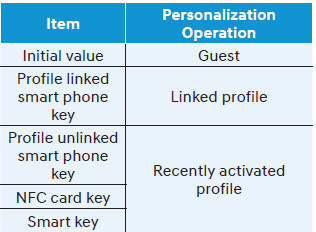
- The personalization function using the Digital Key can operate after the Digital Key is linked in the infotainment system profile menu.
- The personalization function can be used only while the vehicle is stopped, for your and your vehicle's safety.
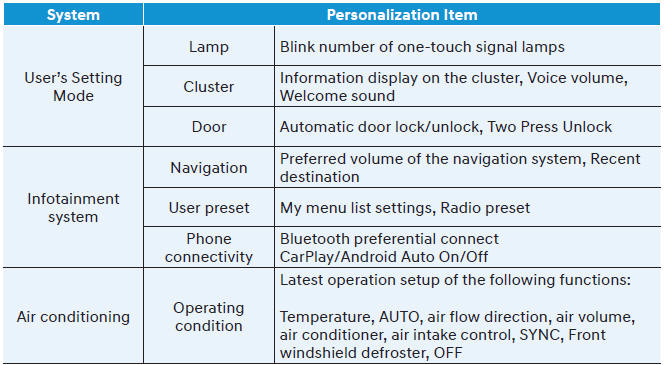
Vehicle Personalization Using the Digital Key
The following personalization functions are available in the vehicle.
PLEDGE
If you leave the Digital Key after locking or unlocking the doors or starting the vehicle with the Smart Key, the doors can be locked by the central door lock. Please always carry the Digital Key with you.
Test yourself
A quick Hyundai Tucson quiz: every answer comes with an explanation and a link to the manual page.