Using the controls in RADIO mode
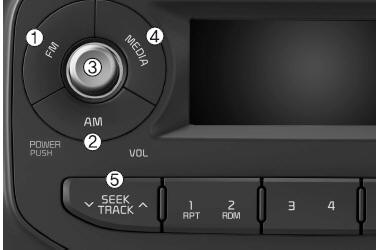
1. Button
Selects FM mode and switches between FM1 and FM2 each time the button is pressed.
2. Button
Press the button to select the AM band. The LCD screen displays AM mode.
3. Button and Knob

- Turns the audio system on/off when the ignition switch is in ACC or ON.
- Turn the knob clockwise/counterclockwise to increase/decrease the volume.
4. Button
- Switches to USB (iPod®), AUX mode.
- Each time the button is pressed, the mode changes in the order USB (iPod®), AUX.
5. Button
- When the button
 is pressed, the frequency band goes up to automatically search for a station.
 is pressed, the frequency band goes down to automatically search for a station. It stops on the previous frequency if no station is found.
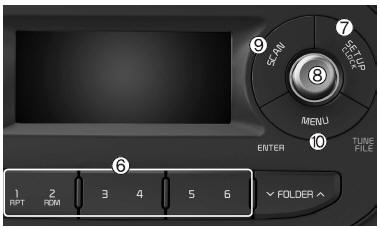
6. PRESET Buttons
- Press buttons 1 ~ 6 for less than 0.8 seconds to listen to the station stored on each button.
- Press button 1 ~ 6 for more than 0.8 seconds to store the current station on the respective button; storing is confirmed by a beep.
7. Button
Press the button briefly (less than 0.8 seconds): Goes to the Scroll, Media, Audio setting modes.
- Scroll: Scroll (On/Off)
- Media: MP3 playback information (Folder/File, Artist/Title)
- Audio: Sound settings control (Bass/Treble/Fader/Balance)
- BASS control: To boost low-frequency sounds (BASS), turn the knob clockwise; to reduce them, turn the knob counterclockwise.
- TREBLE control: To boost high-frequency sounds (TREBLE), turn the knob clockwise; to reduce them, turn the knob counterclockwise.
- FADER control: Turn the knob clockwise to emphasize the sound from the rear speakers (the sound from the front speakers will be reduced). Turn the knob counterclockwise to emphasize the sound from the front speakers (the sound from the rear speakers will be reduced).
- BALANCE control: Turn the knob clockwise to emphasize the sound from the right-side speakers (the sound from the left-side speakers will be reduced).
Turn the knob counterclockwise to emphasize the sound from the left-side speakers (the sound from the right-side speakers will be reduced).
Press and hold the button (more than 0.8 seconds): Goes to the Clock setting screen.
8. Knob
Turn this control while listening to a radio station to manually adjust the frequency.
Turn clockwise to increase the frequency and counterclockwise to decrease the frequency.
9. Button
- Radio mode
- Press the button (less than 0.8 seconds): Preview of stations, 5 seconds each.
- Press and hold the button (more than 0.8 seconds): Preview of stations stored in Presets 1~6, 5 seconds each.
❈Press the button again  to continue listening to the currently selected station.
- USB, iPod® mode
- Press the button (less than 0.8 seconds): Preview of tracks (files), 10 seconds each.
❈Press the button again  to continue listening to the current track (file).
10. Button
Displays the AST mode menus.
- AST: Activates automatic search and stores the frequencies.
WARNINGS FOR USING USB DEVICES
- To use an external USB device, make sure the device is not connected when the vehicle is started.
Connect the device only after starting the vehicle.
(USB devices are very sensitive to electrical surges)
- Only MP3 files with a bit rate between 8 Kbps and 320 Kbps can be played.
- Only WMA music files with a compression rate between 8 Kbps and 320 Kbps can be played.
- When connecting or disconnecting the external USB device, be careful of static electricity.
- Encoded MP3 players are not recognized.
- Some external USB devices may not be recognized due to their characteristics.
- If the sector/byte format of the external USB device is set to a value other than 512 BYTE or 2048 BYTE, the device may not be recognized.
- Use only USB devices formatted as FAT 12/16/32.
- USB devices without USB I/F authentication may not be recognized.
- • Do not touch the USB device connection terminal with your body or any object.
- If the USB device is repeatedly connected and disconnected in a short time, it may be damaged.
- When connecting or disconnecting a USB device, you may hear an unusual noise.
- If the external USB device is disconnected during USB playback mode, it may be damaged or malfunction. Therefore, disconnect the external USB device when the audio system is off or set to another mode (e.g. Radio or CD).
- The time required for the external USB device to be recognized varies depending on the type and capacity of the device and the type of files stored on it.
- Do not use the USB device for purposes other than playing music files.
- Video playback via USB is not supported.
- Using the USB port for accessories such as chargers or heaters may reduce performance and cause problems.
- If separately purchased devices such as USB hubs are used, the vehicle audio system may not recognize the connected USB device.
Connect the USB device directly to the vehicle's multimedia jack.
 Do not use USB devices that are also used as key rings or mobile phone accessories, as they may damage the USB plug. Make sure to use only products with a connector of the type shown below.
Test yourself
A quick Kia Picanto JA quiz: every answer comes with an explanation and a link to the manual page.