Using a USB device
In this manual: Using a USB device
~3min read
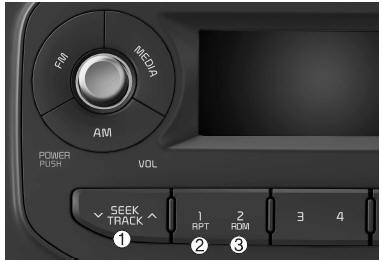
1. Button
- Press the button
 Press for less than 0.8 seconds to play the current track from the beginning.
Press the button for less than 0.8 seconds, then press it again within 2 seconds to go to and play the previous track.
Press and hold the button for 0.8 seconds or more to fast-reverse the current track. Press for less than 0.8 seconds to go to the next track. Press and hold the button for 0.8 seconds or more to fast-forward the track.
2. Button (REPEAT)
Press this button for less than 0.8 seconds to activate "RPT" mode and for more than 0.8 seconds to activate "FLD.RPT" mode.
- RPT: The same file is played repeatedly.
- "FLD.RPT": All files in the same folder are played repeatedly.
3. Button (RANDOM)
Press this button for less than 0.8 seconds to activate "RDM" mode and for more than 0.8 seconds to activate "A.RDM" mode.
- RDM: Only the files in the same folder are played in random order.
- A.RDM: All files stored on the USB device are played in random order.
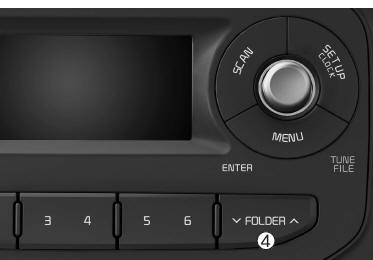
4. Button
- Press the button
 to move to the subfolder of the current folder and display it. Press the knob
 to go to the displayed folder. The first track in the folder will play.
- Press the button
 to go to and display the parent folder. Press the knob
 to go to the displayed folder.
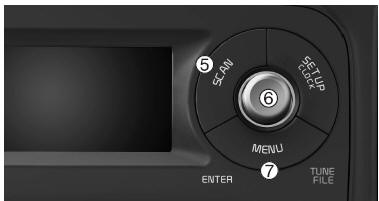
5. Button
Plays each track on the USB device for 10 seconds.
To cancel SCAN playback, press this button again.
6. Knob and Button

- Turn this knob clockwise to display the tracks after the current track, or counterclockwise to display the tracks before the current track. To play the displayed track, press the knob.
7. Button
Displays the menus of the current mode.
- RPT: Repeats the current track.
- F.RDM: Plays all tracks in the current folder in random order.
- F.RPT: Repeats all tracks in the current folder.
- A.RDM: Plays all tracks in all folders in random order.
- Info: Displays information about the current track.
NOTE - USING THE iPod® DEVICE
- Some iPod® models may not support the communication protocol, so files may not play correctly.
Supported iPod® models:
- iPod® mini
- iPod® 4th (Photo) to 6th (Classic) generation
- iPod® nano 1st to 4th generation
- iPod® touch 1st to 2nd generation
- The search or playback order of tracks stored on the iPod® may differ from the search order used in the audio system.
- If the iPod® is disabled due to a malfunction, reset the iPod®. (Reset: refer to the iPod® manual)
- An iPod® may not operate normally if its battery is low.
- To use iPod® functions in the audio system, use the cable supplied with the iPod® at the time of purchase.
- Depending on the characteristics of the iPod®/iPhone® being used, it may skip or operate improperly.
- When connecting the iPod® with the iPod® power cable, fully insert the connector into the multimedia jack. If it is not fully inserted, communication between the iPod® and the audio system may be interrupted.
- When adjusting the sound effects of the iPod® and the audio system, the effects overlap and may distort or reduce sound quality.
- Turn off the iPod® equalizer when adjusting the audio system volume, and turn off the audio system equalizer when using the iPod® equalizer.
- When the iPod® is not used with the vehicle audio, disconnect the iPod® cable from the iPod®.
Otherwise, the iPod® may remain in accessory mode and may not function properly.
Test yourself
A quick Kia Picanto JA quiz: every answer comes with an explanation and a link to the manual page.
Was this page helpful?