Voice Command List

When you briefly press the button on the steering wheel, you can
select commands from the main menu. The following pages describe these commands and the commands of each submenu.
Remember to wait for the tone before speaking.
After the main menu is displayed, you can say "Help" at any time to hear the list of available commands when the system is waiting for a response.
If you want to exit an action without completing it, you can say "Cancel" or "Exit" at any time when the system is waiting for a response.
The system ends the voice recognition session. When the session is cancelled, a double beep sounds to indicate that you have exited the system.
To return to the previous command, you can say "Back" or "Correction" at any time when the system is waiting for a response.
"Call"
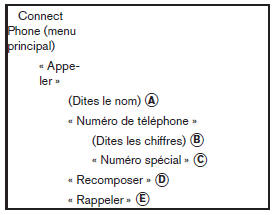
(Say the name) A
If you have saved entries in the phonebook, you can dial a number associated with a name.
See the "Phonebook" section in this chapter for how to save entries.
When prompted, say the name of the phonebook entry you want to call. The system acknowledges the name.
If several numbers are associated with the name, the system prompts you to select the correct number.
Once you have confirmed the name and location, the system starts the call.
(Say the digits) B
When prompted, say the number to dial. See the "Digits" and "Placing a Call by Entering a Phone Number" sections in this chapter for details.
"Special number" C
To dial more than 10 digits or one or more special characters, say: "Special number". When the system receives the command, it prompts you to say the phone number.
"Redial" D
Use the redial command to dial the last number dialed.
The system acknowledges the command, repeats the number and starts dialing.
If there is no redial number, the system announces "No number to redial" and ends the voice recognition session.
"Redial" E
Use the redial command to call the number of the last incoming call to the vehicle.
The system acknowledges the command, repeats the number and starts dialing.
If there is no callback number, the system announces "No number to call back" and ends the voice recognition session.
During a Call
Many command options are available during a call. Press the button on the steering wheel to mute incoming voice prompts and enter commands.
- "Help" - The system announces the available commands.
- "Back-Correction" - The system announces "Back," ends the voice recognition session and returns to the call.
- "Cancel-Exit" - The system announces "Cancel," ends the voice recognition session and returns to the call.
- "Send-Enter-Call-Dial" - Use the "Send" command to enter digits or the "*" or "#" symbols during a call. For example, if an automated system asks you to enter an extension number:
Say: "Send one two three four."
The system acknowledges the command and transmits the tones associated with the digits. The system then ends the voice recognition session and returns to the call. Say "Star" for "*" and "Pound" for "#".
- "Transfer Call" - Use the call transfer command to transfer the call from the BluetoothMD hands-free phone system to the cellular phone for a private conversation.
The system announces "Transferring the call.
Call transferred to private mode." The system then ends the voice recognition session.
To transfer the call from the cellular phone back to the Bluetooth® hands-free system, press the button .
NOTE:
If you end a call or if the cellular network connection is lost while the mute function is on, the function is turned off for the next call so that the other party can hear your voice.
"Phonebook" (phones without automatic phonebook download)
NOTE:
The "Transfer Entry" command cannot be accessed while the vehicle is moving.
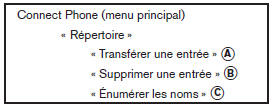 For phones
that do not support automatic phonebook download (BluetoothMD PBAP profile), the "Phonebook" command is used to manually add entries to the vehicle phonebook.
The phonebook can store up to 40 names for each phone paired with the system.
NOTE:
Each phone has its own phonebook.
You cannot access the phonebook of Phone A while using Phone B.
"Transfer Entry" A
Use the "Transfer Entry" command to store a new name in the system.
When prompted by the system, say the name to assign to the new entry.
For example, say: "Mary."
If the name is too long or too short, the system will notify you and then prompt you to enter a name again.
In addition, if the name is too similar to a name already stored, the system notifies you and then prompts you to enter a name again.
The system then asks you to transfer a phone number stored in your cellular phone's memory.
To dial a phone number by voice command: For example, say "five five five one two one two." See the "Digits" section of this chapter for more information.
To transfer a phone number stored in your cellular phone's memory: Say "Transfer Entry." The system acknowledges the command and asks you to start transferring the entry from the handset. The new phone number of the contact will be transferred from the cellular phone via the BluetoothMD communication link.
The transfer method varies depending on the cellular phone model. Refer to the cellular phone's user guide for more information. You can also visit www.nissanusa.com/bluetooth, where you will find instructions on transferring phone numbers from cellular phones recommended by NISSAN.
The system repeats the number and prompts you to enter the next command. When you have finished entering or transferring phone numbers, say "Save."
The system confirms the name, location and number.
"Delete Entry" B
Use the "Delete Entry" command to delete a name from the phonebook. Once the system recognizes the command, say the name to delete or say "List names" to select an entry.
"List Names" C
Use the "List Names" command to hear all the names in the phonebook.
The system reads out the phonebook entries but does not announce the phone numbers.
When the list has been read out, the system returns to the main menu.
You can stop the list at any time by pressing the button on the
steering wheel. The system ends the voice recognition session.
"Phonebook" (phones with automatic phonebook download)
NOTE:
The "Transfer Entry" command cannot be accessed while the vehicle is moving.
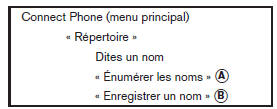 For
phones that support automatic phonebook download (BluetoothMD PBAP profile), the "Phonebook" command is used to manage entries in the vehicle phonebook.
You can say the name of an entry in this menu to call it.
The phonebook can store up to 1,000 names for each phone paired with the system.
When a phone is connected to the system, the phonebook is automatically downloaded to the vehicle. This feature allows you to access your phonebook from the BluetoothMD system and call contacts by saying their name. You can record a personalized voice tag for contact names that the system has difficulty recognizing.
For more information, refer to the "Record a Name" section in this chapter.
NOTE:
Each phone has its own phonebook.
You cannot access the phonebook of Phone A while using Phone B.
"List Names" A
Use the List Names command to hear all names and locations in the phonebook.
The system reads out the phonebook entries but does not announce the phone numbers.
When the list has been read out, the system returns to the main menu.
You can stop the list at any time by pressing the
of the steering wheel. The system ends the voice recognition session. Refer to the "Record a Name" command in this chapter for information on how to record personalized voice tags for list entries that the system has difficulty pronouncing.
"Record a Name" B
The system allows you to record a personalized voice tag for contact names in your phonebook that the vehicle has difficulty recognizing. This feature is also used to record voice tags to call an entry with multiple phone numbers directly. Up to 40 voice tags can be recorded.
"Recent Calls" (recent calls)
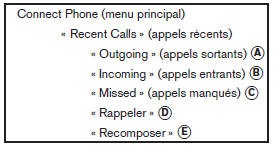
Use the "Recent Calls" command to access outgoing, incoming or missed calls, and to call back the last incoming call or redial the last outgoing call.
"Outgoing" (outgoing calls) A
Use the "Outgoing" command to access the list of calls made from the vehicle.
"Incoming" (incoming calls) B
Use the "Incoming" command to access the list of calls received by the vehicle.
"Missed" (missed calls) C
Use the "Missed" command to access the list of calls received by the vehicle that were not answered.
"Call Back" D
Use the "Call Back" command to dial the number of the last incoming call to the vehicle.
"Redial" E
Use the "Redial" command to dial the number of the last outgoing call made from the vehicle.
"Connect Phone" (connect phone)
NOTE:
The "Add Phone" command cannot be accessed while the vehicle is in motion.

Use the "Connect Phone" command to manage phones that connect to the vehicle or to turn on the vehicle's BluetoothMD function.
"Add Phone" A
Use the "Add Phone" command to add a phone to the vehicle. Refer to "Pairing Procedure" in this chapter for more information.
"Select Phone" B
Use the "Select Phone" command to choose a phone from the list of phones connected to the vehicle. The system lists the name assigned to each phone and then prompts you to use the phone of your choice. Only one phone can be active at a time.
"Delete Phone" C
Use the "Delete Phone" command to delete a phone that is connected to the vehicle. The system lists the name assigned to each phone and then prompts you to select the phone you want to delete. Deleting a phone from the vehicle will also erase the phonebook for that phone.
"Replace Phone" D
Use the "Replace Phone" command to replace an existing paired phone with a new phone. The system will keep all voice tags assigned to your phonebook.
"Bluetooth Off" E
Use the "Bluetooth Off" command to prevent any wireless connection to your phone.
"Phonebook Download Off" F
Use the Phonebook Download Off command to turn off automatic downloading of the phonebook from the handset (if supported by the cell phone). When the command is recognized, "Contacts Sync Off" will appear on the audio display screen.
To turn the option back on, say "Phonebook Download". When the command is recognized, "Contacts Sync On" will appear on the audio display screen.
"Display Settings" G
Use the display settings command to determine where incoming call notifications will be displayed in the vehicle. Say "Driver Only" so that call notifications appear on the multi-function display only.
Say "Both" so that call notifications appear on both the multi-function display and the center audio display.
To turn the option back on, say "Phonebook Download". When the command is recognized, "Contacts Sync On" will appear on the audio display screen.
Test yourself
A quick Nissan Altima quiz: every answer comes with an explanation and a link to the manual page.