Displays and Controls
Instrument Panel Settings
In this manual: Displays and Controls
8steps
~48min
2/5difficulty
Done 0 of 8
Display settings for the instrument panel can be set in the instrument panel's App menu and in the center display's Settings menu.
Settings via the Panel app menu
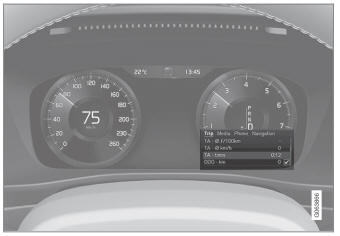
The illustration is generic - details may vary according to vehicle model.
The app menu will open and can be controlled using the right-side steering wheel keypad.
The app menu can be used to set what information will be displayed in the instrument panel
- Trip Computer
- media player
- Telephone
- navigation system *.
Settings via the center display
Selecting the type of information
- Tap Settings in the center display's Top view.
- Tap My Car
 Displays
 Driver Display Information.
- Select a background:
- Do not show information in the background
- Show information for current media playing
- Show navigation even if no route is set¹
Select theme
- Tap Settings in the center display's Top view.
- Tap My Car
 Displays
 Display Themes
- Select a theme (appearance) for the instrument panel:
- Glass
- Minimalistic
- Performance
- Chrome rings
Select Language
- Tap Settings in the center display's Top view.
- Tap System
 System Languages and Units
 System Language to select language.
- Changes made here will affect the theme on all displays.
Settings are personal and are saved automatically to the active driver profile.
1 The map is displayed on 12-inch * instrument panels. 8-inch instrument panels display guidance only.
* Option/accessory.
Test yourself
A quick Volvo XC90 quiz: every answer comes with an explanation and a link to the manual page.
Was this page helpful?