Navigating in the center display views
There are five different basic views in the center display: Home view, Top view, Climate view, App view and Function view. The screen is automatically activated when the driver's door is opened.
Home View
Home view is the view displayed when the screen is activated. It consists of four tiles: Navigation, Media, Phone and a fourth tile.
An app or vehicle function selected from the App or Function views will start in the respective tile in Home view. FM radio, for example, will start in the Media tile.
The extra tile displays the most recently used app or vehicle function that is not related to the other three tiles.
Tiles display brief information about the corresponding apps.
- Certain functions (e.g. using the center display's keyboard) may be deactivated.
- Certain texts (e.g. those generated by apps) will be shortened to three rows. Tap the Read Aloud button to have the entire message read aloud.
- Text messages will be shortened to one row. Tap the Read Aloud button to have the entire message read aloud.
Status Bar
Current vehicle activities are shown at the top of the screen in the status bar. Network and connection information is shown on the left side of the status bar. Media-related information, the clock and information about background activities are shown on the right.
Top View
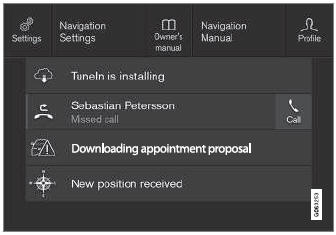
Top view when expanded.
In the center of the status bar there is a tab at the top of the screen. Open Top view by tapping the tab or by dragging/swiping from the top of the screen downward.
Top view always provides access to:
- Settings
- Owner's Manual
- Profile
- Stored vehicle messages.
In some cases, the Top view provides access to:
- Contextual setting (e.g. Navigation settings). Change settings directly in Top view when an app (e.g. navigation) is being used.
- Contextual Owner's Manual (e.g. Navigation guide). Access articles in the digital Owner's Manual related to the content shown on the screen, directly in Top view.
To exit Top view, tap the screen outside Top view, press the Home button or tap the screen at the bottom of Top view and swipe upward. The views behind will become visible again and can be used.
Climate view
The climate bar is always visible at the bottom of the screen. The most common climate settings can be made directly there, such as setting the temperature and seat heating*.
 Tap the symbol in the center of the climate bar to open Climate view and access additional climate system settings.
 Tap the symbol to close Climate view and return to a previous view.
Appendix
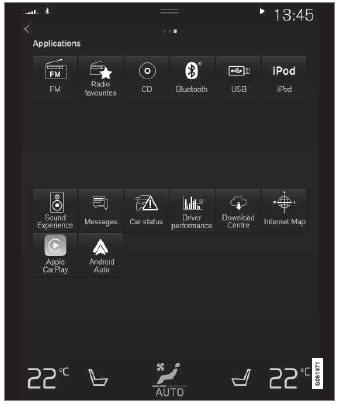
App view displays vehicle apps.
Swipe the screen from right to left1 to access App view from Home view. This view displays downloaded apps (third-party apps) as well as apps for integrated functions, such as FM radio. Brief information will be displayed directly in App view for certain apps, such as unread text messages for Messages.
Tap an app to open it. It will then be opened in its associated tile, e.g. Media.
Depending on the number of apps, you can scroll down in App view. This is done by sweeping/dragging from the bottom upwards.
To return to Home view, swipe the screen from left to right1 or press the Home button.
Function view
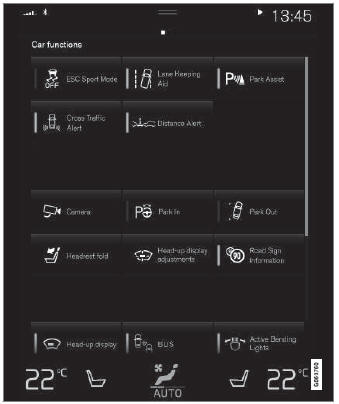
Function view with buttons for various vehicle functions.
Swipe the screen from left to right1 to access Function view from Home view. From Function view, you can activate or deactivate various vehicle functions such as Pilot Assist*, Lane Keeping Aid* and Park Assist*.
If there are many functions, you can also scroll down in the view. This is done by sweeping/dragging from the bottom upwards.
Unlike in App view, where you tap an app to open it, in Function view, tapping a function activates or deactivates it. Certain functions (trigger functions) open in their own window when tapped.
To return to Home view, swipe the screen from right to left1 or press the Home button.
1 Applies to left-hand drive vehicles. For right-hand drive vehicles, swipe in the opposite direction.
* Option/accessory.
Test yourself
A quick Volvo XC90 quiz: every answer comes with an explanation and a link to the manual page.