Opening Contextual Settings on the Center Display
Most of the settings for the vehicle's basic apps can be changed directly in Top view in the center display via contextual settings.
Top view with the contextual settings button.
Contextual settings are a shortcut for accessing specific settings related to the active function shown on the screen. Apps that are factory-installed in your vehicle, e.g. FM Radio and USB, are part of Sensus and are used to control the vehicle's integrated functions. The settings for these apps can be changed directly via contextual settings in the Top view.
Contextual settings are available when:
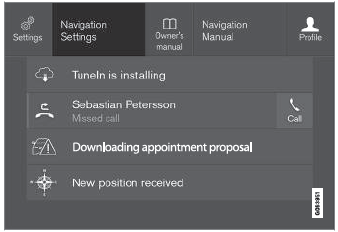
- Pull down the Top view when an app is in expanded form, e.g. Navigation.
- Tap Navigation settings.
- The navigation settings page opens.
- Change the desired settings and confirm.
Tap Close or press the Home button under the center display to close the Settings view.
Most of the vehicle's basic apps have this contextual setting option, but not all.
Third-Party Apps
Third-party apps are apps that are not factoryinstalled in the vehicle's system, but can be downloaded, e.g. Volvo ID. Settings for these apps are changed in the apps themselves, not in Top view.
Test yourself
A quick Volvo XC90 quiz: every answer comes with an explanation and a link to the manual page.