Обзор центрального дисплея
Многие функции автомобиля можно контролировать с центрального дисплея. The center display and its possibilities are presented below.
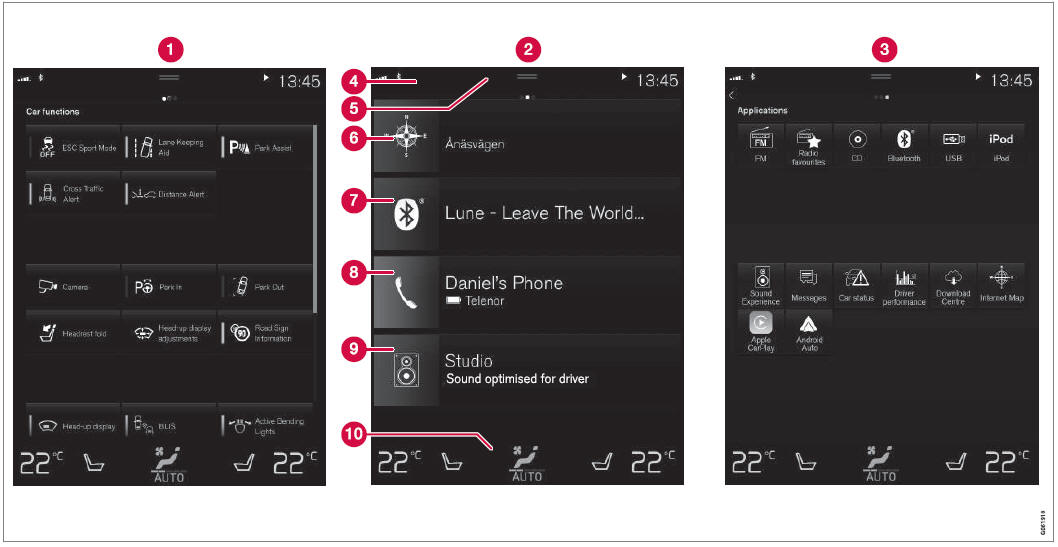
Three of the center display's basic views. Swipe to the right/left to access Function or App view1.
 Function view ‒ vehicle functions that can be activated or deactivated with one tap. Certain functions, called "trigger functions", open windows with settings options. One example is the Камера. Settings for the head-up display* are also started from Function view, but adjusted using the right-side steering wheel keypad.
 Home view ‒ the initial view displayed when the screen is turned on.
 App view – shows downloaded apps (third-party apps) as well as apps for integrated functions, such as FM радио. Tap an app icon to open that app.
 Status bar ‒ current vehicle activities are shown at the top of the screen. Network and connection information is shown to the left of the status bar. Media-related information, the clock and information about background activities are shown to the right.
 Top view ‒ pull the tab down to open Top view. From here, you can access Настройки, Руководство владельца, Профиль and messages stored in the vehicle. In certain cases, contextual setting (e.g. Настройки навигации) and the contextual Owner's Manual (e.g. Навигационное руководство) can also be accessed in Top view.
 Navigation ‒ takes you to map navigation with e.g. Sensus Navigation*. Tap the tile to expand it.
 Media ‒ most recently used media-related apps. Tap the tile to expand it.
 Phone ‒ used to access phone-related functions. Tap the tile to expand it.
 Fourth tile ‒ most recently used apps or vehicle functions not associated with the other tiles. Tap the tile to expand it.
 Climate row - information and direct interaction to set temperature and seat heating for example*. Tap the symbol in the center of the climate bar to open Climate view and additional setting options.
Связанная информация
- Обработка центрального дисплея
- Навигация в видах центрального дисплея
- Просмотр функций на центральном дисплее
- Приложения
- Символы в центральной строке состояния отображения
- Изменение настройки в верхнем виде центрального дисплея
- Открытие контекстуальной настройки на дисплее центра
- Руководство владельца в центральном дисплее
- Медиаплеер
- Телефон
- Климатическая система управления
- Выключение и настройка громкости звуков центральной системы дисплея
- Изменение появления центрального дисплея
- Изменение языка системы
- Изменение системных единиц измерения
- Очистка центрального дисплея
- Сообщения на центральном дисплее
1 In right-hand drive vehicles, these views are mirror images of the ones shown here.
* Опция/аксессуар.
Проверьте себя
Короткий тест по Volvo XC90: после ответа — пояснение и ссылка на страницу руководства.