Voice Commands
Steering wheel controls
 Voice commands:
Voice commands can be used from any screen page after a short press on the "Voice commands" button located on the steering wheel or at the end of the lighting control (depending on equipment), provided there is no phone call in progress.
To ensure that voice commands are always recognised by the system, the following suggestions are recommended:
- use natural language, speak in a normal tone of voice without breaking up words or raising your voice.
- always wait for the "beep" (audible signal) before speaking,
- for optimum operation, it is recommended to close the windows and the sunroof to avoid external interference (depending on version),
- before giving voice commands, ask other passengers not to speak.
Getting started
 Example of a "voice command" for navigation:
"Guide to address 11 rue Matignon, Paris" Example of a "voice command" for radio and media: "Play artist Madonna"
Example of a "voice command" for phone: "Call Patrice"
Voice commands are available in 17 languages (French, German, English, Arabic, Brazilian Portuguese, Danish, Spanish, Farsi, Italian, Dutch, Norwegian, Polish, Portuguese, Russian, Swedish, Czech, Turkish). They work in the language selected and set beforehand in the system.
Some voice commands have synonym alternatives.
Example: Guide to / Navigate to / Go to / ...
In Arabic, the voice commands "Navigate to address" and "Show POI in city" are not available.
Information - Use
 When voice commands are activated by a short press of the button, a help screen appears on the touchscreen, offering various menus and allowing you to interact with the system by voice.
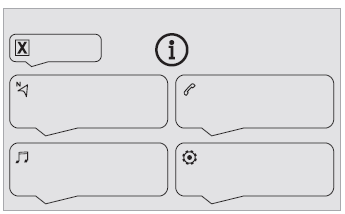
After you select a menu, commands are offered.
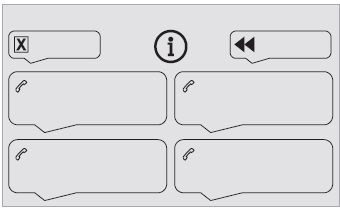
 Press the voice command button and say your command after the beep. Remember that you can interrupt me at any time by pressing this button. You can press this same button again while I am listening if you want to end the conversation. If you are lost and want to cancel the current action, say "cancel". If you want to go back and start again, say "back". To get help or advice, say "help". If you say a command and I need more information, I will give you examples to help you provide the information I need, or I will guide you.
You will find more information in "beginner" mode. If you feel more comfortable, you can set voice interaction to "expert" mode.
Global voice commands
 Voice Commands
Set voice interaction to expert or beginner mode
Select profile 1 / Select profile Jean
Increase temperature
Decrease temperature
 Help messages
I can help you in many areas. You can say: "help phone", "help navigation", "help media" or "help radio". To find out more about using voice commands, you can say "help voice commands".
Say "yes" if I have understood your request correctly.
Otherwise, say "no" to start again.
Voice commands "Navigation"
Voice Commands
Guide to home
Guide to office
Guide to favourite destination, Tennis Club
Guide to contact Jean
Guide to address 11 rue Matignon, Paris
Help messages
To start guidance, say "guide to" followed by the address, contact name or intersection. For example, say "guide to address, 11 rue de Rennes, Paris", "guide to contact, Jean" or "guide to intersection of rue de Rennes, Paris". You can also specify whether it is a favourite destination or a point of interest. For example, say "guide to favourite destination, tennis club", "guide to point of interest Charles de Gaulle airport in Paris", or "guide to home". To show POI on the map, you can say "show point of interest hotels in Paris" or "show point of interest petrol stations nearby". For more information, say "help points of interest" or "help guidance".
To choose a destination, say "guide to line three" or "select the second line".
If you cannot find the destination but the street is correct, say for example "select street line three". To scroll through the list, say "next page" or "previous page". You can go back and start again by saying "back", or say "cancel" to interrupt the current action.
Voice Commands
What is the remaining distance?
What is the remaining time?
What is the arrival time?
Stop guidance
Help messages
You can say "deactivate" or "resume guidance". You can get information about your route by saying, for example, "remaining time", "remaining distance" or "arrival time".
Say "help navigation" to find out more.
Voice Commands
Show POI hotel at destination
Show POI petrol station nearby
Guide to point of interest Charles de Gaulle Airport in Paris
Guide to point of interest petrol station on route
Help messages
To show POI on the map, you can say "show point of interest hotel in Paris", "show point of interest car park nearby", "show point of interest hotel at destination" or "show point of interest petrol stations on route". If you prefer to navigate directly to a point of interest, say "guide to point of interest petrol station nearby". If you feel you are not being understood well, try saying the term "point of interest" before the point of interest. For example, say "navigate to point of interest restaurant at destination".
To choose a point of interest, say "select the second line". If you are looking for a point of interest and cannot find it in the list, you can filter the list by saying "select POI type line 2" or "select city line three". To scroll through the list, say "next page" or "previous page".
Depending on the country, give destination instructions (address) in line with the system language.
Voice commands "Radio Media"
Voice Commands
Switch on source - Bluetooth streaming
- ...
Help messages
To select an audio source, say "switch on source" followed by the name of the device. For example, "switch on source, Bluetooth" or "switch on source, radio". Use the "play" command to select the music you want to listen to. You can choose between "track", "artist" or "album". Simply say "play artist Alizée", "play track L'Été Indien" or "play album Discovery".
Voice Commands
Play radio France Inter
Play 98.5 FM / Tune to 98.5 FM
Play preset five
Help messages
You can select a radio station by saying "tune to" followed by the name or frequency of the station you want to listen to.
For example, you can say "tune to France Musique radio" or "tune to 98.5 FM".
To listen to a stored station, say for example "tune to preset five".
Voice Commands
What would you like to listen to?
Help messages
To choose what you want to listen to, say "listen to" followed by your choice. For example, say "listen to track L'Été Indien", "listen to line 3" or "select line 2". You can go back and start again by saying "back", or say "cancel" to stop the current action.
Voice Commands
Listen to track Marcher dans le sable
Listen to artist Madonna
Listen to album Discovery
Help messages
I did not understand what you want to listen to.
Say "listen to" followed by the name of a track, an artist or an album. For example, say "listen to track Allumer le feu", "listen to artist Madonna" or "listen to album Grain de sable".
You can also say "select line two". To move through a list, say "next page" or "previous page".
You can go back and start again by saying "back", or say "cancel" to stop the current action.
Media voice commands are only available with a USB connection.
"Phone" voice commands
If no phone is connected via Bluetooth, a voice message announces: "Please connect a phone first" and the voice session will close.
Voice Commands
Call Patrice*
Call voicemail*
Show calls*
Help messages
To make a call, say "call" followed by the contact name, for example "call Jean-Pierre". You can also specify the phone type by saying, for example, "call Jean-Pierre at home". To make a call using a phone number, say "dial" followed by the phone number, for example "dial 01 23 45 67 89". To check your voicemail, you can say "call voicemail". To send a message, say for example "send a quick message to Jean-Pierre" followed by the name of the quick message you want to send.
For example, "send a quick message to Jean-Pierre", "I will be late". To display the call list, say "show calls".
For more information on messages, say "help with messages".
To choose a contact, say for example "select line three". You can scroll through the list by saying "next page" or "previous page".
* This function is only available if the phone connected to the system supports downloading the directory and recent calls, and if the download has been carried out.
** This function is only available if the phone connected to the system supports downloading the directory and recent calls, and if the download has been carried out.
You can go back and start again by saying "back", or say "cancel" to stop the current action.
"Text messages" voice commands
If no phone is connected via Bluetooth, a voice message announces: "Please connect a phone first" and the voice session will close.
The "Text messages" voice commands allow you to dictate and send a text message (SMS).
Dictate the text, making sure to pause briefly between each word.
At the end of the operation, the voice recognition system will automatically create a text message.
Voice Commands
Send quick message to Jean, I will be late
Help messages
You can send a quick message by specifying the recipient's name. To move through the list, say "go to start", "go to end", "next page" or "previous page". You can go back and start again by saying "back", or say "cancel" to stop the current action.
Voice Commands
Send a text message to Jean, I have just arrived
Send a text message to Jean at the office, do not wait for me
Help messages
You can say "call" or "send a message to" and then select a line in the list. To move through a list, say "go to top", "go to bottom", "next page" or "previous page". You can go back and start again by saying "back", or say "cancel" to stop the current action.
Voice Commands
Read last message**
Help messages
To listen to the last message, say "read last message". To send a message, you can use the pre-recorded quick messages. Simply use the quick message name, for example "send a quick message to Jean-Pierre, I will be late". You will find the list of quick messages in the phone menu.
The system only sends pre-recorded "Quick messages".
* This function is only available if the phone connected to the system supports downloading the directory and recent calls, and if the download has been carried out.
** This function is only available if the phone connected to the system supports downloading the directory and recent calls, and if the download has been carried out.
Test yourself
A quick Citroen C5 Aircross quiz: every answer comes with an explanation and a link to the manual page.