Using the Voice Recognition Phone System
Phone Control Buttons
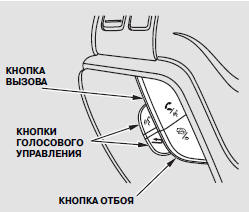
TALK BUTTON - Press and release this button to give a voice command or answer an incoming call.
END/BACK BUTTON - Press and release this button to end a call, return to the previous command or cancel a command.
Voice Command Tips
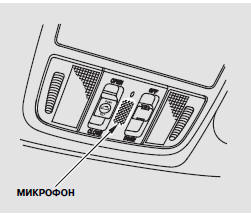
• Air noise from the control panel vents or through the windows may interfere with microphone operation. Adjust their position or close them completely if necessary.
• Press and release the talk button before speaking a command. Speak clearly in a normal voice after the short beep.
• Try to reduce background noise.
If the microphone picks up sounds other than your voice, the command may not be recognized.
• Many commands can be spoken in a continuous phrase. For example, you can say "Call 123-456-####" or "Dial Peter".
• While the Voice Recognition Phone System is active, navigation system commands are not recognized.
• To adjust the volume of the Voice Recognition Phone System, use the audio system volume control or the steering wheel buttons.
Voice Recognition Phone System Help
• To hear general information about the Voice Recognition Phone System, including information on using the voice buttons, voice commands and phone calls, say "Tutorial".
• You can get help at any time, including help with voice commands, by saying "Hands free help".
Information Display
An incoming call notification message appears on the information display as shown in the illustration.
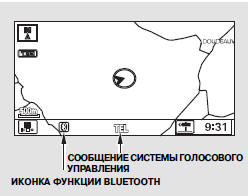
When an incoming call is received or the Voice Recognition Phone System is in use, the "TEL" message appears at the bottom of the screen.
However, if the current street name and the AUDIO INFO icon are displayed on the screen, the "TEL" message does not appear when an incoming call is received.
Bluetooth Function Icon is displayed on the screen when a connection to the phone is established.
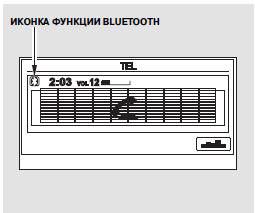
The incoming call or Voice Recognition Phone System message is displayed on the navigation system screen when the audio system is turned on.
Display is displayed when a connection to the phone is established.
Test yourself
A quick Honda CR-V quiz: every answer comes with an explanation and a link to the manual page.