Phone Book
The phone system memory can store up to 50 names with their phone numbers. The numbers you store do not have to be only phone numbers. They can also be other types of numbers, such as account numbers or passwords that can be sent in menu-controlled call mode.
Storing Entries in the Phonebook:
Press and release the talk button before speaking a command.
1. Say "Phonebook."
2. Say "Store" after the prompt.
3. Say the name under which you want to store the phonebook entry.
4. Say the number you want to store for this name.
5. Follow the voice prompts from the phone system and say "Enter" to store the entry.
• Do not use the same name for different entries.
• Do not use "home" as a name.
• The phone system's voice recognition can more easily recognize names with several syllables or relatively long names. For example, it is easier for the system to recognize "Peter" rather than "Pete," or "John Smith" rather than "John."
Editing a Stored Number:
Press and release the talk button before speaking a command.
1. Say "Phonebook."
2. After the prompt, say "Edit".
3. Follow the voice prompts from the phone system and say the name of the entry you want to edit.
4. When prompted, say the new number for this name.
5. Follow the voice prompts from the phone system to complete the editing procedure.
Deleting a Name:
Press and release the talk button before speaking a command.
1. Say "Phonebook."
2. After the prompt, say "Delete".
3. Say the name you want to delete, then follow the voice prompts from the phone system to complete the deletion procedure.
Listening to All Names Stored in the Phonebook:
Press and release the talk button before speaking a command.
1. Say "Phonebook."
2. Say "List" after the prompt.
3. The phone system will begin playing back the names in the order they were stored.
4. When you hear the name of the person you want to call, immediately press the call button and say "Call."
Storing a Phone Number from Your Mobile Phone in the Phone System Phonebook (for certain phone models):
Press and release the talk button before speaking a command.
1. Say "Phonebook."
2. Say "Receive contact" after the prompt.
3. Follow the voice prompts from the phone system to select the phone number stored in your mobile phone memory and transfer it to the phone system.
4. Follow the voice prompts from the phone system to assign a name to the phone number. Say "Discard" if this is not the number you want to store.
5. Follow the voice prompts from the phone system if you want to store another number.
Mobile Phonebook (for certain phone models)
If you select "Mobile Phonebook" in the information menu, a menu with four options will appear.
For information on mobile phones that are compatible with this function:
visit the website
www.hondahandsfree. com
Importing Data:
All data contained in the phonebook of a mobile phone connected to the phone system can be downloaded to the navigation system.
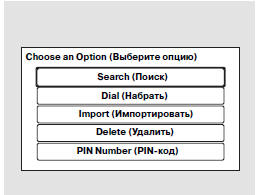
Select "Import," and the phone system will begin downloading the phonebook data. When the download is complete, select "OK."
Search:
After the phonebook data has been downloaded, you can search for phone numbers by contact name.
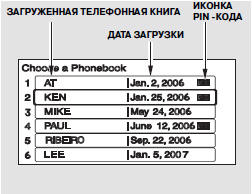
Select "Search," and a list of downloaded phonebooks will appear on the screen.
Select a phonebook from the list.

If the selected phonebook is protected by a PIN, you will need to enter the 4-digit code to access it.

To search for a name in the phone book, enter the first letters of the first or last name.
To display all names, press the "List" soft key.
Select a contact from the list. Up to three category icons may be displayed on the left side of the list.
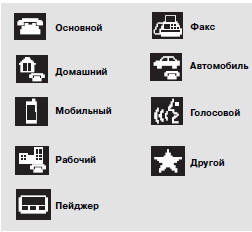
The icons indicate the number of phone numbers stored for the contact. If more than three numbers (categories) are stored for the contact, an ellipsis "..." will be displayed.
Select the phone number of the contact you want to call, then press the call button.
Deleting:
You can delete any of the downloaded phonebooks.
Select "Delete," and a list of downloaded phonebooks will appear on the screen.
Select the phonebook you want to delete. If the selected phonebook is protected by a PIN, you will need to enter the 4-digit code to access it.
After you make your selection, the following screen will appear.
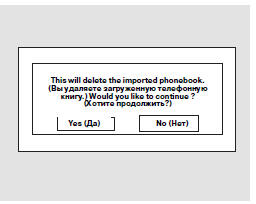
Select "Yes," then select "OK" to complete the deletion procedure.
PIN Code
You can add, change, or delete the PIN code that protects the phonebook from access.
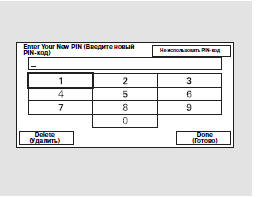
Adding a PIN code:
If you select a phonebook that is not protected by a PIN code, the screen shown above will appear on the display.
Enter a new 4-digit PIN code. You will need to enter the PIN code again to confirm it.
Changing the PIN code:

Select the desired phonebook.
The screen shown in the illustration above will appear on the display.
Enter the PIN code that is valid for this phonebook.
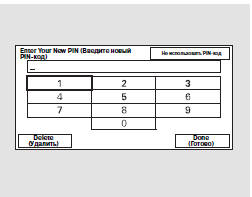
The screen shown in the illustration above will appear on the display.
Enter a new 4-digit PIN code. The system will prompt you to enter the PIN code again to confirm it.
Deleting the PIN code:
After entering the valid PIN code, select "PIN number," then select the option "Do not use PIN."
Test yourself
A quick Honda CR-V quiz: every answer comes with an explanation and a link to the manual page.