How to Save/Delete the Digital Key (Card Key)
Saving the Digital Key (Card Key)
1. Turn on the vehicle with the smart key and make sure to keep the smart key inside the vehicle during digital key registration.
2. Install the Hyundai Digital Key app on your smartphone and set up the Digital Key.
3. Using the Pair Card Key menu in the app, activate the card key registration mode.
- NFC authentication: Enter the NFC authentication menu and touch your smartphone to the outside door handle.
- Bluetooth authentication: Enter the Bluetooth authentication menu and press the OK button.
Information
- If you activate the registration mode, complete the card key saving process within 5 minutes.
- If you have not registered a Digital Key (Card Key), register the Digital Key (Card Key) with two Smart Keys.
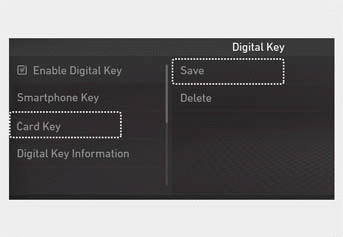
4. Register the Digital Key (Card Key) in the infotainment system. From the Settings menu, go to Settings > Vehicle > Digital Key > Card Key, then select Save.
Information
The Save button is not available if a Digital Key (Card Key) is already saved.
If you need to save a new Digital Key (Card Key), delete the previous Digital Key (Card Key) using the "Deleting the Digital Key (Card Key)" function in this chapter.
5. Place the Digital Key (Card Key) on the vehicle authentication panel (wireless charging pad). The process starts automatically.
If successful, a message appears on the infotainment system screen or the instrument cluster.
Once the Digital Key (Card Key) has been registered, it cannot be used with another vehicle.
Test yourself
A quick Hyundai Tucson LM quiz: every answer comes with an explanation and a link to the manual page.