How to Save/Delete a Digital Key (Smartphone Key)
Digital Key Setup (Smartphone Key)
If Near Field Communication (NFC) is enabled on your phone and your smartphone screen is unlocked, you can use the digital key function.
Saving a Digital Key (Smartphone Key)
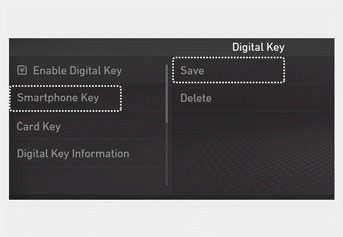
1. Turn on the vehicle with the smart key and make sure to keep the smart key inside the vehicle during digital key registration.
2. Register your digital key (smartphone key) in the infotainment system. From the Settings menu, go to Setting > Vehicle > Digital Key > Smartphone Key, then select Save.
3. Select the vehicle to save in the Hyundai Digital Key app and activate save mode.
Information
If the Save button is inactive, delete the previously saved digital key (smartphone key) using the "Deleting a Digital Key (Smartphone Key)" function in this chapter.
Refer to the Hyundai Digital Key app manual, then delete the previously saved key from your smartphone.
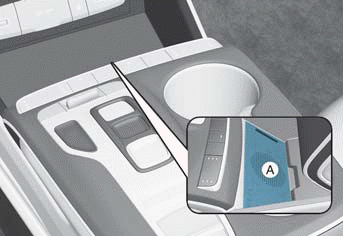
A: Vehicle Authentication Panel (wireless charging pad)
4. Place your smartphone face up on the vehicle authentication panel (wireless charging pad) to start the save process.
Once the digital key (smartphone key) is saved, a message appears on the infotainment system screen or instrument cluster.
5. Remove the smartphone from the vehicle authentication panel (wireless charging pad), then complete the save process in the app.
Deleting a Digital Key (Smartphone Key)
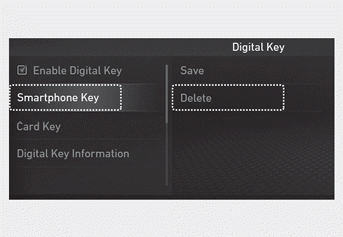
1. Turn on the vehicle with the smart key and make sure to keep the smart key inside the vehicle during the deletion process.
2. Delete your Digital Key (Smartphone Key) from the infotainment system. From the Settings menu, go to Settings > Vehicle > Digital Key > Smartphone Key, then select Delete.
Once the Digital Key (Smartphone Key) deletion is complete, a message appears on the infotainment system screen or the instrument cluster.
Information
The Delete button is not available if no Digital Key (Smartphone Key) is saved.
3. Go to the "Initialize Digital Key" menu in the Hyundai Digital Key app and select the vehicle to delete the digital key information:
Menu > Initialize Digital Key
Information
- If the saved Digital Key (Smartphone Key) information in your vehicle is deleted during vehicle maintenance, the Digital Key (Smartphone Key) on your smartphone must also be deleted.
- For more information, refer to the tutorial in your Hyundai Digital Key app.
Information
The following prevents the process from being saved and must be completed:
- If the smartphone is removed from the vehicle authentication panel (wireless charging pad).
- If the infotainment system or instrument cluster screen changes during this process.
- If the vehicle is turned off.
- If the shift lever is moved.
- If you attempt to save using a smartphone that is not registered to the vehicle's owner ID, or if you attempt to save a card key.
- If NFC is turned off on your smartphone.
- If the smartphone screen turns off or is locked.
- If there is no Smart Key present during the saving process.
Test yourself
A quick Hyundai Tucson LM quiz: every answer comes with an explanation and a link to the manual page.