Using Bluetooth® Wireless Technology
Phone Menu Screen
Phone Menu
With a Bluetooth® Wireless Technology device connected, press the Press the
key to display the phone menu screen.
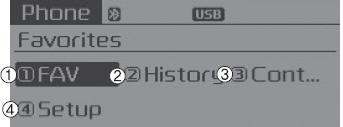
1) Favorites:
Up to 20 frequently used contacts can be saved for quick access.
2) Call History:
Displays the call history list screen.
3) Contacts:
Displays the contacts list screen.
4) Settings:
Displays phone-related settings.
- If you select [Call History] but no call history data is available, a prompt requesting download of call history data is displayed.
- If you select [Contacts] but no contact data is saved, a prompt requesting download of contact data is displayed.
- This function may not be supported on some mobile phones. For more information on download support, refer to your mobile phone's owner's manual.
Answering Calls
Answering a Call
When answering a call with a connected Bluetooth® Wireless Technology device, the following screen is displayed. To answer the call, press the key on the steering wheel during an incoming call.
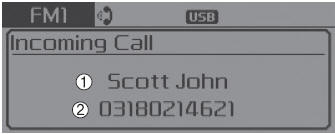
1) Caller:
Displays the name of the caller when the incoming caller is saved in your contacts.
2) Incoming number:
Displays the incoming phone number.
- When the incoming call pop-up is displayed, most functions of the Audio and SETUP modes are disabled. Only call volume can be adjusted.
- The phone number may not be displayed correctly on some mobile phones.
- When a call is answered on the mobile phone, the call mode automatically switches back to private mode.
Favorites
press key
 Select [Favorites]
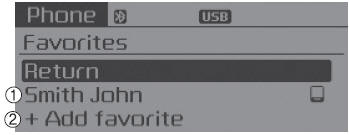
1) Saved favorite contact: Connects a call after selection
2) To add to favorites: Downloaded contacts will be saved as favorites.
- To save Favorites, contacts must be downloaded.
- A contact saved in Favorites will not be automatically updated if the contact is updated on the phone. To update Favorites, delete the Favorite and create a new Favorite.
Call History
press key
 Select [Call History].
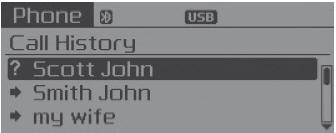
A list of incoming, outgoing, and missed calls is displayed.
- Call history may not be saved in the call history list on some mobile phones.
- Calls received with a hidden caller ID will not be saved in the call history list.
- Calling from the call history is not possible when no call history is saved or when the phone with Bluetooth® Wireless Technology is not connected.
- Up to 20 received, dialed, and missed calls are saved in the call history.
- The time of received/dialed calls and call duration information are not saved in the Call History.
Contacts
press key
 Select [Contacts].
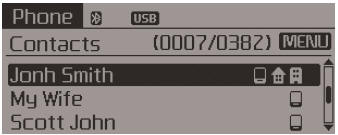
A list of stored phone book entries is displayed.
NOTE:
To find a contact alphabetically, press the  key.
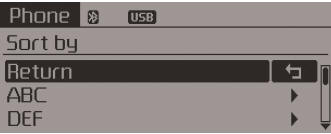
- Up to 1000 contacts stored in your Bluetooth® Wireless Technology phone can be downloaded to the vehicle contacts. Contacts that have been downloaded to the vehicle cannot be edited or deleted on the phone.
- Mobile phone contacts are managed separately for each paired Bluetooth® device (up to 5 devices with 1000 contacts each). Previously downloaded data is retained even if the Bluetooth® Wireless Technology device is disconnected. (However, contacts and call history stored in the phone will be deleted if the paired phone is deleted.)
- Contacts can be downloaded during Bluetooth audio streaming.
- When contacts are being downloaded, an icon will be displayed on the status bar.
- The contact download cannot start when the contact download function is disabled on the Bluetooth® Wireless Technology device. In addition, some devices may require device authorization when attempting to download contacts. If the download does not normally occur, check the Bluetooth® Wireless Technology device settings or screen status.
- The contact download function may not be supported on some mobile phones. For more information on supported Bluetooth® devices and feature support, refer to your phone's owner's manual.
Test yourself
A quick Kia Sorento Owner's Manual quiz: every answer comes with an explanation and a link to the manual page.