Bluetooth® Wireless Technology
Pairing a Bluetooth® Wireless Technology Device
What is Bluetooth® Wireless Technology Pairing?
Pairing is the process of synchronizing your Bluetooth® Wireless Technology phone or device with the vehicle audio system for connection.
Pairing is required to connect and use the Bluetooth® Wireless Technology function.
The Bluetooth® word mark and logos are registered trademarks owned by Bluetooth SIG, Inc., and any use of such marks by Kia is under license.
Other trademarks and trade names are those of their respective owners.
A Bluetooth®-enabled cell phone is required to use Bluetooth® Wireless Technology.
WARNING
Distracted driving may result in loss of vehicle control, which may lead to an accident, severe personal injury and death. The primary responsibility of the driver is the safe and legal operation of the vehicle. Portable devices, other equipment or vehicle systems that take the driver's eyes, attention and focus away from the safe operation of the vehicle, or that are not permitted by law, must never be used while operating the vehicle.
Pairing 
Key / 
Steering Wheel Key Controller
When no device has been paired
1. Press the
key or
steering wheel remote control key. The following screen appears.
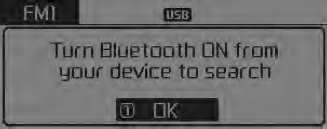
2. Press the [OK] button to display the phone pairing screen.
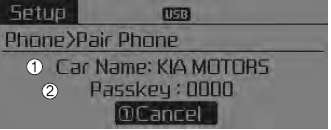
1) Vehicle name:
Device name as displayed when searching for the Bluetooth® Wireless Technology device
2) Passkey:
Passkey used to pair the device
3. On the Bluetooth® Wireless Technology device (e.g., a mobile phone), search for and select your vehicle's audio system.
[Device Not Supporting SSP] (SSP: Secure Simple Pairing)
4. After a few seconds, a screen for entering the passkey will appear. When you hear a beep, enter the passkey "0000" to connect your Bluetooth® Wireless Technology device to the vehicle audio system.
[Device Supporting SSP]
4. After a few seconds, a 6-digit passkey will be displayed on the screen.
Listen, check the passkey on the Bluetooth® Wireless Technology device and confirm.
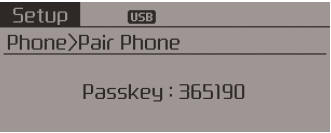
5. When pairing is complete, the following screen will be displayed.
Some phones (e.g., iPhone, Android and BlackBerry phones) may offer an option to allow all future Bluetooth connection requests by default." and "Visit http://www.kia.com/#/bluetooth for more information on pairing your Bluetooth-enabled mobile phone and for a list of compatible phones.
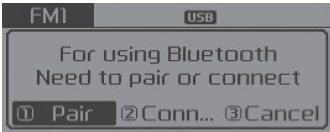
If Bluetooth® Wireless Technology devices are paired but none is currently connected, pressing
key or
on the steering wheel displays the following screen. Select the [Pair] button to pair a new device, or select [Connect] to connect a previously paired device.
Pairing Through the [PHONE] Setting
press
key
Select [Phone] Select [Connect Phone]
 Select
 SETUP knob
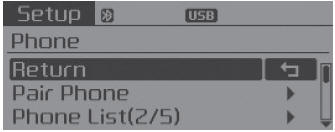
The following steps are similar to those described in "If No Devices Have Been Paired" on the previous page.
- The Bluetooth® Wireless Technology functions supported by the vehicle are as follows. Some functions may not be supported depending on the Bluetooth® Wireless Technology device. Outgoing/incoming hands-free calls. Operations during a call (Switch to private, Switch to call waiting, Microphone on/off). Downloading call history. Downloading mobile phone contacts. Bluetooth® Wireless Technology automatic device connection. Bluetooth audio streaming.
- Up to five Bluetooth® Wireless Technology devices can be registered to the vehicle's hands-free system.
- Only one Bluetooth® device can be connected at a time.
- Only one Bluetooth® Wireless Technology device can be connected at a time.
- Other devices cannot be paired while a Bluetooth® Wireless Technology device is connected.
- Only Bluetooth® Wireless Technology hands-free and Bluetooth audio functions are supported.
- Bluetooth operations are only possible with devices that support hands-free or audio functions, such as a Bluetooth® Wireless Technology mobile phone or Bluetooth audio device.
- If a connected Bluetooth® Wireless Technology device is disconnected due to being out of communication range, the device being turned off, or a Bluetooth® Wireless Technology communication error, the Bluetooth® Wireless Technology device will be automatically searched for and reconnected.
- If the system becomes unstable due to communication errors between the Handsfree system and the Bluetooth® Wireless Technology device, restart the device by turning it off and on again. If the Bluetooth® Wireless Technology settings are reset, the device and the system will be restored.
- After pairing is complete, a request to download contacts is sent once to the mobile phone. Some mobile phones may require confirmation when receiving the download request. Make sure your mobile phone accepts the connection. Refer to your phone's owner's manual for more information on pairing and connecting the phone.
Connecting a Device
press
key
Select [Phone]
Select [Phone List]
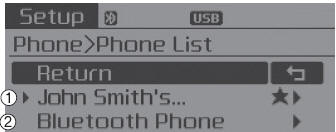
1) Connected phone: The device that is currently connected
2) Paired phone: A paired but not connected device.
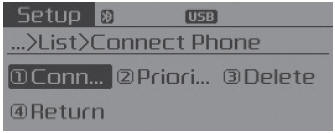
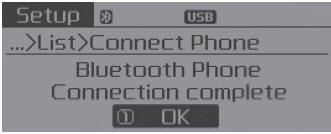
In the paired phones list, select the device you want to connect and select [Connect].
Changing Priority
What is priority?
Up to five Bluetooth® Wireless Technology devices can be paired with the vehicle audio system.
The [Change Priority] function is used to set the connection priority for paired phones.
press
key Select
[Phone] Select
[Phone List]
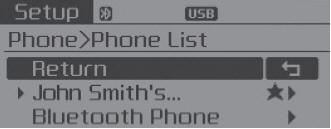
In the paired phones list, select the phone you want to set as the highest priority, then select the [Change Priority] button in the menu. The selected device will be changed to the highest priority.

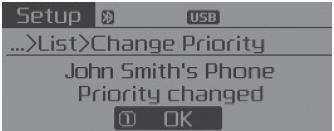
The priority icon will be displayed when the selected phone is set as the priority phone.
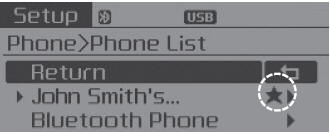
Disconnecting a Device
press
key Select
[Phone] Select
[Phone List]
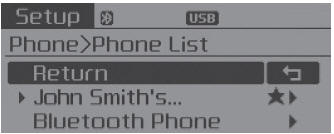
In the paired phones list, select the currently connected device and select the [Disconnect] button.
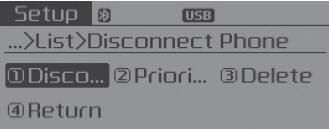
Deleting a Device
press
key Select
[Phone] Select
[Phone List]
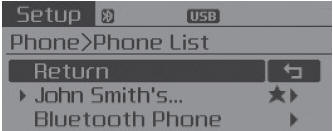
In the paired phones list, select the device you want to delete and select the [Delete] button.
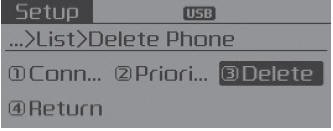
- When deleting the currently connected device, it will automatically disconnect before the deletion process continues.
- If a paired Bluetooth® Wireless Technology device is deleted, its call history and contact data will also be deleted.
- To reuse a deleted device, the device must be paired again.
Test yourself
A quick Kia Sorento Owner's Manual quiz: every answer comes with an explanation and a link to the manual page.