Bluetooth® Wireless Technology Setup
The Bluetooth® word mark and logos are registered trademarks owned by Bluetooth SIG, Inc., and any use of such marks by Kia is under license.
Other trademarks and trade names are the property of their respective owners. A compatible cellular phone is required to use Bluetooth® Wireless Technology.
WARNING
Distracted driving may result in loss of vehicle control, which may lead to an accident, severe personal injury and death. The primary responsibility of the driver is the safe and legal operation of the vehicle. Portable devices, other equipment or vehicle systems that take the driver's eyes, attention and focus away from the safe operation of the vehicle, or that are not permitted by law, must never be used while operating the vehicle.
Pairing a New Device
press key
 Select [Phone]
 Select [Connect Phone].
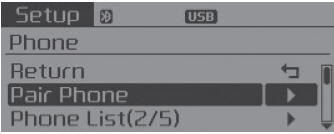
Bluetooth® Wireless Technology devices can be paired with the audio system.
Viewing the Paired Phone List
press key
 Select [Phone]

Select [Phone List]
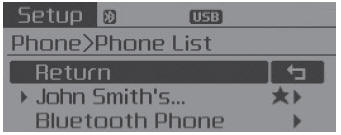
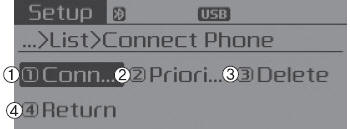
This function is used to view mobile phones paired with the audio system. After selecting a paired phone, the setup menu is displayed.
1) Connect/Disconnect Phone:
Connects/disconnects the currently selected phone.
2) Change Priority:
Sets the currently selected phone to the highest connection priority.
3) Delete:
Deletes the currently selected phone.
4) Back:
Returns to the previous screen.
- To find out whether your mobile phone supports contact download, refer to your mobile phone's owner's manual.
- Only contacts of the connected phone can be downloaded.
Downloading Contacts
press key
 Select [Phone]

Select [Download Contacts]
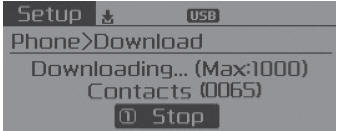
When contacts are being downloaded from the mobile phone, a download progress indicator is displayed.
- When downloading phone contacts, previous related data is deleted.
- This function may not be supported on some mobile phones.
- Voice recognition may not work while contacts are being downloaded.
Auto Download (Contacts)
press key
 Select [Phone]

Select [Auto Download]
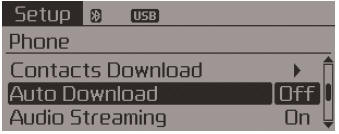
This function is used to automatically download mobile phone contact records once the phone is connected via Bluetooth® wireless technology.
✽ NOTICE
- The auto download function will download mobile phone contact records each time the phone is connected. The download time may vary depending on the number of stored contact records and the communication condition.
- Before downloading contacts, first make sure that your mobile phone supports the contact download function.
Streaming Audio
press key
 Select [Phone]
 Select [Streaming Audio].
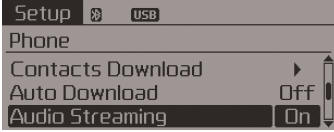
If Audio Streaming is enabled, you can play music files stored on your Bluetooth® Wireless Technology device through the audio system.
Outgoing Volume
press key
 Select [Phone]
 Select [Outgoing Volume].
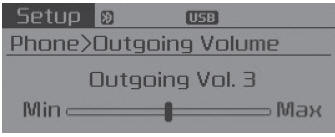
Use Turn the TUNE knob to adjust the outgoing
volume level.
During a call, the volume can be adjusted using the key.
Turning Off the Bluetooth System
press key
 Select [Phone]
 Select [Bluetooth System Off].
After Bluetooth® wireless technology is turned off, the related Bluetooth® wireless technology functions will not be supported by the audio system.
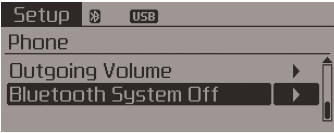
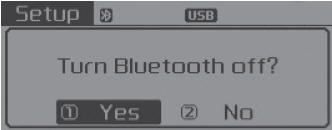
To turn Bluetooth® Wireless Technology back on, go to
 [Phone] and select "Yes".
Test yourself
A quick Kia Sorento Owner's Manual quiz: every answer comes with an explanation and a link to the manual page.