Radio
Changing the RADIO mode
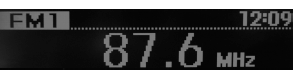
Press the button to change the mode in sequence between FM1 ➟ FM2 ➟ AM.
- When the power is off, press the button
 to
turn it on and receive radio stations.
Volume Adjustment
To adjust the volume, turn the volume knob (VOL) left/
right.
SEEK button (Automatic radio frequency search)
Press the button ,

- Short press of the button (less than 0.8 seconds): Automatically searches for the next frequency.
- Press and hold the button: Automatically searches for frequencies starting from the moment the button is pressed and released.
SEEK presetting (with Automatic radio frequency search)
Press the button
 ~

- Short press of the button (less than 0.8 seconds): Plays the radio station stored under the corresponding button.
- Press and hold the button (more than 0.8 seconds): Press and hold the desired button starting from
 ~
to store the frequency of the currently received radio station under the selected button, and a beep will sound.
AST (Auto store frequency)
Press the button
- Short press of the button (less than 0.8 seconds): Stores the radio station frequencies with the best reception under buttons 1~6. If no newer frequency can be received, the last received radio station is played.
- Press and hold the button (more than 0.8 seconds): Allows you to scan (preview) each radio station stored under buttons
 ~

for 5 seconds.
Selecting during manual search
Turn the tuning knob
(TUNE) left/right to adjust the frequency.
- FM: Changes in 100 kHz steps
- AM: Changes in 9 kHz steps
- To use a USB device, make sure the device is not connected when starting the vehicle.
Connect the device after starting the vehicle.
- If the engine is started while a USB device is connected, the USB device may be damaged.
(USB drives are very sensitive to electrical surges.)
- If the engine is started or stopped while a USB device is connected, the external USB device may not work.
- It may not be able to play non-genuine MP3 or WMA files.
- It can play MP3 files with a compression rate from 8 kb/s to 320 kb/s.
- It can only play WMA music files with a compression rate from 8 kb/s to 320 kb/s.
- When connecting and disconnecting an internal or external USB device, take precautions against static electricity.
- Encrypted MP3 PLAYERS are not recognized.
- Depending on the condition of the external USB device, the connected external USB device may not be recognized.
- If the formatted byte/sector setting of the external USB device is not 512 BYTES or 2048 BYTES, the device will not be recognized.
- Use only USB devices formatted to FAT 12/16/32.
- USB devices without USB I/F authentication may not be recognized.
- Make sure the USB port does not come into contact with the human body or other objects.
- Repeatedly connecting and disconnecting the USB device at short intervals may damage it.
- A strange sound may be heard when connecting and disconnecting the USB device.
- If the external USB device is disconnected while in USB playback mode, the device may be damaged or malfunction. Therefore, disconnect the external USB device only when the audio system is off or in another operating mode.
(e.g., Radio or CD)
- Depending on the type or capacity of the external USB device or the type of files stored on it, the time needed for recognition will vary.
- Do not use the USB device for any purpose other than playing music files.
- Playback of USB video files is not supported.
- Using USB accessories such as chargers or heaters with the USB I/F may reduce performance or cause damage.
- If you use separately purchased devices such as USB network hubs, the vehicle audio system may not recognize the USB device. In this case, connect the USB device directly to the vehicle's multimedia port.
- If the USB device is divided into logical drives, the vehicle audio system will only recognize music files on the drive with the highest priority.
- Devices such as MP3 players / mobile phones / digital cameras that are not recognized by the USB I/F standard may not be recognized.
- Charging via USB may not be supported on some devices.
*Only use an iPod cable (supplied or sold separately) to connect an iPod.
- Some non-standard USB devices (METAL-CASED USB TYPES) may not be recognized.
- Some USB mass storage card readers (such as CF, SD, microSD, etc.) or external hard drives (HDD) may not be recognized.
- Music files protected by DRM (DIGITAL RIGHTS MANAGEMENT) are not recognized.
- While using the audio system, data in the USB memory may be lost.
Always keep important data on a separate data storage medium.
- Do not use USB memory devices that are designed as key fobs or phone accessories, as they may damage the USB socket. Use only products with a plug as shown in the illustration.

NOTE - Playing incompatible copy-protected audio CDs Some copy-protected audio CDs that do not comply with international audio CD standards (Red Book) may not play in the vehicle's audio system.
Please note that if you try to play copy-protected audio CDs that the CD player cannot play correctly, the CDs may be damaged, not the player.
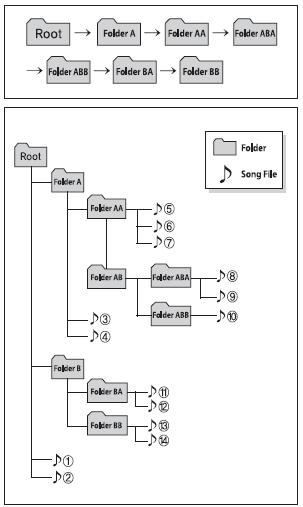
NOTE: Playback order of files (folders):
- Track playback order: 1 to 14 in sequence.
- Folder playback order: ❋ If a folder contains no songs, the folder is not displayed.
NOTES ON USING THE IPOD
- Some iPod models may not support the communication protocol, and files will not play.
- Supported iPod models:
- iPod mini
- iPod 4th generation (Photo) ~ 6th generation (Classic)
- iPod nano 1st ~ 4th generation
- iPod touch 1st ~ 2nd generation
- The search or playback order of songs on the iPod may differ from the search order in the audio system.
- If the iPod switches off due to a malfunction, reset it.
- To operate the iPod with the audio system's buttons, a Kia iPod power cable is required. An Apple USB cable may cause malfunctions and must not be used in Kia vehicles.
❋ The Kia iPod power cable can be purchased from the Kia sales network.
- When connecting the iPod with the iPod power cable, insert the connector fully into the multimedia jack. If it is not inserted fully, communication between the iPod and the audio system may be interrupted.
- When adjusting the sound effects on the iPod and the audio system, the sound effects of both devices may overlap, which can reduce sound quality or cause distortion.
- When adjusting the audio system volume, turn off the iPod equalizer function. When using the iPod equalizer, turn off the audio system equalizer.
- When the iPod cable is connected, the system may switch to AUX mode even without an iPod connected, causing interference. Therefore, disconnect the iPod cable when the device is not in use.
- If the iPod is not used with the vehicle audio system, disconnect the iPod cable from the iPod.
Otherwise, the iPod may remain in accessory mode and not operate correctly.
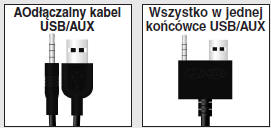
- To connect the iPod, use the USB/AUX connectors.
- When disconnecting the iPod, disconnect both USB/AUX connectors.
- Connect the special iPod cable to both USB/AUX connectors so that the iPod can be charged and operated.
Test yourself
A quick Kia Rio YB quiz: every answer comes with an explanation and a link to the manual page.