Radio
Changing the RADIO mode
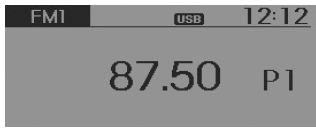
Press the button , to
change the mode in the order FM1 ➟ FM2 ➟ FMA ➟ AM ➟ AMA.
- When the power is off, press the key
 , to turn on the audio system
and receive radio broadcasts. - [Mode Pop-up] On/Off: Displays the mode pop-up screen when changing the radio mode. While the pop-up screen is displayed, you can change the radio mode (FM1 ➟ FM2 ➟ FMA ➟ AM ➟ AMA) using the TUNE knob or the keys.
 ~

.
Volume Adjustment
To adjust the volume, turn the VOL knob left/right.
SEEK (Station Search)
Press the key ,

- Short press the key (less than 0.8 seconds): Changes the frequency.
- Press and hold the key (more than 0.8 seconds): Automatically scans frequencies to find the next frequency.
Preset SEEK (Station Search and Preset)
Press the key
 ~

- Short press the key (less than 0.8 seconds): Plays the frequency of the station stored under the corresponding key.
- Press and hold the key (more than 0.8 seconds): Press and hold the desired key from
 ~
 to
store the currently playing station under the selected key, and a beep will sound.
SCAN
Press the key
- Short press the key (less than 0.8 seconds): The station frequency will increase and the next stations will be played, each for 5 seconds. After scanning all frequencies, the audio system returns to playing the currently received station frequency.
- Press and hold the key (more than 0.8 seconds): Allows listening to radio stations stored under the preset keys
 ~
 ,
each for 5 seconds.
Press the key
- Press and hold the key (more than 0.8 seconds): The station frequency will increase and the next stations will be played, each for 5 seconds. After scanning all frequencies, the audio system returns to playing the currently received station frequency.
Traffic Announcement (TA)
Short press the key (less than 0.8 seconds): Set the mode /
 Traffic
Announcement (TA)
Manual tuning
To adjust the frequency, turn the TUNE knob left/right.
- FM: Changes every 50 kHz
- AM: Changes every 9 kHz
PTY up/down buttons
- Press the key
 /

when searching for PTY in the RDS Broadcasting Program Type selection.
MENU
Under the key are
the A.Store and Info functions.
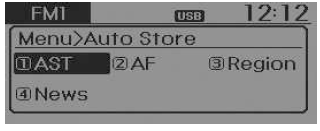
AST (Auto Store) button
Press the [ AST] key using the TUNE knob or
the key .
Select AST (Auto Store) to store the ~

frequencies with the best reception under the preset keys.
If no frequencies are received, the last received station frequency will continue to play.
❈ Stores to preset memories only ~

FMA or AMA modes.
AF (Alternative Frequency)
Press the key Set [2 AF]
using the TUNE knob TUNE knob or
the key .
The Alternative Frequency option can be turned on or off.
Region
Press the key Set [3
Region] using the TUNE knob
or the key .
The Region option can be turned on or off.
News
Press the key Set [4
News] using the TUNE knob TUNE or the button
 .
The News option can be turned on or off.
Info Volume
Info Volume refers to the volume of audio when receiving News or Traffic information.
Info Volume can be adjusted by turning the knob.VOL w
left/right when news or traffic information is being broadcast.
❈ AF, Region and News are menus of the RDS radio.
Disc Care
- If the temperature inside the vehicle is too high, open the windows to ventilate the vehicle before using the audio system.
- Copying and playing MP3 / WMA files without permission is illegal.
NOTE - Playing incompatible copy-protected Audio CDs Some copy-protected CDs that do not comply with international audio CD standards (Red Book) may not be played by the vehicle's audio system. Please note that the inability to play copy-protected CDs properly may indicate a faulty CD, not a faulty CD player.
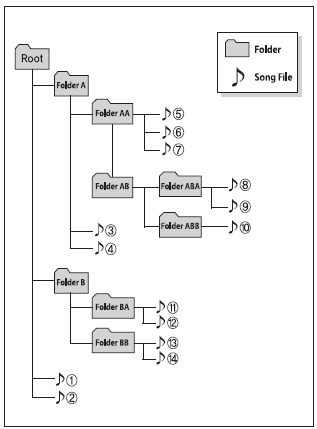
NOTE: Playback order of files (folders):
- Playback order of songs: 1 to 14 in sequence.
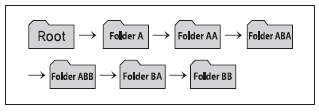
- Playback order of folders:
❋ If a folder contains no songs, the folder will not be displayed.
CAUTIONS FOR USING A USB DEVICE
- To use an external USB device, make sure it is not connected when the engine is started. Connect the device after starting the engine.
- If the engine is started while a USB device is connected, the device may be damaged. (USB flash memory devices are very sensitive to electrical surges.)
- If the engine is started or switched off while an external USB device is connected, the device may stop working.
- The device may not play non-original MP3 or WMA files.
- The device only plays MP3 files with a bit rate from 8 kb/s to 320 kb/s.
- The device only plays WMA music files with a bit rate from 8 kb/s to 320 kb/s.
- Observe electrostatic discharge precautions when connecting and disconnecting an external USB device.
- An encoded MP3 PLAYER will not be detected.
- Depending on the condition of the external USB device, it may not be detected after being connected.
- If the formatted bytes/sector setting of the external USB device is not 512 BYTES or 2048 BYTES, the device may not be detected.
- Use only USB devices formatted in FAT 12/16/32.
- USB devices without USB IF certification may not be detected.
- Take care that the USB connector does not come into contact with the human body or any object.
- Connecting and disconnecting a USB device several times in a short period may damage it.
- An unusual sound may be heard when connecting or disconnecting a USB device.
- If an external USB device is disconnected while playback in USB mode is in progress, the device may be damaged or may start to malfunction. For this reason, disconnect the external USB device when the audio system is switched off or in another mode (e.g. radio or CD).
- Depending on the type and capacity of the external USB device, or the type of files stored on it, recognition may take different amounts of time.
- Do not use the USB device for any purpose other than playing music files.
- Video playback via USB is not supported.
- Using USB accessories such as a charger or heater that use the USB I/F may reduce performance or cause errors.
- If separately purchased devices such as a USB hub are used, they may not be detected by the vehicle's audio system. In this case, connect the USB device directly to the vehicle's multimedia terminal.
- If the USB device is divided into logical drives, the vehicle's audio system will only detect music files on the drive with the highest priority.
- Devices such as an MP3 player, mobile phone or digital camera may not be detected by the standard USB I/F.
- Charging via a USB device may not be supported for some portable devices.
- USB HDDs and USB types that are prone to connection faults caused by vehicle vibration (i-Stick type) are not supported.
- Some non-standard USB devices (USB WITH METAL CASING) may not be detected.
- Some USB flash memory readers (such as CF, SD, micro SD, etc.) or external hard disk devices may not be detected.
- Music files protected by DRM (Digital Rights Management) are not detected.
- Using them may result in loss of data stored on the USB device.
- Always back up important data on a personal data storage device.
- Avoid using USB devices with built-in memory that can be used as key rings or mobile phone accessories, as they may damage the USB port. Be sure to use only connectors of the type shown in the illustration below.

NOTES ON USING THE IPOD
- Some iPod models may not support the communication protocol, so files stored on them will not play correctly.
- Supported iPod models:
- iPod mini
- iPod 4th generation (Photo) ~ 6th (Classic)
- iPod nano 1st~4th generation.
- iPod touch 1st~2nd generation.
- The order in which songs are searched or played on the iPod may differ from the order used by the audio system.
- If the iPod freezes due to an internal error, reset it.
- When connecting the iPod using the iPod power cable, insert the connector fully into the multimedia jack.
If the connector is not fully inserted, communication between the iPod and the audio system may be interrupted.
- When sound effects are set on both the iPod and the audio system, they may overlap, degrading sound quality or distorting it.
- If the audio system volume is adjusted, turn off the iPod equalizer. If the iPod equalizer is used, turn off the audio system equalizer.
- When using the iPod through the car audio system, disconnect the iPod cable from the iPod. Otherwise, the iPod may remain in accessory mode and may not operate properly.
NOTES ON USING MY MUSIC
- Even if memory is available, up to 6000 songs can be saved.
- The same song can be copied up to 1000 times.
- Memory information can be checked in the System Setup menu.
NOTES ON USING AUX (AUXILIARY INPUT JACK)
- To use an external device, insert the AUX cable plug fully into the AUX jack.
Test yourself
A quick Kia Rio YB quiz: every answer comes with an explanation and a link to the manual page.