Basic operation: Audio CD / MP3 CD / USB / iPod / My Music
Press the key , to change
modes in the order CD ➟ USB (iPod) ➟ AUX ➟ My Music ➟ BT Audio.
The folder/file name is displayed on the screen.
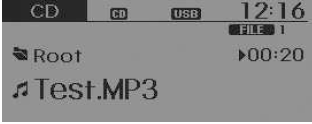
❈ A CD plays automatically when inserted.
❈ Music from USB plays automatically when the USB memory is connected.
Press the key Select [
Display] using the knob TUNE or the button


Select [Song Info] in Media Display
- [Song Info]: The information display can be changed to Album / Artist / Song.
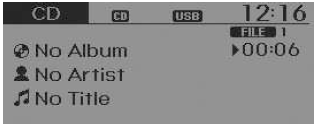
Repeat
When a song (file) is playing, press the key (RPT)
Audio CD, MP3 CD, USB, iPod, My Music modes: RPT on the screen
- Repeat song (short press of the key (less than 0.8 seconds)): Repeats playback of the current song.
MP3 CD, USB modes: FLD.RPT on the screen
- Repeat folder (short press and hold of the key (more than 0.8 seconds)): Repeats all songs in the current folder.
❈ Press the key again ,
to cancel repeat.
Random
When a song (file) is playing, press the key (RDM)
Audio CD, My Music modes: RDM on the screen
- Random (short press of the key (less than 0.8 seconds)): Plays all songs in random order.
MP3 CD, USB modes: FLD.RDM on the screen
- Folder random (short press of the key (less than 0.8 seconds)): Plays all files in the current folder in random order.
iPod mode: ALB RDM on the screen
- Album random (short press of the key (less than 0.8 seconds)): Plays all files from albums in the current category in random order.
MP3 CD, USB, iPod modes: ALL RDM on the screen
- All random (short press and hold of the key (more than 0.8 seconds)): Plays all files in random order.
❈ Press the key again ,
to cancel repeat.
Changing Track/File
When a song (file) is playing
key
- Short press of the key (less than 0.8 seconds): Restarts the current song from the beginning.
 is
pressed again within 1 second, the previous song will play.
When a song (file) is playing
key
- Short press of the key (less than 0.8 seconds): Plays the next song.
- Press and hold the key (more than 0.8 seconds): Fast-forwards the song.
SCAN
When a song (file) is playing
key
- Short press of the button (less than 0.8 seconds): Scans all tracks, 10 seconds each, starting from the next track.
When a song (file) is playing
key
- Press and hold the button (more than 0.8 seconds): Scans all tracks, 10 seconds each, starting from the next track.
❈ Press the key again/ , to turn off.
❈ The SCAN function is not supported in iPod mode.
Folder search: MP3 CD, USB mode
During file playback
key (
 ) (Folder up)
- Searches the next folder.
During file playback
key (Folder down)
- Searches the parent folder.
❈ If a folder is selected by pressing the button TUNE,
the first file in the selected folder will be played.
❈ In iPod mode, goes to the parent folder.
Searching tracks (files)
- Turn the knob

TUNE: Searches tracks (files) - Pressing the knob

TUNE: Plays the selected track (file).
MENU: Audio CD
Press the key CD
MP3 mode, to set the Repeat, Random and Information functions.
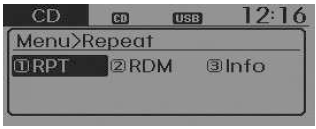
Repeat
Press the key Set [1
RPT] using the knob
or the key , to repeat the
current track.
❈ Press the RPT button again to cancel repeat.
Random
Press the keySet [2
RDM] using the knob
or the key , to play
tracks from the current folder in random order.
❈ Press the RDM button again to cancel random play.
Information
Press the button, set [3 Info] using the knob
or the key , to display
information about the current folder.
❈ Press the button , to
turn off the information display.
MENU: MP3 CD / USB
Press the key CD MP3 mode,
to set the Repeat, Folder Random, Folder Repeat, All Random, Information and Copy functions.
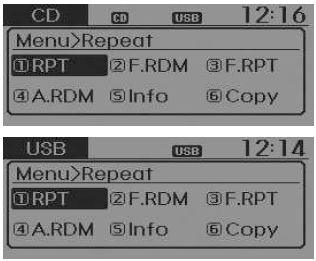
Repeat
Press the key Set [1
RPT] using the knob
or the key , to repeat the
current track.
❈ Press the RPT button again to cancel repeat.
Folder Random
Press the keySet [2
F.RDM] using the knob
or the key , to play
tracks from the current folder in random order.
❈ Press the F.RDM button again to cancel playback.
Folder Repeat
Press the button to set[3
F.RPT] using the knob
or the key , to repeat
tracks from the current folder.
❈ Press the F.RPT button again to cancel repeat.
All Random
Press the button to set[4
A.RDM] using the knob
or the key , to play
all tracks from the current CD in random order.
❈ Press the A.RDM button again to cancel playback.
Information
Press the keySet [5
Info] using the knob
or the key , to display
information about the current folder.
❈ Press the button , to
turn off the information display.
Copy
Press the key Set [6
Copy] using the knob TUNE or the button

- It can be used to copy the current track to the My Music folder. You can play copied music in My Music mode.
❈ If another button is pressed during copying, a pop-up asking "Cancel copying?" will be displayed.
❈ If another media or playback device (USB, CD, iPod, AUX) is connected during copying, copying will be cancelled.
❈ Music will not play while copying is in progress.
MENU: iPod
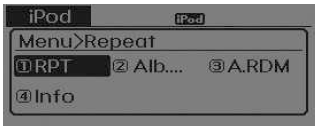
In iPod mode, press the button to set the Repeat, Album Random, All Random and Information functions.
Repeat
Press the key Set [1
RPT] using the knob
or the key , to repeat the
current track.
❈ Press the RPT button again to cancel repeat.
Album Random
Press the keySet [2
Alb.RDM] using the knobTUNE or the button  .
Plays albums of the current category in random order.
❈ Press the Alb.RDM button again to cancel playback.
All Random
Press the keySet [3
A.RDM] using the knobTUNE or the button  .
Plays all tracks of the current category in random order.
❈ Press the A.RDM button again to cancel playback.
Information
Press the keySet [4
Info] using the knob
TUNE or the button .
Displays information about the current track.
❈ Press the button , to
turn off the information display.
MENU: My Music mode
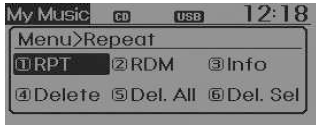
In My Music mode, press the button , to set the
Repeat, Random, Information, Delete, Delete All and Delete Selection functions.
Repeat
Press the key Set [1
RPT] using the knob TUNE or the button
 .
Repeats the current track.
❈ Press the RPT button again to cancel repeat.
Random
Press the keySet [2
RDM] using the knobTUNE or the button  .
Plays all tracks of the current folder in random order.
❈ Press the RDM button again to cancel random playback.
Information
Press the keySet [3
Info] using the knobTUNE or the button  .
Displays information about the current track.
❈ Press the button , to
turn off the information display.
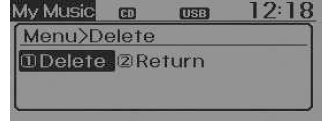
Delete
Press the keySet [4
Delete] using the knobTUNE or the button  .
- Deletes the currently playing file
Pressing the Delete button on the playback screen will delete the currently playing track.
- Deletes the file from the list
- Select the file you want to delete using the knob
 TUNE.
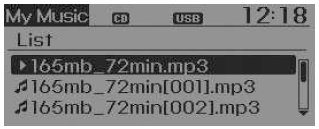
- Press the keyand select
the delete menu to delete the selected file.
Delete All
Press the key Set [5
Del.All] using the knob TUNE or the button
 .
Deletes all tracks from the My Music list.
Delete Selection
Press the key Set [6
Del.Sel] (Delete Selected) using the knob TUNE or the button
 .
Tracks in the My Music folder can be selected and deleted.
- Select the tracks from the list that you want to delete.
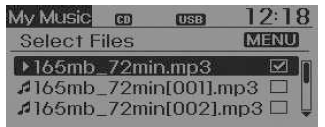
- After making your selection, press the
 key and select the delete menu (
Delete menu).
AUX
AUX is used to play back external MEDIA currently connected via the AUX jack.
AUX mode will start automatically when an external device is connected via the AUX plug.
If an external device is connected, you can also press the key to switch to AUX mode.
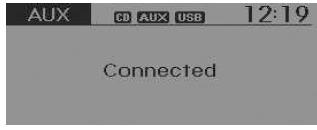
❈ AUX mode cannot be started if an external device is not connected via the AUX plug.
CAUTION WHEN USING A BLUETOOTH WIRELESS TECHNOLOGY MOBILE PHONE- Do not use your mobile phone or make Bluetooth Wireless Technology settings (e.g. pairing a phone) while driving.
- Some mobile phones equipped with Bluetooth Wireless Technology may not be recognized by the system or may not be fully compatible with it.
- Before using the audio system functions related to Bluetooth Wireless Technology, refer to your phone's owner's manual for more information on Bluetooth Wireless Technology operations from the phone side.
- To use Bluetooth Wireless Technology functions, the phone must be paired with the audio system.
- The hands-free phone function (in the vehicle) will not be available when your phone is outside the mobile phone service area (e.g. in a tunnel, in the subway, in mountainous areas, etc.).
- If the mobile phone signal is weak or the sound inside the vehicle is too loud, it may be difficult to hear the other party's voice during a phone call.
- Do not place your mobile phone close to or inside metal objects, otherwise communication with the Bluetooth Wireless Technology system or mobile phone base stations may be disturbed.
- When the phone is connected via Bluetooth Wireless Technology, its battery may drain faster than usual due to the additional Bluetooth Wireless Technology operations.
- Some mobile phones or other devices may cause interference or malfunction of the audio system. In this case, placing the device in a different location may solve the problem.
- Please register your phone name in English, otherwise the name may not be displayed correctly.
- If the Priority for ignition ON (IGN/ACC ON) is set, the Bluetooth Wireless Technology phone will connect automatically. Even if you are outside the vehicle, the Bluetooth Wireless Technology phone will connect automatically as soon as you are nearby.
If you do not want automatic Bluetooth Wireless Technology connection, turn off the phone.
What is Bluetooth Wireless Technology?
Bluetooth Wireless Technology is a wireless technology that enables connection of multiple short-range, low-power devices, such as hands-free devices, stereo headsets, wireless controllers, etc. For further information, visit the Bluetooth Wireless Technology website at
CAUTION- The Bluetooth Wireless Technology function can only be used when a mobile phone has been paired and connected to the device. For more information on pairing and connecting Bluetooth Wireless Technology mobile phones, see the "Phone Setup" section. When a Bluetooth Wireless Technology mobile phone is connected, the icon (
 ) will appear at the top of the screen.
If the icon ( ) is not
displayed, this indicates that the Bluetooth Wireless Technology device is not connected. You must connect it before using the device. For more information on Bluetooth Wireless Technology mobile phones, see the "Phone Setup" section. Pairing and connecting Bluetooth Wireless Technology mobile phones will only work if the Bluetooth Wireless Technology option is enabled on the mobile phone. (The method of enabling Bluetooth Wireless Technology may differ depending on the mobile phone.) On some mobile phones, turning on the ignition while carrying on a call via the Bluetooth Wireless Technology hands-free function may disconnect the call. (The mobile phone connection will be restored after the ignition is turned on.) On some mobile phones and devices, some Bluetooth Wireless Technology functions may not be supported.Depending on the communication status, Bluetooth Wireless Technology functions may operate unstably.
Bluetooth Wireless Technology Audio
Before using Bluetooth Wireless Technology audio functions
- Bluetooth Wireless Technology audio may not be supported depending on the compatibility of the Bluetooth Wireless Technology mobile phone.
- To use Bluetooth Wireless Technology audio, you must first pair and connect your Bluetooth Wireless Technology mobile phone.
- Bluetooth Wireless Technology audio can only be used when

[Audio Streaming] is enabled on the phone.
 Select
[Phone] using the TUNE knob or the key

Select [Audio Streaming] using the knob
 TUNE
Set
/
Starting Bluetooth Wireless Technology audio
- Press the key
 ,
to switch modes in the order CD ➟ USB ➟ AUX ➟ My Music ➟ BT Audio. - If BT Audio is selected, Bluetooth Wireless Technology audio playback will start.
❈ On some mobile phones, the audio system may not start playback automatically.
Using Bluetooth Wireless Technology audio
- Play / Stop (Play / Pause) Press the knob
 TUNE to play or pause the current track.
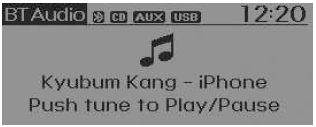
❈ For some mobile phones, the previous song / next song / play / pause functions may not be supported.
Test yourself
A quick Kia Rio YB quiz: every answer comes with an explanation and a link to the manual page.