Navigation
Voice is not Recognized
In this manual: Navigation
6steps
~36min
2/5difficulty
Done 0 of 6
INSPECTION PROCEDURE
1 CHECK NAVIGATION SETTINGS
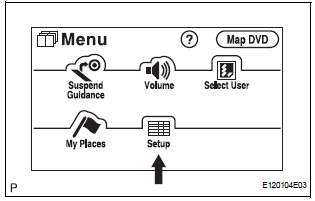
- Enter the "Menu" screen by pressing the "MENU" switch.
- Select "Setup
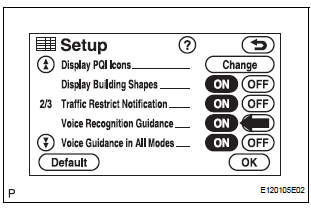
- Check that "Voice Recognition Guidance" is not OFF.
OK: Voice Recognition Guidance is not OFF.
2 CHECK MAP DISC
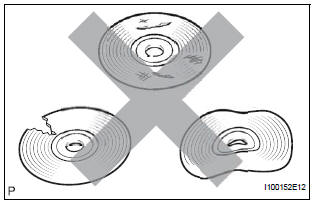
- Check that the map disc is not deformed or cracked.
OK: No deformations or cracks on map disc.
3 CHECK MAP DISC
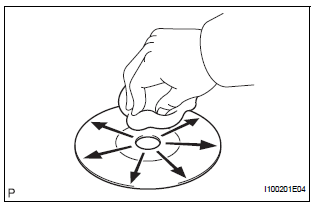
- Check for dirt on the map disc surface.
OK: No dirt is on the map disc surface.
NOTICE: Do not use a conventional record cleaner or antistatic preservative.
HINT: If the disc is dirty, clean the disc by wiping the disc's surface radially with a soft cloth.
4 CHECK MICROPHONE (NAVIGATION CHECK MODE)
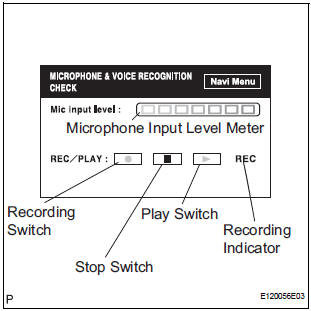
- Enter the "MICROPHONE & VOICE RECOGNITION CHECK" mode.
- When voice is input into the microphone, check that the microphone input level meter changes according to the input voice.
- Push the recording switch and perform voice recording.
OK: All check results are normal.
REPLACE RADIO AND NAVIGATION ASSEMBLY
Test yourself
A quick Toyota Sienna quiz: every answer comes with an explanation and a link to the manual page.
Was this page helpful?