Radio
❈ Radio may vary depending on the selected audio source.
Switching the RADIO mode
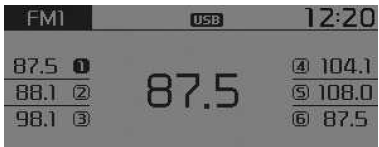
SEEK
Press the button
- Briefly press the button (for up to 0.8 seconds): Changes the frequency.
- Press and hold the button (for at least 0.8 seconds): Automatically searches for the next frequency.
Searching preset stations
Press button 1~6
- Briefly press the button (for up to 0.8 seconds): Plays the frequency saved to the corresponding button.
- Press and hold the button (for at least 0.8 seconds): Press and hold the desired button 1~6 to store the currently tuned frequency on the selected button. A BEEP will sound when storing is complete.
SCAN
Press the button
- Briefly press the button (for up to 0.8 seconds): The station frequencies increase and each can be previewed for 5 seconds. After scanning all frequencies, the current one is played again.
- Press and hold the button (for at least 0.8 seconds): Preview the stations saved to presets 1~6 for 5 seconds each.
Manual tuning selection
Turn the tuning knob left or right to adjust the frequency.
MENU
The button provides A.Store (Auto Store) and Info functions.
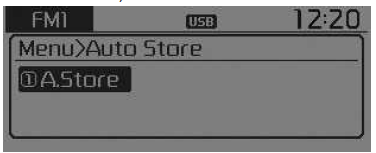
A.Store (Auto Store) (Automatic station storage)
Press the button Select [A.Store] using the tuning knob
 or the
 .
Select A.Store (Auto Store) to save frequencies with stronger reception than presets 1~6.
If no stations are received, the most recently received station will be played.
BASIC OPERATION: AUDIO CD / MP3 CD / USB / iPod® / MY MUSIC
Press the button to switch the mode in the order CD ➟ USB (iPod®) ➟ AUX ➟ My Music ➟ BT Audio.
The folder or file name is shown on the screen.
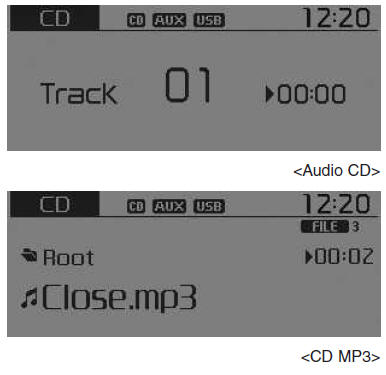
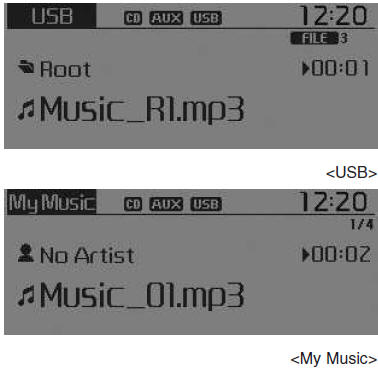
❈ The CD plays automatically when inserted.
❈ Music on the USB device plays automatically when the device is connected.
Repeat
During track (file) playback, press the button (RPT) Audio CD, MP3 CD, USB, iPod®, My Music mode: RPT on screen
- To repeat a track [Briefly press the button (up to 0.8 seconds)]: The current track repeats.
MP3 CD, USB mode: FLD.RPT on screen
- To repeat an entire folder (double press): Repeats all files in the current folder.
❈ Press the button again key again to cancel repeat.
Random
While a track (file) is playing Button (RDM)
 Audio CD, My Music mode: RDM on screen
- Random (briefly press the button): Plays all tracks in random order.
MP3 CD, USB mode: FLD.RDM on screen
MP3 CD, USB mode: ALL RDM on screen
❈ Press the button again to turn off random playback.
Changing track/file
While a track (file) is playing; button
- Briefly press the button: Plays the current track from the beginning.
❈ If the button is pressed again within 1 second, the previous track is played.
- Press and hold the button (more than 0.8 seconds): Rewinds the track.
While a track (file) is playing; button
- Briefly press the button: Plays the next track.
- Press and hold the button (more than 0.8 seconds): Fast-forwards the track.
Scan (for models with RDS)
- Press and hold the button
 (more than 0.8 seconds): Scans all tracks for 10 seconds each, starting from the next track.
❈ Press and hold the button again to turn off.
Scan
- Press the button
 briefly: Scans all tracks for 10 seconds each, starting from the next track.
❈Press the button again  key again to cancel.
❈ The SCAN function is not supported in iPod® mode.
Folder search: MP3 CD, USB mode
During file playback, press the button (upper folder)
- Search the next folder.
 (lower folder)
❈ If a folder is selected by pressing the tuning knob , the first file in the selected folder will play.
Track search (File)
- By turning the tuning knob
 : Searches for tracks (files)
- Press the tuning knob
 : Plays the selected track (file).
MENU: Audio CD
Press the CD MP3 mode button to set the repeat, random and information functions.
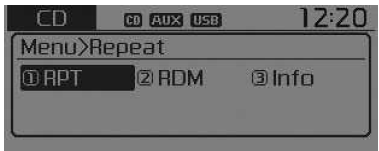
Repeat
Press the buttonSelect [1 RPT] using the tuning knob
 or press the button
 to repeat the current track.
❈ Press the RPT button again to turn off repeat.
Random playback
Press the buttonSelect 2 RDM] using the tuning knob
 or press the button
 to play the tracks in the current folder in random order.
❈ Press the RDM button again to turn off random playback.
Information
Press the buttonSelect [3 Info] using the tuning knob
 or press the button
 key to display information about the current track.
❈ Press the button key to turn off the information display.
MENU: CD MP3 / USB
Press the CD MP3 mode button to set the repeat, random folder, repeat folder, random all tracks, information and copy functions.
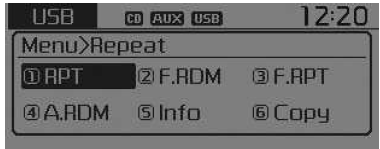
Repeat
Press the button Select
 [1 RPT] using the tuning knob
 or press the button
 to repeat the current track.
❈ Press the RPT button again to turn off repeat.
Random play of a folder
Press the button Select
 [2 F.RDM] using the tuning knob
 or press the button
 to play the tracks in the current folder in random order.
❈ Press the F.RDM button again to turn off random play.
Repeat of a folder
Press the button Select
 [3 F.RPT] using the tuning knob
 or press the button
 to repeat the tracks in the current folder.
❈ Press the F.RPT button again to turn off repeat.
Random play of all tracks
Press the button Select
 [4 A.RDM] using the tuning knob
 or press the button
 to play all tracks on the CD in random order.
❈ Press the A.RDM button again to turn off random play.
Information
Press the button Select
 [5 Info] using the tuning knob
 or press the button
 key to display information about the current track.
❈ Press the button to turn off the information display.
Copy (if equipped)
Press the button To select
 [6 Copy] using the tuning knob
 or the
 .
This function is used to copy the current track to My Music. The copied music can be played in My Music mode.
❈ If another button is pressed during copying, a pop-up window will appear to cancel the copy.
❈ If another device (USB, CD, iPod®, AUX) is inserted or connected during copying, the copy will be cancelled.
❈ Music will not play during copying.
MENU: iPod®
In iPod® mode, press the button to set the Repeat, Random, Info and Search functions.
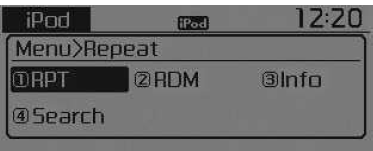
Repeat
Press the button Select
 [1 RPT] using the tuning knob
 or press the button
 to repeat the current track.
❈ Press the RPT button again to stop.
Random playback
Press the button Select [2 RDM] using the tuning knob
 or the
 .
Plays all tracks in the current category in random order.
❈ Press the A.RDM button again to turn off random play.
Information
Press the button To select
 [3 Info] using the tuning knob
 or the
 .
Displays the information of the current track.
❈ Press the button to turn off the information display.
Search
Press the button Set [4 Search] using the tuning knob
 or the
 .
Displays the list of iPod® categories.
❈ While searching iPod® categories, press the button to return to the main category.
MENU: My Music mode (if equipped)
In My Music mode, press the button to set the repeat, information, delete, delete all and delete selection functions.
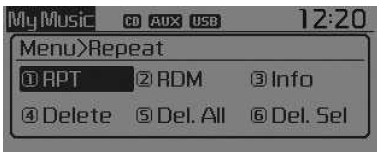
Repeat
Press the button
 Set [1 RPT] using the tuning knob
 or the
 .
Repeats the current track.
❈ Press the RPT button again to stop.
Random playback
Press the button
 Select [2 RDM] using the tuning knob
 or the
 .
Plays all songs in random order.
❈ Press the RDM button again to turn off random playback.
Delete
Press the button to select [3 Info] using the tuning knob
 or the
 .
Displays the information of the current track.
❈ Press the button key to turn off the information display.
Delete
Press the button
 Select [4 Delete] using the tuning knob
 or the
 .
- Deletes the current file. On the playback screen, pressing [Delete] deletes the current track.
- Delete a file from the list
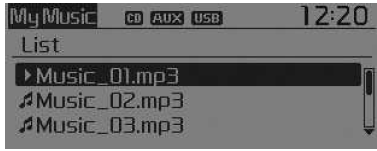
- Select the file you want to delete using the tuning knob
 .
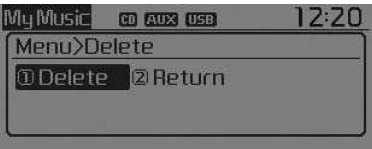
- Press the
 and select the delete menu to delete the selected file.
Delete all
Press the button Select [5 Del.All] using the tuning knob
 or the
 .
Deletes all tracks in My Music.
Delete selection
Press the button Select [6 Del.Sel] using the tuning knob
 or the
 .
The selected tracks in My Music are deleted.
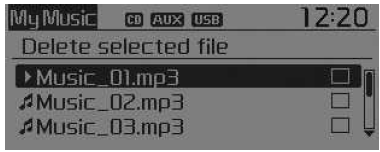
- Select the tracks you want to delete from the list.
- After selecting, press the
 button and select the delete menu.
NOTE - USING THE MY MUSIC OPTION
- Even if more memory is available, a maximum of 6,000 tracks can be stored.
- The same track can be copied up to 1,000 times.
- Memory information can be checked in the System menu of Setup.
AUX
AUX mode is used to play files on external devices connected to the AUX terminal.
AUX mode will start automatically when an external device is connected to the AUX terminal.
If an external device is already connected, you can press the button to switch to AUX mode.
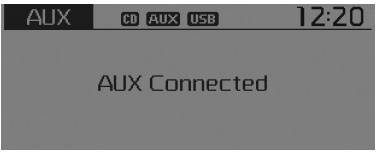
❈ AUX mode cannot be started unless an external device is connected to the AUX terminal.
NOTE - USING THE AUX OUTPUT Insert the AUX cable fully into the AUX terminal to use the output.
AUDIO Bluetooth® Wireless Technology Type A-1, Type A-3
What is Bluetooth® Wireless Technology? Bluetooth® Wireless Technology allows you to connect short-range devices, including hands-free devices, stereo headsets, wireless remote controls, etc. For more information, visit the Bluetooth® Wireless Technology website at www.Bluetooth.com. Before using the Bluetooth® Wireless Technology audio functions
- Bluetooth® Wireless Technology audio may not be supported depending on whether your mobile phone is compatible with Bluetooth® Wireless Technology.
- To use Bluetooth® Wireless Technology audio, you must first pair and connect the Bluetooth® Wireless Technology mobile phone.
- The Bluetooth® name and logos are registered trademarks owned by Bluetooth® SIG, Inc., and any use of such marks by Kia is under license.
- Bluetooth® Wireless Technology audio can only be used when [Audio Streaming] on the phone is On.
❈ Bluetooth® Wireless Technology Audio Streaming setting: Press the Select [Phone] using the tuning knob
 Select [Audio Streaming] using the tuning knob
 Set On / Off.
Activating Bluetooth® Wireless Technology audio
- Press the button
 to switch the mode in the order CD➟USB➟AUX➟My Music➟BT Audio.
- If BT Audio is selected, Bluetooth® Wireless Technology audio starts.
❈ Audio may not start automatically on some mobile phones.
Using Bluetooth® Wireless Technology audio functions
- Play / Pause
Press the tuning knob to play or pause the current track.
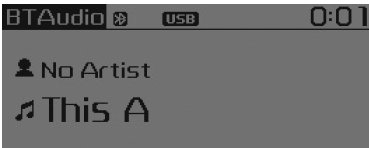
❈ Some mobile phones may not support the previous track / next track / play / pause functions.
Test yourself
A quick Kia Picanto JA quiz: every answer comes with an explanation and a link to the manual page.