Phone (if equipped)
Before using the Bluetooth® Wireless Technology phone functions
- To use the Bluetooth® Wireless Technology phone function, you must first pair and connect your Bluetooth® Wireless Technology mobile phone.
- If no phones are paired or connected, the [Phone] mode cannot be accessed. Once a mobile phone is paired or connected, the guide screen is displayed.
- If priority is set when the ignition is switched on (IGN/ACC ON), the phone with Bluetooth® Wireless Technology will connect automatically. Even when you are outside the vehicle, the phone with Bluetooth® Wireless Technology will connect automatically if you are near the vehicle. If you do not want the phone to connect automatically via Bluetooth® Wireless Technology, turn off Bluetooth® Wireless Technology.
Making a call using the steering wheel controls
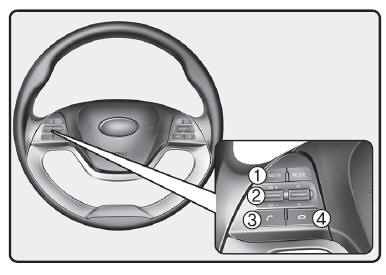
- MUTE button: Mutes the microphone during a call.
- VOLUME button: Increases or decreases the speaker volume.
- Button
 : Answers and transfers calls.
- Button
 : Ends calls or cancels functions.
❈ The actual vehicle function may differ from the one shown in the illustration.
- Checking the call history and making a call
- Briefly press (for 0.8 seconds maximum) the
 on the steering wheel.
- The call history is displayed on the screen.
- Press the
 to call the selected number.
- Redialing the last call
- Press and hold (for at least 0.8 seconds) the
 on the steering wheel.
- The last number called is redialed.
Making a call using the steering wheel controls (vehicles with VOICE RECOGNITION)
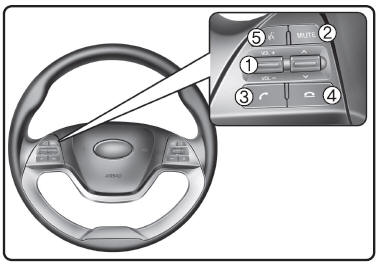
- VOLUME button: Increases or decreases the speaker volume.
- MUTE button: Mutes the microphone during a call.
- Button:
 Answers and transfers calls.
- Button
 : Ends calls or cancels functions.
- Button
 : Activates voice recognition.
❈ The actual vehicle function may differ from the one shown in the illustration.
- Checking the call history and making a call
- Briefly press (for 0.8 seconds maximum) the
 on the steering wheel.
- The call history is displayed on the screen.
- Press the
 to call the selected number.
- Redialing the last call
- Press and hold (for at least 0.8 seconds) the
 on the steering wheel.
- The last number called is redialed.
PHONE MENU Type A-1
Press the button to display the three menus [Call History, Phone book, Phone Setup].
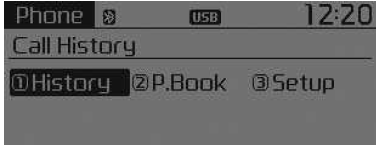
Call history
Press the button Select [1 History] using the tuning knob.
 or the
 .
The call history is displayed and can be used to select a number or make a call.
If no call history exists, a screen asking whether you want to download it is displayed.
(The download function may not be supported by some mobile phones)
Contacts
Press the button Select [2 P. Book] using the tuning knob.
 or the
 .
The phone book is displayed and can be used to select a number or make a call.
❈ If more than one number is saved for a contact, a screen showing the mobile, home and work numbers is displayed. Select the desired number to call.
❈ If the phone book does not exist, a screen asking whether you want to download the phone book is displayed. (The download function may not be supported by some mobile phones)
Phone setup
Press the button Select [3 Setup] using the tuning knob.
 or the
 .
The Bluetooth® Wireless Technology phone setup screen is displayed. For more information, refer to "Phone Setup".
PHONE MENU Type A-3
Press the button to display the three menus [Call History, Phone book, Phone Setup].
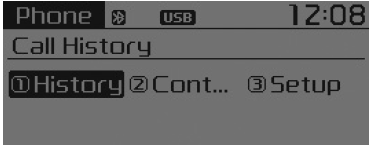
Call history
Press the button Select [1 History] using the tuning knob.
 or the
 .
The call history is displayed and can be used to select a number or make a call.
If no call history exists, a screen asking whether you want to download it is displayed.
(The download function may not be supported by some mobile phones)
Contacts
Press the button Select [2 Contacts] using the tuning knob.
 or the
 .
The contacts are displayed and can be used to select a number and make a call.
❈ If more than one number is saved for a contact, a screen showing the mobile, home and work numbers is displayed. Select the desired number to call.
❈ If no contacts exist, a screen asking whether you want to download the contacts is displayed. (The download function may not be supported by some mobile phones)
Phone setup
Press the button Select [3 Setup] using the tuning knob.
 or the
 .
The Bluetooth® Wireless Technology phone setup screen is displayed. For more information, refer to "Phone Setup".
NOTE - Using a Bluetooth® Wireless Technology MOBILE PHONE
- Do not use the mobile phone or make Bluetooth® Wireless Technology settings (for example, pairing a phone) while driving.
- Some phones with Bluetooth® Wireless Technology may not be recognized by the system or may not be fully compatible with the system.
- Before using the Bluetooth® Wireless Technology system functions, refer to the owner's manual of your mobile phone for those functions.
- To use Bluetooth® Wireless Technology functions, the phone must be paired with the audio system.
- The hands-free function will not be available when the phone (in the vehicle) is in an area not covered by the mobile phone service (for example, in a tunnel, underground car park, mountains, etc.).
- If the mobile phone signal is weak or the noise inside the vehicle is too high, it may be difficult to hear the caller's voice during calls.
- Do not place the phone near or inside metal objects, otherwise communication with the Bluetooth® Wireless Technology system or mobile phone base stations may be disrupted.
- A mobile phone connected to the Bluetooth® Wireless Technology system may discharge faster than usual due to the additional functions of the Bluetooth® Wireless Technology system.
- Some mobile phones or other devices may cause interference or malfunctions in the audio system. In this case, moving the device to a different location may solve the problem.
- Contact names should be saved in English, otherwise they may not be displayed correctly.
- If priority is set when the ignition is switched on (IGN/ACC ON), the phone with Bluetooth® Wireless Technology will connect automatically.
Even when you are outside the vehicle, the phone with Bluetooth® Wireless Technology will connect automatically if you are near the vehicle.
If you do not want automatic connection via Bluetooth® Wireless Technology, turn off the Bluetooth® Wireless Technology function. ) is displayed at the top of the screen. If the icon (
 ) is not displayed, the Bluetooth® Wireless Technology device is not connected. The device must be connected before use. For more information on Bluetooth® Wireless Technology mobile phones, refer to the "Phone Setup" section.
NOTE - USING VOICE COMMANDS
- The voice recognition function of this product supports the commands listed in the user's manual.
- While using voice recognition, operating the steering wheel controls or the device will stop voice recognition and allow you to select the desired functions manually.
- Position the microphone above the driver's seat head restraint. For best performance, maintain the correct posture when speaking voice commands.
- Voice recognition may not work properly due to external noise. The following conditions may adversely affect voice recognition performance:
- When the windows and sunroof are open
- When the heating/air conditioning system is operating
- When driving through a tunnel
- When driving on rough or bumpy roads
- After downloading the phonebook via Bluetooth® Wireless Technology, the system needs some time to convert the phonebook into voice information. During this time, voice recognition may not work properly.
- Once the phonebook has been entered, special symbols and numbers are not recognized by voice. For example, "# John Doe%&" will be recognized as "John Doe".
Test yourself
A quick Kia Picanto JA quiz: every answer comes with an explanation and a link to the manual page.