Sirius Satellite Radio Information (if equipped)
Satellite Radio Channels:
SIRIUS satellite radio offers more than 130 channels, including 69 music channels without commercials, plus nationwide sports, news, traffic and entertainment channels. If you want more information and the complete list of SIRIUS channels, visit sirius.com in the United States and siriuscanada.
ca in Canada.
Factors Affecting Satellite Radio Reception:
To receive a satellite signal, your vehicle is equipped with a satellite radio antenna mounted on the roof. The roof offers the best position for a clear, unobstructed view of the sky, which is required for satellite radio.
As with AM-FM reception, several factors can affect the quality of satellite radio signal reception:
- Antenna obstruction: For best reception, keep the antenna free of snow and ice, and keep luggage and other materials as far from the antenna as possible.
- Terrain: Hills, mountains, skyscrapers, bridges, tunnels, elevated highways, parking garages, forests and electrical storms can all interfere with reception.
SIRIUS Satellite Radio Service:
SIRIUS satellite radio is a subscription service that broadcasts music, sports, news and information to receivers that can be installed by an aftermarket service center or at the factory, as well as to home, portable and wireless receivers, and to personal computers via the Internet.
Vehicles equipped with a SIRIUS satellite radio installed at the factory include:
- the required equipment and a free trial subscription starting on the date the vehicle is sold or leased.
- For a small additional fee, SIRIUS music channels and other selected channels can be accessed on a computer via the Internet (United States customers only).
For subscription details, contact SIRIUS.
NOTICE
Satellite radio requires a receiver compatible with SIRIUS and payment of a subscription fee after the trial period ends.
Vehicles without a factory-installed receiver may be equipped with an aftermarket unit.
Your dealer will provide further details. Subscription fees and programming may change without notice.
Subscriptions are governed by the SIRIUS terms, available at www.sirius.com/serviceterms. Service is offered only in the 48 contiguous United States and the District of Columbia. Service is offered in Canada at www.siriuscanada.ca.
Chrysler LLC cannot be held responsible for programming changes.
Satellite Radio Electronic Serial Number (ESN): This 12-digit satellite radio serial number is required to reactivate, modify or track your satellite radio account. You will need this number to contact SIRIUS.
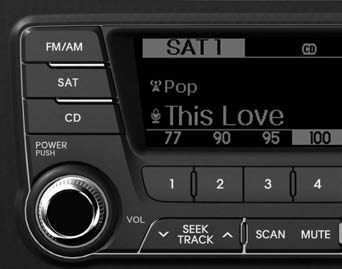
Using SIRIUS Satellite Radio
Your vehicle comes with a free 3-month subscription to SIRIUS Satellite Radio, which gives you access to over 130 channels of music, news and entertainment.
Activation: To extend or reactivate your SIRIUS Satellite Radio subscription, contact SIRIUS Customer Service at 1 888 539-7474. You will need to provide the 12-digit SID (Sirius Identification Number)/ESN (Electronic Serial Number). To find the SID/ESN, turn on the radio, press [SAT], then tune to channel zero. Note that the vehicle must be running, the radio must be in SIRIUS mode, and the vehicle must be in an open area with no obstructions so the radio can receive the activation signal.
1. Button
(SIRIUS satellite radio)
Press to switch to
SIRIUS satellite radio. The radio cycles through the bands in the following order.
SAT1-SAT2-SAT3-SAT1...
2. Seek button (channels)
- Press
 for
less than 0.8 s to go to the previous or next channel. - Press
 for
0.8 s or longer to continuously go to the previous or next channel. - If "CATEGORY" appears at the top of the screen, you have reached the highest/lowest channel in the current category.
3. Scan button
- Press
 to automatically scan all stations in the upward direction.
- The radio tunes to each channel for 10 seconds, starting with the current channel.
- Press again

to stop scanning and listen to the displayed channel. - If "CATEGORY" appears at the top of the screen, you have scanned all channels in the current category.
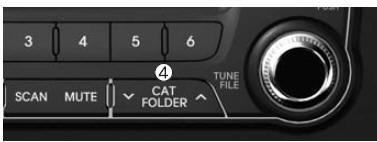
4. Category/folder buttons
- Press
 to
switch to category list mode.
 to
select the lowest channel in the highlighted category.
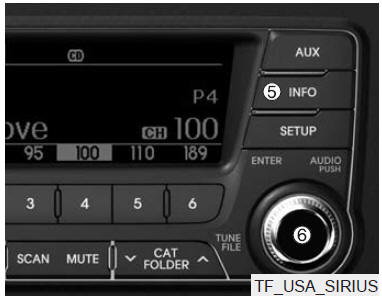
5. Button
Displays information about the current channel each time the button is pressed.
- If the default display is CAT (category)/CH (channel) - Artist/Title - Composer (if available) - Category/Channel...
- If the default display is ART (artist)/TITLE (title) - Category/Channel - Composer (if available) - Artist/Title...
Troubleshooting
- Antenna Error
If this message appears, the antenna or antenna cable is broken or disconnected. Please consult your Kia dealer. - Acquiring Signal
If this message appears, the antenna is covered and the SIRIUS satellite radio signal cannot be received. Make sure the antenna is uncovered and has an unobstructed view of the sky.
6. Tune and enter knob (ENTER)
- Turn clockwise to go to the next channel or scroll backward through the category list.
- Turn counterclockwise to go to the previous channel or scroll forward through the category list.
- Press the knob to select channels or items.
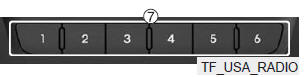
7. Preset buttons
- Press
 ~
 for
less than 0.8 s to tune to the channel stored on the selected button. - Press
 ~
 for
0.8 s or longer to store the current channel on the button. A beep confirms storage.
- Do not use a cell phone or make any Bluetooth settings (e.g., pairing a phone) while driving.
- Some Bluetooth phones may not be recognized by the system or may not be fully compatible with it.
- Before using the Bluetooth functions of the audio system, refer to your phone's owner's manual for instructions on using its Bluetooth functions.
- The phone must be paired with the audio system before you can use the Bluetooth functions.
- You cannot use hands-free functions when your phone (in the vehicle) is outside the cellular service area (e.g., in a tunnel, underground or in a mountainous area).
- If the cellular signal is weak or there is too much noise in the vehicle, it may be difficult to hear the other party's voice during a call.
- Do not place the phone near or inside a metal object, as communication with the Bluetooth system or cellular towers may be interrupted.
- When connected via Bluetooth, the phone may discharge faster than normal if you use additional Bluetooth functions.
- Some cell phones and other devices may cause interference or malfunction of the audio system. In this case, moving the device to another location may solve the problem.
NOTICE: For more information on Kia's Bluetooth wireless technology, visit www.kia.com (OWNERS>General Info>BLUETOOTH wireless technology).
Test yourself
A quick Kia Optima DL3 quiz: every answer comes with an explanation and a link to the manual page.