Using a Bluetooth phone (if equipped)
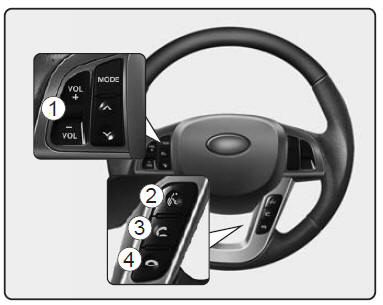
 : increases or decreases the
speaker volume. : activates the
voice recognition function. : makes and
transfers a call. : ends the call or cancels
the function.
What is Bluetooth?
Bluetooth is a wireless technology that allows several low-power devices to connect over a short distance, such as a hands-free device, a stereo headset, a wireless remote control, etc. For more information, visit the Bluetooth website.
General Features
- This system supports Bluetooth hands-free and stereo headset functions.
- HANDS-FREE function: allows making or receiving calls wirelessly using voice recognition.
- STEREO-HEADSET function: allows wireless listening to music from a mobile phone (that supports the A2DP function).
- The Bluetooth system's voice recognition engine supports three languages:
- English
- North American Spanish
- Canadian French
NOTICE
- The phone must be paired with the system before Bluetooth functions can be used.
- Only one paired phone can be used with the system at a time.
- Some phones are not fully compatible with this system.
- The Bluetooth word mark and logos are trademarks owned by Bluetooth SIG, Inc. and used under license by Kia.
Receiving a Phone Call
When a call is received, you hear the ringtone through the speakers and the audio system switches to phone mode.
When you receive a call, "Incoming" and the phone number (if available) appear on the display.
- Answer a call: - Press
 on the steering wheel.
- Reject a call: - Press
 on the steering wheel.
- Adjust the ringtone volume: - Use the VOLUME buttons on the steering wheel.
- Transfer a call to the phone (private call):
- Press and hold on the steering wheel
until the audio system transfers the call to the phone.
Speaking on the Phone
When you are on a call, "Active Calls" and the callee's phone number (if available) appear on the display.
- End a call - Press
 on the steering wheel.
NOTICE
In the following cases, you or the other party may have difficulty hearing each other:
- If you speak at the same time, your voice may not reach the other person. (This is not a malfunction.) Take turns speaking.
- Keep the Bluetooth volume low. A high level may cause distortion and echo.
- If you are driving on a bumpy road.
- If you are driving at high speed.
- If you are driving with the window open.
- If the air conditioning vents are directed toward the microphone.
- If the air conditioning fan noise is loud.
Using the Radio for Bluetooth Music
The unit supports A2DP (Advanced Audio Distribution Profile) and AVRCP (Audio Video Remote Control Profile).
These profiles are available for playing MP3 music from a Bluetooth phone that supports the Bluetooth profiles mentioned above.
To play MP3 music from a Bluetooth phone, press the button until
MP3 mode appears.
Then use your phone to play the music.
The radio displays MP3 MODE while music is playing from a Bluetooth phone.
NOTE:
- Any sounds supported by the phone, not only MP3 files, can be heard through the audio system.
- Phones should support A2DP and AVRCP functions.
- Some A2DP and AVRCP phones may not play music through the audio system on the first try.
Try the following: e.g.: Menu-Filemanager-Music-Option -Play via Bluetooth
Phone Pairing
All Bluetooth functions can be performed from the 'PHONE' menu.
- Press the button
 to
select SETUP mode. - Select 'PHONE' by turning the knob
 , then press the
button.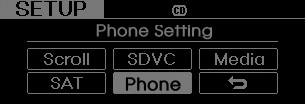
- Select the desired item by turning the knob, then
press the button.
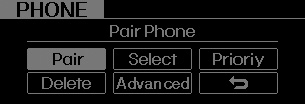
- Phone Pairing
Before using Bluetooth features, the phone must first be paired with the audio system. Up to 5 phones can be paired with the system.
NOTE:
- The pairing procedure varies depending on the phone model. Before attempting to pair a phone, please refer to the phone's owner's manual for instructions.
- Once pairing is complete, it will not be necessary to pair the phone again unless the pairing has been manually deleted from the audio system (see the "Deleting a Phone" section) or the vehicle information has been erased from the phone.
- Press the button
 to
enter SETUP mode. - Select PHONE, then PAIR in the PHONE menu.
- The message 'Device: [Name] passkey: 0000' will be displayed.
- Search for and select your device name to start the pairing process.
NOTE:
- If the phone is paired with two or more vehicles of the same model, some phones may have difficulty handling two Bluetooth systems with the same name. In this case, you may need to change the name displayed on your phone.
For example, if the vehicle name is AUTO_ABC, you may need to change the name displayed on the phone from AUTO_ABC to AUTO_123 or AUTO_ABC_1 to avoid any confusion.
Please refer to your mobile phone's owner's manual, or contact your mobile phone service provider or the phone manufacturer for instructions.When the Bluetooth system is on, the last phone used will be selected by default for the next call. To select another phone that is already paired, use the 'Select Phone' menu.
Only the selected phone can be used in hands-free mode.
- Press the buttonto
enter SETUP mode. - Select PHONE, then SELECT in the PHONE menu.
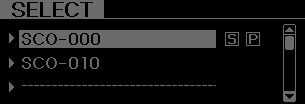
- Select the device name from the list displayed.
- The Bluetooth symbol will appear at the top of the audio system display when a device is paired.

- Changing priority
If several phones are paired with the audio system, the system will attempt to connect in a predetermined sequence when the Bluetooth system is on.
- The phone checked 'Priority'
- Previously selected phone
- Opting out of automatic connection.
- Press the buttonto
enter SETUP mode. - Select PHONE, then PRIORITY in the PHONE menu.
- Select the phone name from the list displayed.
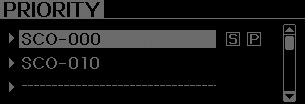
- Deleting a phone
A paired phone can be deleted.
- When a phone is deleted, all information associated with that phone will also be erased (including the phonebook).
- If you want to use a deleted phone with the audio system again, you will need to perform the pairing procedure again.
- Press the buttonto
enter SETUP mode. - Select PHONE, then DELETE in the PHONE menu.
- Select the phone name from the list displayed.
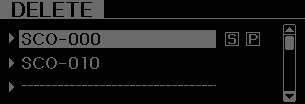
- ADVANCED menu
After pressing the button, select the PHONE menu.
In the PHONE menu, select the 'Advanced' menu to set up the Bluetooth system.
(The ADVANCED menu may vary depending on the type of audio system.)
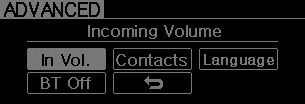
Incoming Volume (incoming call volume) (Bluetooth call volume adjustment)
In the ADVANCED menu, select IN VOL. (incoming volume). Use the tuning knob to set the desired volume level, then press the button .
Contacts Sync (automatic phonebook download)
In the ADVANCED menu, select 'Contacts'. To automatically save contacts and call history to your phone each time you connect it, select ON.
If you do not want automatic downloading, select OFF.
While the phonebook is downloading, the Bluetooth system cannot be used to make a call.
Bluetooth system voice recognition language
In the ADVANCED menu, select 'Language'. To change the language, select the desired language, then press the button .
Turning off the Bluetooth system
In the ADVANCED menu, select BT OFF to turn off the Bluetooth system.
Activating Voice Recognition
- -Bluetooth system voice recognition can be activated in the following ways:
- Activation button: Voice recognition will be activated by pressing the button
 .
Activation of voice recognition will be confirmed by a beep.
- The system can recognize digits only (0 to 9), not numbers (10 and above).
- The system may turn off voice recognition in the following situations: by pressing the button
 and saying " Cancel
" after the beep. When you are not making a call and press the button . When
voice recognition fails for the third consecutive time. - At any time when you say " Help ", the system will announce the available commands.
Menu Structure
The menu structure shows the Bluetooth voice recognition functions.
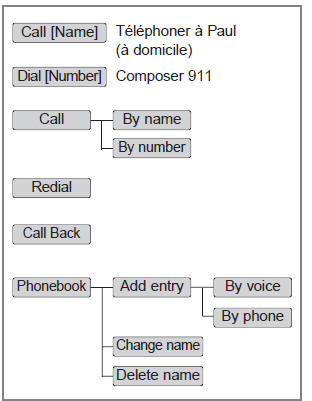
Tips
Voice commands
For better voice recognition performance, follow these guidelines:
- Keep the cabin as quiet as possible. Close the windows to eliminate surrounding noise (traffic, vibrations, etc.) that could interfere with proper recognition of voice commands.
- Say the voice command within 5 seconds after the beep.
 on the steering wheel to
end the recording. Voice command mode will switch to waiting for the next voice command to be recorded.
Placing a call
- Direct Dialing
- Press the button.
- Say the following command:
- Call <Paul>. The system will dial Paul's main number.
- Call <Paul> <mobile>. The system will dial Paul's mobile number.
- Call <Paul> <home>. The system will dial Paul's home number.
- Call <John> <office>. The system will dial John's office number.
Note: Calls can be placed immediately to contacts whose name or voice tag is saved in the phone or phonebook.
- Calling by name
A call can be placed by saying a name saved in the audio system.
- Press the button.
- Say " Call ".
- Say " By name " when the system prompts you.
- Say the name (in the phonebook or associated with a voice tag).
- Say the category name (number type). Only saved categories can be selected.
- Say " Yes " to confirm and place the call.
Tips
A shortcut exists for each of the following functions: 1. Say "Call name".
- Dialing by Number
A call can be placed by saying the digits one at a time. The system recognizes the digits 0 to 9, not numbers (10 and above).
- Press the button.
- Say " Call ".
- Say "Number" when the system prompts you.
- Say the desired phone number.
- Say "Dial" to complete the number and place the call.
Tips
A shortcut exists for each of the following functions:
- Say "Dial number".
- Say "Dial <digits>"
Phonebook (in the vehicle)
- Adding an Entry by Voice
Phone numbers and voice name tags can be stored. Data stored in the mobile phone can also be transferred.
- Press the button.
- Say "Phonebook".
- The system will respond with all available commands.
- To skip the information message, press the button again
until the confirmation beep.
- Say "Add contact".
- Say "Voice" to proceed.
- Say the contact name when the system prompts you.
- Say "Yes" to confirm.
- Say the phone number when the system prompts you.
- Say "Save" when the phone entry is complete.
- Say a phone number category: "Home", "Work", "Mobile", "Other" or "Default".
- Say "Yes" to complete the entry.
NOTICE
- The system recognizes the digits 0 to 9, not numbers (10 and above). Numbers of 10 and above are not recognized.
- You can enter each digit individually or several digits as a group.
- To speed up data entry, it is helpful to group the digits together.
- It is recommended to group the digits the way the number is dialed (e.g. 995 / 734 / 0000).
- Voice commands for digit groups will appear on the screen as follows:
Command examples:
- Say: Nine-nine-five' - Display: 995
- Then say: Seven-three-four' - Display: 995734
- Adding an Entry by Phone
- Press the button.
- Say "Phonebook".
- Say "Add contact" when the system prompts you.
- Say "Phone" to proceed.
- Say "Yes" to confirm.
- Your phone will begin transferring your contact list to the audio system. This step may take more than 10 minutes depending on the phone model and the number of entries.
- Wait until the message "Transfer complete" appears on the audio system display.
- Changing a Name
Stored names can be changed.
- Press the button.
- Say "Phonebook".
- Say "Change name" when the system prompts you.
- Say the new name for the entry (voice tag).
- Say "Yes" to confirm.
- Say the desired name.
- Deleting a Name
Any stored name can be deleted.
- Press the button.
- Say "Phonebook".
- Say "Delete name" when the system prompts you.
- Say the new name for the entry (voice tag).
- Say "Yes" to confirm.
Bluetooth Voice Adaptation
Voice adaptation improves voice recognition for a particular voice. However, performance will be reduced for other users.
- Record
- Press the button

for 10 seconds. - Say "Record profile".
- Say "Yes".
- Say the word shown on the audio system display.
- Delete
- Press the button
for 10 seconds. - Say "Delete profile".
- Say "Yes".
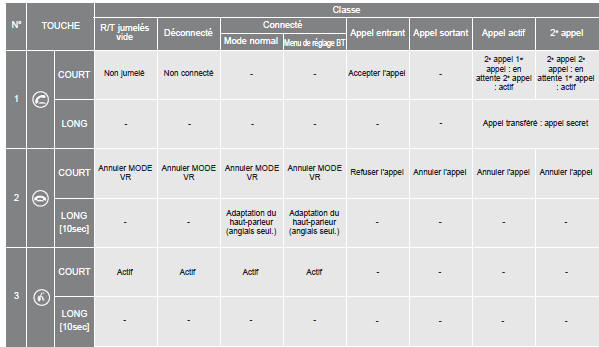
Button Table
Test yourself
A quick Kia Optima DL3 quiz: every answer comes with an explanation and a link to the manual page.