Assistance Functions. Panorama View. Functional Restrictions. System Limits
Panorama View in the BMW 5 Series G30 provides an extended view of cross streets and junctions. Cameras at the front and, optionally, at the rear create a wide-angle image that is shown on the Control Display. The system is activated automatically at low speed or manually with the Park Assist button. Panorama View is especially helpful at blind exits, narrow driveways, and in poor visibility. The display is a split screen with two side views showing the area to the left and right of the vehicle. This makes it possible to spot approaching vehicles early, before they enter your direct field of vision. Drivers benefit from greater safety and better overview, especially in city traffic or when backing out of narrow garages.
Assistance functions
General
Several assistance functions can be active at the same time.
The following assistance functions can be activated manually:
 "Parking guide lines"
 "Obstacle marking"
 "Trailer hitch zoom"
 "Car wash"
The following assistance functions are displayed automatically:
- Side protection.
- Door opening angle.
Parking guide lines
Track lines
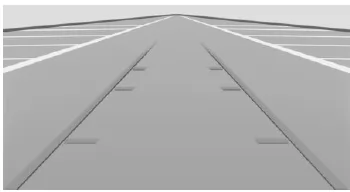
The track lines help you estimate the space required when parking and maneuvering on level ground.
The track lines depend on the steering angle and are continuously adjusted when the steering wheel moves.
Turning circle lines
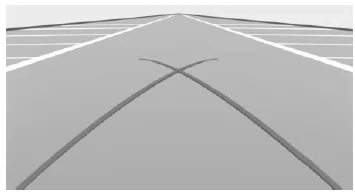
The turning circle lines can only be shown in the camera image together with the track lines.
The turning circle lines show the path of the smallest possible turning circle on level ground.
Above a certain steering angle, only one turning circle line is displayed.
Parking with track lines and turning circle lines
- Position the vehicle so that the red turning circle line leads into the boundary of the parking space.
- Turn the steering wheel so that the green track line covers the corresponding turning circle line.
Obstacle marking
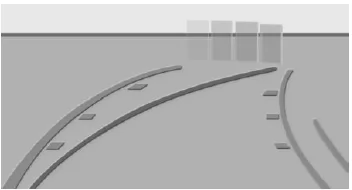
Obstacles behind the vehicle are detected by the PDC sensors.
Obstacle markings can be shown in the camera image.
The color coding of the obstacle markings corresponds to the PDC markings.
Car wash view
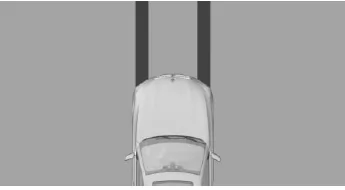
Car wash view helps when driving into car washes by showing your own wheel track.
Trailer hitch zoom
To make it easier to attach a trailer, the image area of the trailer hitch can be shown enlarged.
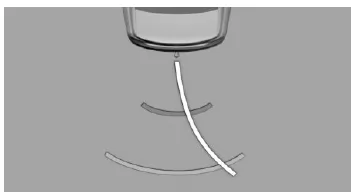
The distance of the trailer to the trailer hitch can be estimated using two static circle segments.
A coupling guide line that depends on the steering angle helps you align the trailer with the trailer hitch.
Show trailer hitch via iDrive.
Side protection
Principle
To protect the sides of the vehicle, obstacle markings are shown along the sides of the vehicle.
- No markings: no obstacles have been detected.
- Colored markings: warning of detected obstacles.
Limits of side protection
The system only displays stationary obstacles that were previously detected by the sensors while driving past them.
The system does not detect whether an obstacle has moved afterwards. For this reason, the markings are no longer shown on the display after a certain time when the vehicle is stationary.
The area next to the vehicle must be scanned again.
Door opening angle
Principle
The system may show fixed obstacles that restrict the opening angle of the doors.
The system does not warn of approaching road users.
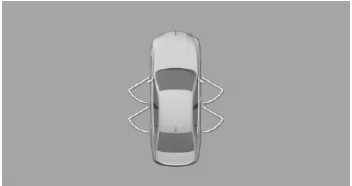
Steptronic transmission: in selector lever position P, the maximum door opening angles are shown.
Manual transmission: when the vehicle is stationary, the maximum door opening angles are shown after a short time.
As soon as the vehicle moves, the parking guide lines are shown instead of the door opening angles.
Limits of the display
For technical reasons, the vehicle surroundings are displayed with distortion.
Even though the door opening angle symbols on the Control Display do not overlay other objects, note the following when parking next to other objects: due to the perspective, raised or protruding objects may be closer than they appear on the Control Display.
Panorama View
Principle
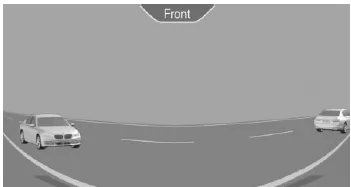
The system allows an early view of cross traffic at blind exits and intersections.
General
Road users hidden by side obstacles are only detected from the driver's seat very late. To improve visibility, the cameras at the front and rear capture the traffic area to the side.
Yellow lines in the screen display mark the front and rear ends of the vehicle.
The camera image is distorted to different degrees in some areas and is therefore not suitable for estimating distances.
Display on the Control Display
 With the engine running, press the button.
Depending on the direction of travel, the image from the corresponding camera is shown:
- "front": image from the front camera.
- "rear": image from the rear camera.
With the corresponding equipment, the Cross Traffic Alert 231 can warn of approaching vehicles using radar sensors.
With navigation system: activation points
Principle
Positions where Panorama View should switch on automatically can be saved as activation points, provided a GPS signal is received.
General
Up to ten activation points can be saved.
Activation points can be used for the front camera when driving forward.
Save activation points
- Drive to the location where the system should switch on, and stop.
 Press the button.
- Tilt the controller to the left.
 "Add activation point". The current position is displayed.
- "Add activation point"
Activation points are saved with location and street if possible, otherwise with GPS coordinates.
Use activation points
The use of activation points can be switched on and off.
 Press the button.
- Tilt the controller to the left.
 "Settings"
- "Panorama View, GPS-based"
- "Panorama View, GPS-based"
Show activation points
 Press the button.
- Tilt the controller to the left.
 "Show activation points": a list of all activation points is displayed.
Rename or delete activation points
 Press the button.
- Tilt the controller to the left.
- "Show activation points": a list of all activation points is displayed.
- If necessary, select an activation point.
- "Rename"
- "Delete this activation point"
- "Delete all activation points"
Adjust brightness and contrast
Brightness and contrast can be adjusted when Surround View or Panorama View is switched on.
Via iDrive:
- Tilt the controller to the left.
- -
 "Brightness"
- "Contrast"
- Set the desired value.
Functional restrictions
The system can only be used to a limited extent in the following situations:
- In poor lighting conditions.
- When the cameras are dirty.
- When a door is open.
- When the tailgate is open.
- When the exterior mirrors are folded in.
Areas hatched in grey with a symbol, e.g. an open door, in the camera display indicate areas that are not currently shown.
System limitations
Areas that cannot be viewed
Due to the viewing angles, the area directly under the vehicle cannot be seen by the cameras.
Object detection
Very low obstacles as well as raised or protruding objects, e.g. wall projections, cannot be detected by the system.
Assistance functions also take PDC data into account.
Observe the notes in the chapter Park Distance Control PDC.
Objects shown on the Control Display may be closer than they appear. Do not estimate the distance to objects from the display.
Malfunction
A camera failure is shown on the Control Display.
A yellow symbol is displayed and the detection area of the failed camera is shown in black on the Control Display.
The assistance functions of Surround View in the BMW 5 Series G30/G31 provide precise maneuvering and parking. Lane lines, turning circle lines, obstacle markings and the trailer hitch zoom view help you judge the space around the vehicle optimally. Special views such as the car wash view also offer practical additional benefits.
Panorama View adds to these functions with an extended view of cross traffic, ideal for difficult exits or intersections. Activation points can be saved so the camera view switches on automatically at familiar locations. This makes the BMW 5 Series G30/G31 a well-designed concept for active safety at close range.
FAQQuestion 1: Can the saved activation points for Panorama View be changed?
Answer: Yes, activation points can be renamed or deleted in the menu.
Question 2: Is the image in Panorama View free of distortion?
Answer: No, the image is distorted for technical reasons and is not suitable for estimating distances.
Test yourself
A quick BMW 5 quiz: every answer comes with an explanation and a link to the manual page.