Head Up Display (HUD)
- Basic information
- How to use the HUD
- Driver Assistance/Navigation/Traffic Sign/Audio/TEL/SMS/Message for Driver Assistance linking
Basic information Nissan Ariya SUV
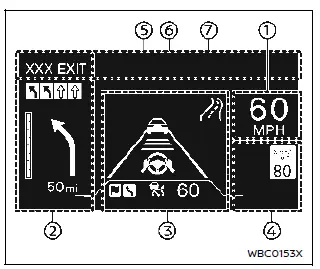
Example
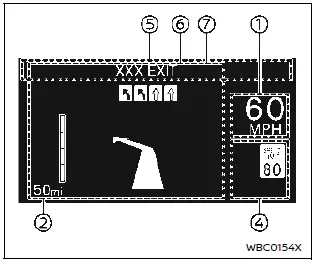
Example
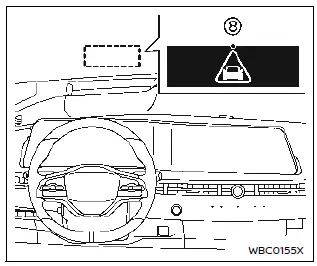
WARNING
- Failure to properly adjust the brightness and position of the displayed image may interfere with the driver's ability to see through the windshield, which could cause an accident leading to severe injury or death.
- Do not use the Head Up Display (HUD) for extended periods of time as that can cause you to not see other vehicles, pedestrians or objects, which could cause an accident leading to severe injury or death.
The Head Up Display (HUD) can display one or more of the following features (if so equipped):
- Vehicle speed
- Navigation
- Driving Assist
- Traffic Sign
- Audio
- TEL/SMS
- Message for Driver Assistance
- Warning message
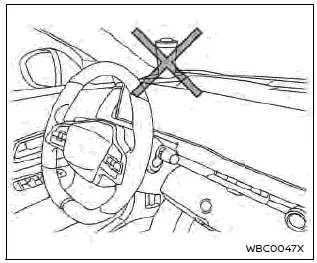
CAUTION
- Do not place any type of liquid on or near the projector. Doing so may cause malfunction of the equipment.
- Do not touch any internal parts of the projector. Doing so may cause malfunction of the equipment.
- To prevent scratches to the projector glass, do not place any sharp objects on or near the projector opening.
- Do not place any objects on the instrument panel which may obstruct the display of the HUD.
- For cleaning, use a soft cloth, dampened with water. Never use a rough cloth, alcohol, benzine, thinner or any kind of solvent or paper towel with a chemical cleaning agent. They will scratch or cause discoloration to the projector lens.
- Do not spray any liquid such as water on the projector lens.
Spraying liquid may cause the system to malfunction.
NOTE:
- If you wear polarized sunglasses, the display may be difficult to see.
Increase the brightness of the HUD in the vehicle information display or remove your sunglasses.
- Depending on weather conditions (rain, snow, sunlight, etc.), the display may be difficult to see.
- If the displayed image appears distorted, it is recommended you have the system checked by a NISSAN certified ARIYA dealer.
- The HUD has a special windshield to allow the image to be displayed clearly. If your windshield needs replacing, this should be completed by a NISSAN certified ARIYA dealer.
- For cleaning, use a soft clean dry cloth. If it cannot be removed, use a soft clean cloth, dampened with water. After that please use a soft clean close.
How to use the HUD Nissan Ariya
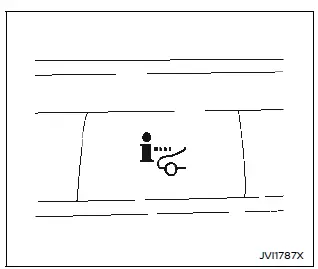
Basic information
To turn the HUD on, push the HUD switch.
To turn the HUD off, push the switch again.
If the HUD is turned off, it will remain off even if the vehicle is restarted.
The following settings can be changed in the vehicle information display:
- Brightness
- Height
- Rotation
- Contents selection
- Navigation
- Driving Assist
- Speed Limit Sign
- Audio
- TEL/SMS
- Reset
NOTE:
- Emergency information may display even if the HUD is turned off.
- When Driving Assist is activated, the HUD will be displayed with the ProPILOT Assist switch on even if the HUD switch is turned off.
This product includes the following software.
(1) Panasonic Corporation or software developed for Panasonic Corporation
(2) Third-party software licensed to Panasonic Corporation
(3) Open source software
Regarding (3) Open source software, it includes open source software (OSS), including various software to which license information applies.
Refer to the license web site at: http:// car.panasonic.jp/oss/j03llnna
Display brightness
The brightness of the display may be controlled in the vehicle information display.
The brightness will also be adjusted automatically according to the exterior ambient lighting brightness.
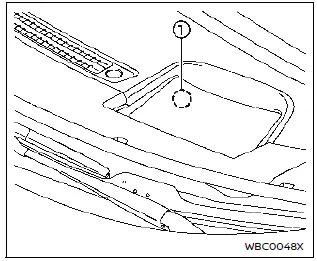
Do not apply strong light to the sensor of Head Up Display. Doing so may cause a malfunction.
NOTE:
- The HUD has a built-in sensor 1 that controls the brightness of the displayed image. If you block the sensor with an object, the display will darken, making it difficult to see.
Driver Assistance/Navigation/Traffic Sign/Audio/TEL/SMS/Message for Driver Assistance linking Nissan Ariya
The HUD will display Driver Assistance and navigation information.
The Driver Assistance display will show warning situations for the following systems if the vehicle is equipped with them:
- Automatic Emergency Braking (AEB) with Pedestrian Detection
- Intelligent Forward Collision Warning (I-FCW)
- Lane Departure Warning (LDW)
- Intelligent Lane Intervention (I-LI)
- Hands-free warning
- Lane Change Assist indicator (ProPILOT Assist 2.0)
- Route Assist indicator (ProPILOT Assist 2.0)
The Navigation System linking display will show the following items:
- Intersection names
- Arrows indicating turning direction
- Distance to the next intersection
- Recommended lane indicator
The Traffic Signs Recognition (TSR) system linking display will show the following items:
- Speed Limit Sign
The Audio System linking display will show the following items:
- Songs
- Radio stations
The TEL/SMS linking display will show the following item:
- Caller's name or phone number
The message linking display will show the following item:
- ProPILOT Assist 2.0
Warning message
When the following system is operated, the warning message appears on the Head Up Display (HUD).
- ProPILOT Assist 2.0
- Automatic Emergency Braking (AEB) with Pedestrian Detection system