Downloading and installing an Over-the-Air Update

In this manual: Downloading and installing an Over-the-Air Update
About this Owner's Manual — 1Illustrated index — 1Symbols in the instrument cluster — 1Warning and information texts — 1Introduction to the instrument cluster — 1ID. Light — 1Service menu/ Service display — 1Limits of the Driver Alert System — 1Correct seating position — 1Automatic safety belt retractor, safety belt pretensioner, safety belt load limiter — 1Indicator light — 1Installation locations and deployment zones of the airbags — 1Switching the Front Passenger's Front Airbag On and Off — 1Types of child restraints — 1Securing yourself and the vehicle — 1Emergency equipment — 1Information Call, Roadside Assistance Call and Emergency Call Service — 1Troubleshooting — 1Legally required eCall Emergency System — 1Vehicle key functions — 1Unlocking or locking using Keyless Access — 1Child safety lock — 1Anti-theft alarm system — 1Interior monitoring and towing protection — 1Opening and closing the trunk lid — 1Opening and closing the windows — 1Power window pinch protection — 1Adjusting the steering wheel position — 1Manually adjusting front seats — 1Adjusting the head restraints — 1Removing and installing the head restraints — 1Center armrest — 1Memory function — 1Massage feature — 1Switching the turn signals on and off — 1Switching the lights on and off — 1Switching the high beam headlights on and off — 1Switching the poor weather lights on and off — 1Switching on and off the rear fog light — 1Switching the parking light on and off — 1Entry and exit lighting (orientation lighting) — 1Headlight range control — 1Interior/reading lights, ambient lighting — 1Operating the windshield wiper lever — 1Rain/light sensor — 1General safety precautions — 1Overview of the Climatronic — 1Overview of seat heating — 1Operating the stationary air conditioning — 1Programming the stationary air conditioning — 1Functions of the electric drivetrain — 1Steering information — 1Information on the pedals — 1Information on the brakes — 1Switching the ignition on and off — 1Activating the vehicle's drive system — 1Exiting a vehicle while the vehicle's drive system is active — 1Deactivating the vehicle's drive system — 1Driving mode selector — 1Brake energy recuperation — 1Selecting the driving mode — 1Standard behavior of the driving mode and the vehicle systems — 1Eco tips — 1Operating the vehicle in different countries and continents — 1Limits of the sensor system — 1Operating the cruise control system — 1Operating the speed limiter — 1System Limitations of the Predictive Control — 1Driving with predictive control — 1Eco assist — 1Special driving situations — 1System Limitations of ACC — 1Switching ACC on and off — 1Adjusting the ACC settings — 1System Limitations of Predictive Cruise Control — 1Driving with predictive cruise control — 1Warning levels and braking support — 1System Limitations of Front Assist — 1Oncoming vehicle braking when turning — 1Lane Assist system limitations — 1Driving with Lane Assist — 1Operating Travel Assist — 1Using assisted lane changing — 1Driving with Emergency Assist — 1Side Assist system limitations — 1Driving with Side Assist — 1Parking — 1Electronic parking brake — 1Auto Hold — 1Safety instructions — 1Automatic braking intervention — 1Switching Park Distance Control (PDC) on and off — 1Parking (Rear View Camera system with parking mode selection) — 1Changing the camera perspective — 1Searching for parking spaces — 1Calibrating the parking process — 1Displaying and editing parking spaces — 1Driving into or out of a parking space — 1Rear Traffic Alert — 1Information about braking assistance systems — 1Switching ASR Sport on and off — 1Sockets in the vehicle — 1Cyber security — 1Downloading and installing an Over-the-Air Update — 1V2X limitations — 1Activating and deactivating V2X — 1Traffic hazard alert — 1USB port — 1Bluetooth interface — 1Setting up the Internet connection — 1Activating and deactivating a Wi-Fi hotspot — 1Apple CarPlay — 1Android Auto — 1MirrorLink — 1Introduction to online services — 1Viewing and enabling functions — 1Safety instructions — 1Overview of Infotainment system — 1Brands, licenses, copyright — 1Functions and radio symbols — 1Setting a 360º range display and Electric Vehicle Route Planner — 1Stowing luggage and cargo — 1Mounting the bicycle rack mount — 1Information on the roof rack — 1Warning signs for the high-voltage system — 1Handling the high-voltage battery — 1Charging — 1Placement — 1Information on bulb replacement — 1Replacing bulbs in LED headlights — 1Fuses in the hood space — 1Ground jump-start point — 1Instructions for towing — 1Safety precautions for working in the hood space — 1Preparing the vehicle for work in the hood space — 1Operating fluids and operating equipment — 1Charging, replacing, disconnecting, or connecting the 12 V vehicle battery — 1Handling tires — 1Preparing Your Vehicle — 1Maintenance procedures and digital maintenance schedule — 1Information about operating conditions — 1Scope of service — 1Vehicle care information — 1Washing the vehicle — 1Accessories and replacement parts — 1Sensors and Cameras — 1Repairs and technical modifications — 1Airbag system repairs and situations that can affect the system function — 1Mobile phone usage in the vehicle — 1Data Storage and Data Protection Information — 1Event data recorder (crash data recorder) — 1Labels and signs — 1Fluids in the air conditioning system — 1Infotainment system and aerials — 1Disposal of old batteries and electronic devices — 1Product recycling — 1Old vehicle return and scrap disposal — 1Useful information on vehicles with N1 type approval (light commercial vehicle) — 1Radar Sensors — 1Specifications & Consumer information — 1
6steps
~36min
2/5difficulty
Done 0 of 6

Download costs

An Over-the-Air Update is downloaded via the factory-installed control module with ane SIM card and is free of charge. Volkswagen pays the connection charges.

Time of download

The download takes place automatically without a prior notification and is possible even while driving. Once the download has been completed, you will receive notification of a pending Over-the-Air Update.

The download time depends on the network quality, file size and Over-the-Air Update type. It may be the case that the download is interrupted. In this case, the download will resume when the ignition is switched on.

Requirements for software installation

  • The Volkswagen ID.3 vehicle is parked safely in accordance with legal requirements and local conditions .

  • The previous Over-the-Air Updates have been installed.

Carrying out software installation of the Over-the-Air Update

Select a time for the Over-the-Air Update during which the vehicle does not need to be driven by you or anyone else.

WARNING

Control units are deactivated and will not be operational for the duration of the software installation. Driving with deactivated or non-functioning control units can lead to accidents and fatal injuries.

  • Carry out the software installation so that other road users are not affected.

  • Never operate your vehicle during a software installation.

  1. Deactivate the Volkswagen ID.3 vehicle's drive system and switch on the electronic parking brake.

  2. Close the engine hood, trunk lid, all windows and all doors.

  3. Confirm the software installation in the Infotainment system.

  4. Ensure that all vehicle occupants leave the vehicle and that no animals are left in the vehicle.

  5. Exit the vehicle, taking all vehicle keys with you.

  6. Lock the vehicle.

Functional limitations during software installation

The control modules, the main computer, functions and displays will not be available during software installation. Do not use the Volkswagen ID.3 vehicle during this process and do not operate the Infotainment system.

  • The vehicle's drive system is blocked from being activated by the system.

  • The high-voltage battery is not charged.

  • The diagnostic connection port is deactivated.

  • The anti-theft alarm system is deactivated.

  • The SAFELOCK is deactivated.

Following the software installation

After the software installation and before activating the vehicle's drive system, read the message regarding completion of the installation in the Infotainment system and instrument cluster. The Volkswagen ID.3 vehicle will require up to 1 minute to display the status of the Over-the-Air Update.

  • The vehicle's drive system can be activated following the successful software installation.

  • If the software installation is unsuccessful: (→ System update)

Troubleshooting

Installation of an Over-the-Air Update has failed

  • If the installation of an Over-the-Air Update was not successful, a corresponding error message will appear in the Infotainment system or instrument cluster. Take note of corresponding messages and warning notifications.

If there was a critical installation error, control modules may no longer function or not function correctly.

Functions and displays will not be available until the error is rectified. Do not use the vehicle. If this is the case, contact Volkswagen Customer Care.

Can I interrupt the installation of an Over-the-Air Update?

No, this is not possible.

What happens if installation of an Over-the-Air Update is interrupted?

If installation is interrupted, e.g. due to damage to the Volkswagen ID.3 vehicle's electrical system, control modules may not be updated and may be damaged by the incomplete installation of the Over-the-Air Update.

Introduction

V2X technology, hereafter referred to as V2X, enables communication between multiple nearby vehicles as well as between vehicles and nearby traffic infrastructure, hereafter referred to as "participants".

System function of V2X

The communication between the participants takes place in accordance with cross-manufacturer V2X and Wi-Fi standards.
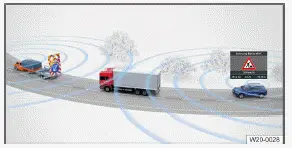
Volkswagen ID.3. Fig. 1 Communication among participants (general example).
Fig. 1 Communication among participants (general example).

Transferring data

If V2X technology is activated, the following data is sent and received:

  • Volkswagen ID.3 Vehicle data, e.g. speed.

  • Positioning data.

  • Incident data, e.g. accidents.

Continually changing, temporary IDs attached to the V2X technology data minimize the risk that data sent out can be traced back to you or misused.

To update V2X technology certificates and consequently to ensure that V2X technology remains activated, activate online mode in the Volkswagen ID.3 vehicle at least once a month.

You can find further information on data processing in the Infotainment system .

Activating V2X technology

V2X technology is available depending on the country. If you can activate V2X technology via the following path, the vehicle is equipped with V2X technology.

  1. 1. Tap HOME→→ → Privacy settings.

When V2X technology is switched on, data is constantly being transferred between the participants, irrespective of whether the Volkswagen ID.3 vehicle is in online or offline mode. If the vehicle is in Offline mode but V2X is nevertheless activated, the following symbol will be displayed in the Infotainment system:

Offline mode is active, V2X technology is sending data.

If you are in Online mode, there is no special display for V2X, regardless of whether or not V2X has been activated. To check whether V2X is transmitting data in Online mode, check whether V2X has been activated under HOME→ → → Privacy settings.