Vehicle key functions
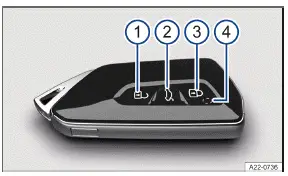
Fig. 1 Volkswagen ID.3 Vehicle key.
Unlock the Volkswagen ID.3 vehicle. All turn signals will flash twice.
Unlock the trunk lid separately. All turn signals will flash twice. To do this, briefly press and hold the button.
Lock the vehicle. All turn signals will flash once.
Indicator light: Will blink when a button is pressed if all doors and the trunk lid are closed.
WARNING
If you leave Volkswagen ID.3 vehicle keys unattended in the vehicle, children or unauthorized people could lock the doors and/or the trunk lid, activate drive-ready mode, or switch on the ignition and thereby activate electrical equipment, such as the power windows. This can cause accidents and serious or fatal injuries.
Always take all Volkswagen ID.3 vehicle keys with you when leaving the vehicle.
WARNING
If you leave children, people requiring assistance or animals unattended in the vehicle, they may accidentally set the vehicle in motion or be subjected to very high or low temperatures. There is a risk of accidents and serious or fatal injuries.
Never leave children, people requiring assistance or animals unattended in the Volkswagen ID.3 vehicle.
NOTICE
External influences may limit the functionality of the remote control vehicle key and damage it.
Protect the vehicle key from moisture and strong impacts.
Regular use of comfort systems and other usage patterns shorten the service life of the button cell in the vehicle key.
- Emergency key
- Replacing the button cell battery
- Synchronizing a vehicle key
- Setting up primary users for the vehicle
- Using a mobile key
Emergency key
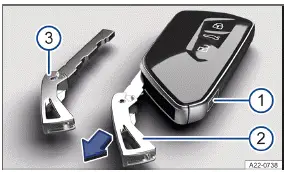
Fig. 1 Vehicle key: releasing the emergency key.
Briefly press the release button. The key ring will fold open.
Press the release button and pull out the emergency key in the direction of the arrow.
Emergency key.
There is an emergency key located in the Volkswagen ID.3 vehicle key that can be used to manually unlock and lock the vehicle → fig. 1 (3) .
Possible functions:
Unlock and lock the Volkswagen ID.3 manually.
Switch the childproof lock on and off (→ Mechanical child safety lock) .
Replacing the button cell battery
Volkswagen recommends having the button cell changed by suitably qualified professionals. Volkswagen recommends contacting an authorized Volkswagen dealer or authorized Volkswagen Service Facility →  .

Fig. 1 Remote control vehicle key: opening the battery compartment cover.
Emergency key.
Lever out the cover.
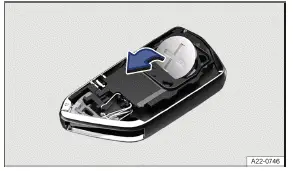
Fig. 2 Vehicle key: replacing the button cell battery
Remove the emergency key → fig. 1 (1) (→ Volkswagen ID.3 Vehicle key) .
Insert the spare key in the slot, push it in the direction of the arrow and lever out the cover→ fig. 1 (2) .
Lift the button cell battery out of the battery compartment → fig. 2 , →
 .
Press the new button cell battery into the battery compartment.
Press the cover onto the housing → fig. 2 , →
 .
Store the emergency key (→ Vehicle key) .
Dispose of drained battery in a way that will not harm the environment.
DANGER
If button cell batteries are swallowed or enter the windpipe, serious or fatal injuries will occur within a very short time due to choking or internal burns.
Seek medical assistance immediately if you suspect that a button cell battery has been swallowed.
Always keep the remote control and key fob with button cell batteries out of the reach of children.
NOTICE
If the button cell battery is replaced incorrectly or a battery is unsuitable, it can damage the Volkswagen ID.3 vehicle key.
Only replace a drained battery with a new battery of the same voltage, size, and specification.
Make sure the battery is facing in the right direction when inserting it.
If the battery cover cannot be closed, do not use the remote control.
The type of batteries used in the remote control of your vehicle key can contain perchlorate. This requires special handling. Observe all legal requirements regarding the handling and disposal of these batteries (→ Used battery disposal) . Volkswagen recommends having this service carried out for you by suitably qualified professionals. Volkswagen recommends contacting an authorized Volkswagen dealer or authorized Volkswagen Service Facility.
Synchronizing a vehicle key
If the Volkswagen ID.3 cannot be unlocked or locked using the vehicle key, synchronize the vehicle key or replace the button cell battery (→ Vehicle key) .
Synchronizing a vehicle key
Stand next to the Volkswagen ID.3 vehicle.
Press the
 button on the vehicle key twice, quickly.
Or:
Remove the emergency key (→ Vehicle key) .
If necessary, remove the cap from the driver's door handle (→ Doors) .
Press the
 button on the vehicle key.
Unlock the Volkswagen ID.3 vehicle using the emergency key.
Open the driver door.
If the vehicle is equipped with an anti-theft alarm system, the alarm will be triggered immediately (→ Anti-theft alarm system) .
Switch the ignition on.
To switch on the ignition, an emergency start must be performed. (→ Starting the engine) .
This completes the synchronization.
Troubleshooting
Volkswagen ID.3 Vehicle cannot be locked or unlocked
Remote control is disrupted by objects, poor weather conditions or transmitters on the same frequency band close to the vehicle (e.g. cell phones), as well as by a drained button cell.
The central locking switches off briefly to protect it from overloading.
Close the driver door.
Or: Synchronize the ID.3 vehicle key (→ Vehicle key) .
Or: Change the battery cell in the vehicle key (→ Vehicle key) .
The indicator light is not blinking
If the indicator light in the Volkswagen ID.3 key does not blink when you press one of the buttons, then the button cell battery in the vehicle key must be replaced.
You can get an additional or replacement vehicle key from an authorized Volkswagen dealer or authorized Volkswagen Service Facility.
Introduction
The function to have your "cell phone as a remote control vehicle key" in connection with the We Connect ID. app is called "Mobile key". This function allows an appropriate cell phone to be used in place of a remote control Volkswagen ID.3 vehicle key.
You can lock and unlock the vehicle and make the vehicle drive-ready with the activated mobile key. Neither the cell phone nor the vehicle needs to be connected to the Internet for this to work.
The mobile key is an optional vehicle function, which can be selected during vehicle configuration. If the configuration of the vehicle includes the "Mobile key" mount, the vehicle is delivered from the factory with the "Mobile key" function. To be able to use the "Mobile key" function, a We Connect Plus contract must be concluded with Volkswagen and a proof of identity and ownership must be shown upon delivery. Furthermore, a suitable cell phone, on which the We Connect ID. app is installed, and a Volkswagen user account with username and password is required. Then the cell phone can be activated as a mobile key. The cell phone must have an Internet connection for activation.
One cell phone is able to manage the mobile key to multiple different vehicles. Communication between the cell phone and Volkswagen ID.3 vehicle takes place via Bluetooth.
Depending on the functional status, the primary user can generate further mobile keys and distribute them to authorized third-party users. The requirement for use is that the third-party user has a Volkswagen ID and the We Connect ID. app.
WARNING
Loss or careless or unsupervised use of a cell phone with mobile key function can result in accidents, serious injuries and the vehicle being stolen.
Always take all conventional Volkswagen ID.3 vehicle keys or cell phones with an activated mobile key with you when leaving the vehicle.
WARNING
If the primary user revokes the mobile key, it will only remain active for another 24 hours. If, under certain conditions, the mobile key is immediately deleted, it will be immediately disabled once the ignition is switched off.
The vehicle can no longer be moved, locked or unlocked. This may result in the vehicle becoming stranded in traffic, or cause accidents and serious injuries.
Ensure that the mobile key is active while driving.
Observe potential messages in the We Connect ID. app during the use of mobile keys.
Requirements
The Volkswagen ID.3 vehicle is equipped with the "mobile key" function.
The 12-volt vehicle battery is sufficiently charged.
A We Connect Plus contract has been concluded with Volkswagen.
The primary user has provided proof of ownership and proof of identity (→ We Connect) .
A compatible cell phone with activated Bluetooth connection is available.
The We Connect ID. app is installed on the cell phone and is ready to use. The We Connect ID. app can be downloaded in the Apple Store or Google Play Store.
A Volkswagen ID user account has been created. A user account can be created at www.connect.volkswagenwe.
com or in the We Connect ID. app.
The Volkswagen ID.3 vehicle is assigned to the Volkswagen ID user account of the primary user.
Drained cell phones and cell phones with insufficient battery charge level cannot carry out the required function.
Before driving, always ensure that the cell phone is sufficiently charged.
Charge the cell phone while driving if possible.
Volkswagen recommends carrying the remote control vehicle key with you.
With the "Mobile key" function, the user can perform neither emergency locking nor emergency opening of the vehicle in the event of a drained 12 V vehicle battery. Likewise, the front passenger's airbag cannot be deactivated with the mobile key. Volkswagen recommends carrying the remote control vehicle key with you.
Setting up primary users for the vehicle
Observe messages on the cell phone during setup.
When using a mobile key for the first time, the Volkswagen ID.3 owner must be set up as the primary user for the vehicle as follows:
Create a user account in We Connect .
Add vehicle to the user account via the We Connect ID. app.
Show proof of ownership and proof of identity of the primary user at a service partner.
Unlock the Volkswagen ID.3 vehicle using a remote control vehicle key.
Switch on the ignition and Infotainment system.
In the Infotainment system, tap System settings
 Connect with We Connect.
Scan the QR code using the We Connect ID. app.
The cell phone is set up and the primary user assigned in the We Connect ID. app.
Functions on the primary user cell phone
Primary users of a vehicle can use the following functions of the We Connect ID. app:
Activate mobile keys for your own Volkswagen ID.3.
Use a mobile key.
Distribute mobile keys to and remove them from other users.
Confirm vehicle system updates for the "Mobile key" function.
The primary user and the recipient of the key are informed before a mobile key expires via the We Connect ID. app.
Using a mobile key
Depending on the Volkswagen ID.3 vehicle equipment, a maximum of eight mobile keys may be used simultaneously per vehicle.
When the primary user provides a mobile key, they are allowing the recipient of the key to access their vehicle and giving them permission to drive it.
The mobile key is automatically updated regularly. An online connection on the cell phone and the vehicle is required to transfer this update to the cell phone and the vehicle.
WARNING
Careless or unintended use of remote control vehicle keys or mobile keys with the vehicle drive-ready can cause crashes and severe injury.
Always switch off the vehicle's drive system before you leave the vehicle.
When leaving the vehicle, never leave remote control vehicle keys or a cell phone with an activated mobile key in the vehicle.
NOTICE
If you leave behind the vehicle's remote control vehicle keys or mobile keys in the vehicle when you leave it, this can result in locking malfunctions and in the theft of the vehicle.
When leaving the vehicle, never leave remote control vehicle keys or a cell phone with an activated mobile key in the vehicle.
For the Bluetooth connection to function properly with Android, authorization for access to the position of the cell phone with the We Connect ID. app is required.
Activating a mobile key
Open We Connect ID. app.
Log into user account with the Volkswagen ID.
If necessary, select your preferred Volkswagen ID.3 vehicle.
Activate mobile key in the app.
Unlocking the vehicle
Position the cell phone next to the vehicle.
Ensure that Bluetooth is activated on the cell phone.
Open We Connect ID. app.
Log into user account with the Volkswagen ID.
If necessary, select your preferred Volkswagen ID.3 vehicle.
Select the "Mobile key" function.
Select the Lock/unlock function.
Activating the vehicle's drive system
Put the cell phone into the vehicle.
Open We Connect ID. app.
Confirm in the app that the user is in the vehicle and is ready to begin driving.
Leave the cell phone on the wireless charging shelf while driving.
Press the starter button once.
With the brake pedal pressed, engage the
 or
 gear.
The
 indicator light in the instrument cluster display lights up and a chime sounds.
After confirmation in the We Connect ID. app, only a limited time frame is available for making the vehicle drive-ready. If the vehicle cannot be made drive-ready within this time frame, repeat confirmation in the app.
If the vehicle's drive system is activated with the mobile key, a permanent connection between the vehicle and the cell phone is required. To prevent the battery of the cell phone discharging, it is recommended to permanently leave it in the wireless charging shelf.
Temporary trip interruption without revoking drive-readiness
The trip can be temporarily interrupted without losing drive-readiness, e.g. in order to open a door.
Stop the Volkswagen ID.3 vehicle.
Press
 on the driving mode selector.
Leave the vehicle.
WARNING
The vehicle remains drive-ready for some time and is not locked. This allows unauthorized third parties to obtain access to your vehicle. This could result in vehicle theft, accidents and serious injuries.
Do not leave your vehicle unattended if the vehicle is still drive-ready.
Locking the vehicle and ending drive-ready mode
Stop the vehicle.
Press
 on the driving mode selector.
Leave the Volkswagen ID.3 vehicle.
Open We Connect ID. app.
Select the Lock/unlock function.
The vehicle can be locked using mobile keys even if another remote control vehicle key is inside the vehicle.
If you lock the vehicle using the mobile key without SAFELOCK, you must deactivate interior monitoring in the Infotainment system. SAFELOCK is not activated for the following locking action. It is not possible to deactivate SAFELOCK retrospectively after locking the vehicle with the mobile key.
Troubleshooting
Message in the Volkswagen Digital Cockpit: "Key not recognized"
Ensure that you have made the Volkswagen ID.3 vehicle drive-ready via the We Connect ID. app.
The cell phone does not contain a valid mobile key or it has expired or has been removed.
The cell phone is in the vehicle, but has no stable Bluetooth connection to the vehicle.
The cell phone is no longer in the vehicle and outside the range of the Bluetooth connection.
Message in the We Connect ID. app: "The key has expired"
The cell phone does not contain a valid mobile key, as the mobile key could not be renewed due to the cell phone having no or an insufficient Internet connection.
Establish an online connection on the cell phone and start the update of the mobile key.
Can I transfer mobile keys to my new cell phone?
A mobile key already installed on a cell phone can be transferred to a new device by the primary user activating a new mobile key on their new cell phone.
What do I need to watch out for if I reset the primary user cell phone to factory settings?
If the primary user cell phone is reset to factory settings, you can no longer use the cell phone as a mobile key.
Reactivate the mobile key via the We Connect ID. app.
What do I need to watch out for if I buy a vehicle that supports mobile keys?
Ensure that no mobile keys for your Volkswagen ID.3 vehicle are in circulation by demonstrating proof of ownership and proof of identity at the service partner.
What do I need to watch out for if I buy or sell a vehicle with mobile keys?
Ensure that the vehicle is reset to factory settings.
Introduction
Keyless Access makes it possible to unlock and lock the vehicle without actively using the key. A valid vehicle key must be present within the vicinity of the vehicle to use this function.