Top Rear Vision - Top 360 Vision
For more information, refer to the General Recommendations for driving and manoeuvring aids.
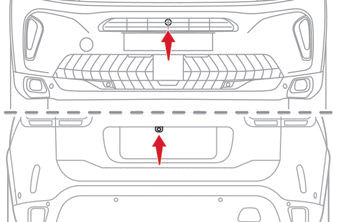
With the engine running, these systems display views of the immediate surroundings of your vehicle on the touch screen using one camera for Top Rear Vision, and two cameras for Vision 360.
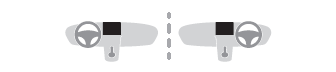
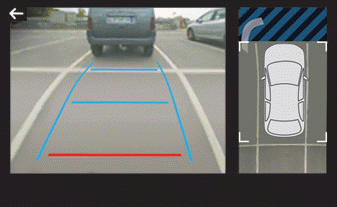
The screen is divided into two parts: a contextual view and a top view of the vehicle in its immediate environment.
The parking sensors supplement the information in the top view of the vehicle.
Several different views can be displayed:
- Standard view.
- 180º view.
- Zoom view.
AUTO mode is enabled by default.
In this mode, the system selects the best view to display (standard or zoom).
The view type can be changed at any time during the manoeuvre.
► Press the button in the lower left corner of the touchscreen.
► Select a view type:
- "Standard View".
- "180 View".
- "Zoom View".
- "AUTO View".
The display updates immediately with the selected view type.
The function status is not stored when the ignition is switched off.
Operating principle
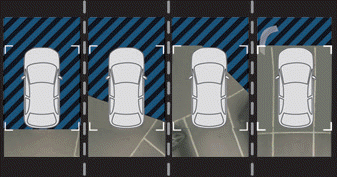
Using one or two cameras, the area immediately around the vehicle is recorded during low-speed manoeuvres.
A real-time top-down image of your vehicle and its immediate surroundings is created (shown within the brackets) as the vehicle moves.
This helps you align the vehicle when parking and see obstacles nearby. It turns off automatically if the vehicle remains stationary for too long.
With Vision 360, the image is created using both cameras, whether driving forward or in reverse.
When the function is activated, the top view may not be displayed immediately. If the function is activated after the vehicle has already been moving, the top view may be fully displayed.
Top Rear Vision
Rear vision
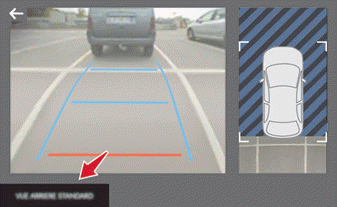
To activate the camera, located near the license plate lights, engage reverse and do not exceed a speed of 10 km/h.
The function deactivates:
- Automatically above approximately 10 km/h.
- Automatically when the tailgate is opened.
- When reverse is disengaged (the image remains displayed for 7 seconds).
- By pressing the white arrow in the upper left corner of the touchscreen tablet.
AUTO mode
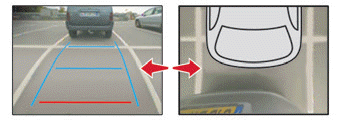
This mode is enabled by default.
Using the sensors located on the rear bumper, automatic view switches from rear view (standard) to top view (zoom) when an obstacle is detected at the red line (less than 30 cm) during the manoeuvre.
Standard view
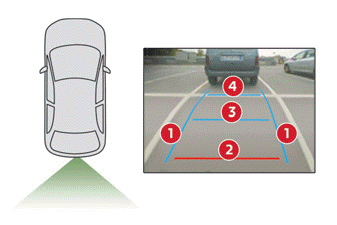
The area behind your vehicle is displayed on the screen.
The blue guide lines 1 show the width of your vehicle with the mirrors extended; they change direction according to the steering wheel position.
Starting from the rear bumper, the red line 2 represents a distance of 30 cm, and the two blue lines 3 and 4 represent 1 m and 2 m respectively.
This view is available in AUTO mode or can be selected from the view change menu.
Zoom view
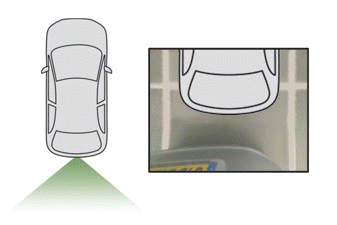
The camera records the surroundings during the manoeuvre to create a top-down rear view of the vehicle and its immediate surroundings, allowing you to manoeuvre the vehicle around nearby obstacles.
This view is available in AUTO mode or can be selected from the view change menu.
Obstacles may appear further away than they actually are.
During the manoeuvre, it is important to check the sides of the vehicle using the mirrors.
The parking assist also provides additional information about the vehicle's surroundings.
180º view
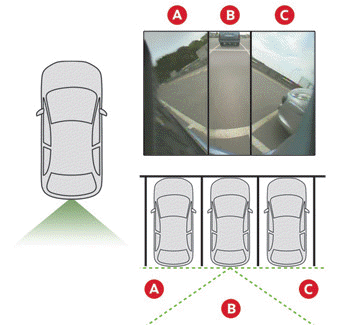
The 180º view allows you to reverse out of a parking space while anticipating the approach of vehicles, pedestrians or cyclists.
This view is not recommended for performing a complete manoeuvre.
It is divided into three zones: left A, centre B and right C.
This view is only available by selection from the view change menu.
Top 360 Vision
The vehicle has a front camera, integrated into the grille, and a rear camera, located near the license plate lights.
Using these cameras, the system displays the area immediately around the vehicle on the touchscreen tablet, providing rear views (rear vision) when reverse is engaged, and front views (front vision) when the gearbox is in neutral or a forward gear is engaged.
Rear vision
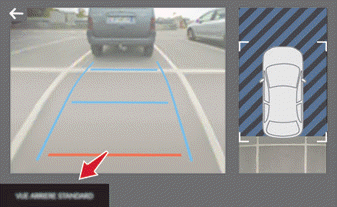
The function activates automatically when reverse is engaged.
The function deactivates:
- Automatically above approximately 10 km/h.
- When reverse is disengaged (the front vision image replaces the rear vision image for 7 seconds).
- By pressing the white arrow in the upper left corner of the touchscreen tablet.
When a trailer or bike rack is connected to the towball, the area behind the vehicle on the top view turns black.
The surroundings are reconstructed using the front camera only.
The rear vision views are similar to those described in the Top Rear Vision function.
For more information on the Top Rear Vision function, refer to the corresponding section.
Front and rear vision
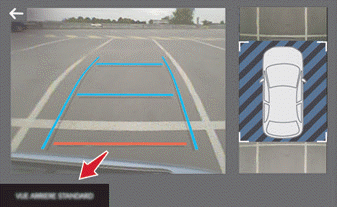
 With the engine running and at a speed below 20 km/h, the function is activated via the Driving / Vehicle menu on the tablet:
► Select "Parking Visual Aid".
AUTO mode is displayed by default, with front vision if the gearbox is in neutral or a forward gear is engaged, or with rear vision if reverse is engaged.
The function deactivates:
- Automatically above approximately 30 km/h (the image temporarily disappears from 20 km/h).
- By pressing the white arrow in the upper left corner of the touchscreen tablet.
AUTO mode
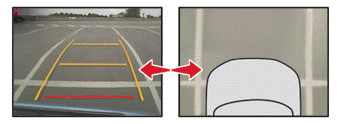
This mode is enabled by default.
Using the sensors located on the front bumper, automatic view switches from front view (standard) to top view (zoom) when an obstacle is detected during the manoeuvre.
Standard view
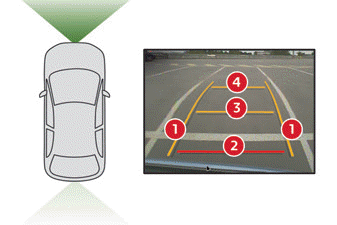
The area in front of your vehicle is displayed on the screen.
The orange guide lines 1 show the width of your vehicle with the mirrors extended; they change direction according to the steering wheel position.
Starting from the front bumper, the red line 2 represents a distance of 30 cm, and the two orange lines 3 and 4 represent 1 m and 2 m respectively.
This view is available in AUTO mode or can be selected from the view change menu.
Zoom view
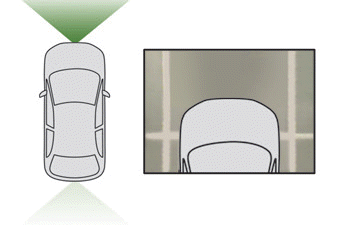
The camera records the surroundings during the manoeuvre to create a top-down front view of the vehicle and its immediate surroundings, allowing you to manoeuvre the vehicle around nearby obstacles.
This view is available in AUTO mode or can be selected from the view change menu.
Obstacles may appear further away than they actually are.
During the manoeuvre, it is important to check the sides of the vehicle using the mirrors.
The parking assist also provides additional information about the vehicle's surroundings.
180º view
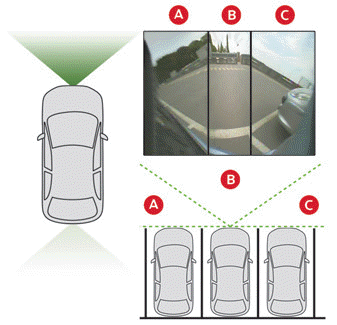
The 180º view allows you to pull out of a parking space forward while anticipating the approach of vehicles, cyclists or pedestrians.
This view is not recommended for performing a complete manoeuvre.
It is divided into three zones: left A, centre B and right C.
This view is only available by selection from the view change menu.
Test yourself
A quick Citroen C5 Aircross quiz: every answer comes with an explanation and a link to the manual page.