Audio System (vehicles equipped with GPS) - Using the Track List
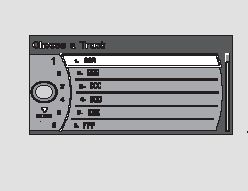
You can select a track to listen to from the list shown on the display. Press the AUDIO button to go to the audio system display screen, then press the right side of the interface selector switch to enter track list mode. The current track is highlighted with a color bar. To select another track, turn the interface selector switch knob, then press the ENT (Enter) button to confirm your selection.
If the disc does not contain text information, the track name is not shown on the display. In this case, only the track sequence number is shown.
To exit track list mode, press the AUDIO button or the left side of the selector.
Folder Selection MP3 or WMA — To select a folder and go to its first track, press either side of the TUNE switch.
Pressing the side of the switch moves to the next folder, and pressing the

side moves to the beginning of the current folder. If you press and release the same side again, the system moves to the beginning of the previous track, and so on.
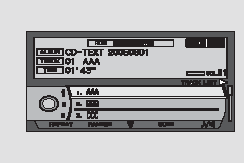
You can also select a folder using the audio display. Press the AUDIO button to display the audio system information, then turn the interface switch knob right or left to enter folder selection mode. The current folder is highlighted with a color bar. To view other folders, use the interface switch selector. Press its upper side to display the next folders or its lower side to display the previous folders. Confirm your selection by pressing the ENT (Enter) button.
Track/File Repeat (TRACK/FILE REPEAT) — To repeat a single track continuously (or an MP3 or WMA file), press and release the RPT button. The RPT indicator will appear on the side display. To cancel repeat, press the RPT button again.
To cancel this mode, you can also press either side of the SEEK/SKIP button.
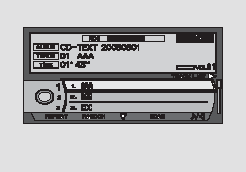
You can also select the repeat function using the audio display.
Press the AUDIO button to display the audio system information, then press the interface switch selector. Select the TRACK REPEAT function by turning the interface switch knob.
Confirm your selection by pressing the ENT (Enter) button. The REPEAT message will appear on the display.
To cancel track repeat, select the TRACK REPEAT function again as described above, then press the ENT button. This function can also be canceled by pressing the RPT button.
Folder Repeat (FOLDER REPEAT) — When this function is active, all MP3 or WMA files recorded in the selected folder will play continuously in the order they were recorded on the disc. To activate folder repeat, press the RPT button.
The F RPT indicator will appear on the side display.
The system will continuously play the files in this folder. To cancel repeat, press the RPT button again. Selecting another folder with the TUNE switch automatically cancels folder repeat.
Each time you press the RPT button, the system mode changes from continuous file playback to continuous folder playback and back to normal operation.
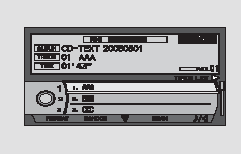
You can also select folder repeat using the audio display. Press the AUDIO button to display the audio system information, then press the interface switch selector. Select the FOLDER REPEAT function by turning the interface switch knob. Confirm your selection by pressing the ENT (Enter) button. The FOLDER REPEAT message will appear on the display. To cancel folder repeat, select the FOLDER REPEAT function again as described above, then press the ENT button. This function can also be canceled by pressing the RPT button.
Random Play (RANDOM) — In this mode, all tracks on the active disc (or all MP3 or WMA files in all folders on the disc) will play in random order.
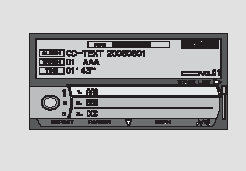
Press the AUDIO button to display the audio system information, then press the interface switch selector. Select the TRACK RANDOM function by turning the interface switch knob. Confirm your selection by pressing the ENT (Enter) button.
The RANDOM message will appear on the display. To cancel track random play, select the TRACK RANDOM function as described above, then press the ENT button.
Folder Random Play (FOLDER RANDOM) — When this function is active, all MP3 or WMA files recorded in the selected folder will play in random order instead of the order in which they are stored in the folder. To activate FOLDER RANDOM, press the AUDIO button to display the audio system information, then press the lower side of the interface switch selector. Select the FOLDER RANDOM function by turning the interface switch knob. Confirm your selection by pressing the ENT (Enter) button. The FOLDER RANDOM message will appear on the display. To cancel folder random play, select the FOLDER RANDOM function again as described above, then press the ENT button.
To cancel this mode, you can also change folders by pressing the TUNE switch.
Scan (SCAN) — The SCAN function plays a short excerpt of each audio track (or each MP3 or WMA file) in the order they are recorded on the disc. To scan for a desired track, press and hold the SCAN button. The SCAN indicator will appear on the side display. The CD player will play a 10-second excerpt of each track on the disc (each file in the folder).
To stop scanning, press the SCAN button again, and the player will return to playing the last track.
To cancel this mode, you can also press either side of the SEEK/SKIP button.
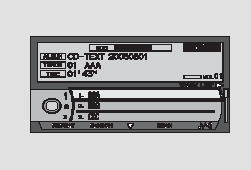
You can also find a desired track using the audio display. Press the AUDIO button to display the audio system information, then press the interface switch selector. Press the right side of the selector to select track scan mode. The flashing message SCAN will appear on the display. To cancel this function, press the right side of the selector again.
Test yourself
A quick Honda Civic quiz: every answer comes with an explanation and a link to the manual page.