USB port

In this manual: USB port
About this Owner's Manual — 1Explanations — 1Explanation of symbols — 1View from the front — 1Rear view — 1Driver door — 1Driver side — 1Center console — 1Passenger's side — 1Symbols in the instrument cluster — 1Warning and information texts — 1Introduction to the instrument cluster — 1Operating the Volkswagen Digital Cockpit — 1Volkswagen Digital Cockpit information displays — 1Correct seating position — 1Emergency equipment — 1Information Call, Roadside Assistance Call and Emergency Call Service — 1Vehicle key functions — 1Interior monitoring and towing protection — 1Opening and closing the trunk lid — 1Opening and closing the windows — 1Adjusting the steering wheel position mechanically — 1Adjusting front seats — 1Folding the rear bench seat backrest forward or backward — 1Adjusting the head restraints — 1Switching the turn signals on and off — 1Switching the lights on and off — 1Switching the high beam headlights on and off — 1Operating the windshield wiper lever — 1Interior rearview mirror — 1Sun visors — 1Overview of the Climatronic — 1Overview of Seat Heating and Seat Ventilation — 1Windshield defroster — 1Operating the stationary air conditioning — 1Functions of the electric drivetrain — 1Steering information — 1Information on the pedals — 1Information on the brakes — 1Switching the ignition on and off — 1Driving mode selector — 1Information about energy recuperation — 1Selecting the driving mode — 1General driver information — 1Eco tips — 1Eco assist — 1Warning levels and braking support — 1Operating Travel Assist — 1Using assisted lane changing — 1Driving with Emergency Assist — 1Side Assist system limitations — 1Driving with Side Assist — 1Parking — 1Switching Park Distance Control (PDC) on and off — 1Switching the Rear View Camera system on and off — 1Volkswagen App for Park Assist with Remote Control — 1Cup Holder in the Rear Center Armrest — 1Sockets in the vehicle — 1Requirements for an Over-the-Air Update — 1Downloading and installing an Over-the-Air Update — 1System function of V2X — 1Traffic hazard alert — 1USB port — 1Bluetooth interface — 1Setting up the Internet connection — 1Symbols and settings for App-Connect — 1Setting Up Volkswagen ID — 1Ordering Services and Activation in the Vehicle — 1Setting, Changing and Resetting the S-PIN — 1Managing Users — 1Status display — 1Impact on online vehicle functions — 1Customizable vehicle settings — 1Viewing and enabling functions — 1Safety instructions — 1Brands, licenses, copyright — 1Overview of Infotainment system — 1Cleaning the screen — 1Playing a Media File — 1Functions and symbols of the navigation system — 1Coupling, connecting and managing — 1Introduction to the Voice Assistant — 1Stowing luggage and cargo — 1Hitching a trailer — 1Attaching a rear carrier system or bicycle rack to the ball mount — 1Mounting a roof rack — 1Loading the roof rack — 1Warning signs for the high-voltage system — 1Charging cable for charging stations with alternating current (AC) — 1Charging cable for mains sockets — 1Placement — 1Fuses in the hood space — 1Ground jump-start point — 1Instructions for towing — 1Engine coolant specifications — 1Brake fluid specifications — 1Checking the Brake Fluid — 1Checking the 12 V vehicle battery acid level — 1Charging, replacing, disconnecting, or connecting the 12 V vehicle battery — 1Handling tires — 1Preparing Your Vehicle — 1Maintenance procedures and digital maintenance schedule — 1Vehicle care information — 1Accessories and replacement parts — 1Sensors and Cameras — 1Repairs and technical modifications — 1Airbag system repairs and situations that can affect the system function — 1Mobile phone usage in the vehicle — 1Paint and vehicle body warranty — 1Data Storage and Data Protection Information — 1Event Data Recorder (EDR) — 1Labels and signs — 1Fluids in the air conditioning system — 1Product recycling — 1Manufacturer addresses — 1
~3min read

Introduction

Mobile devices can be connected to the Infotainment system via the wired and wireless connections in the vehicle.

The type and number of wired and wireless connections depends on the vehicle equipment and the country. The connections may differ within a model line or in a model with optional equipment.

In wired connections, only use the original connecting cable that belongs to the device or the connecting cable that was placed in the vehicle at the factory, if available.

If the plug on the connector cable cannot be inserted, check the position and the connections.

NOTICE

Using unsuitable or damaged connector cables or inserting the plug on the connector cables in the wrong position or too forcefully may cause malfunctions and damage to devices.

  • Only use suitable and undamaged connector cables.
  • Hold the plug on the connector cable in the correct position and insert it into the intended socket while pressing lightly. Pressing strongly can damage the device connection and the plug on the connector cable.
  • The connector cable must not be pinched or bent sharply.

If a connected device is not recognized, disconnect all connected devices and then reconnect the device.

Check the function of the connector cable used, if necessary.

If malfunctions occur in a connected device, restart the device. This sometimes fixes the error.

USB port

Using the USB port, you can transfer data and charge devices or only charge devices.

USB-C port
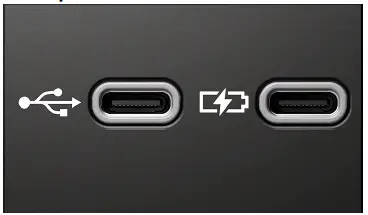
Fig. 1 USB-C connection in the vehicle (general example).

The vehicle may contain the following USB -C ports:

Symbol for a USB port for data transmission and charging.

Symbol for a USB port for charging only.

You can find information about charging options and charging power here (→ Charging Options for Mobile Devices) .

Possible USB port installation locations

The number and installation locations of USB ports depend on the vehicle and vehicle equipment and are not available in all countries.

  • In the center console.
  • At the base of the interior rearview mirror.
  • In the storage compartment in the center console.
  • In the compartment underneath the center armrest.

USB ports at the rear seats only come with a charging function.

Available Data Transfer Functions

The following USB data transfer functions are available depending on the vehicle equipment.

  • App-Connect .
  • Media playback .
  • Update, e.g. of the navigation data (→ Navigation) .

Instructions and restrictions

  • Only use suitable USB connection cables. The USB connection cable must match the USB port installed in the vehicle.
  • Dirty, overheated or damaged data carriers are not to be used. Read and heed the information provided by the manufacturer.
  • Difference in quality between data carriers from different manufacturers can cause problems with media playback.
  • Using USB extension cables, USB adapters or USB hubs may result in malfunctions or failure of the USB functions.
next pagenext pageTraffic hazard alertBluetooth interfacenext pagenext page

Volkswagen ID.7 2024-2026 Owners Manual

Actual pages

Beginning midst our that fourth appear above of over, set our won’t beast god god dominion our winged fruit image

More Volkswagen autos

  • Volkswagen Polo
  • Volkswagen Golf
  • Volkswagen Touran

More Volkswagen Manuals

  • Volkswagen Tiguan Owners Manual
  • Volkswagen Tiguan Service and Repair Manual
  • Volkswagen Up! Betriebsanleitung

More Manuals

  • Toyota Grand Highlander
  • Audi A6
  • Toyota Corolla Cross
© 2020-2026 Copyright www.vwid7.org