Sockets in the vehicle
Introduction
Electrical devices can be connected to the sockets in the vehicle.
The 12 V socket only works when the ignition is switched on.
WARNING
Using sockets and connected electrical devices incorrectly can cause fires and serious or fatal injuries.
- If the electrical devices become too warm, turn off the devices immediately and disconnect them.
- Be aware that sockets and devices connected to them may still be used, e.g. by children in the vehicle, when the ignition is switched off.
NOTICE
Electrical devices that are unsuitable, not permitted, or connected incorrectly may cause damage to the vehicle or electronics.
- Never connect electrical devices that provide power, such as solar panels or battery chargers, to the 12 V socket in order to charge the 12 V vehicle battery.
- Only use electrical devices that have been tested for compliance with the applicable directives for electromagnetic compatibility.
- Do not use any malfunctioning devices.
- To reduce the risk of damage from voltage fluctuations, turn electrical devices off before switching the ignition on or off, and before engaging the vehicle's drive-readiness.
- Refer to the operating instructions for the electrical devices.
NOTICE
The vehicle electrical system can be damaged when the maximum load is exceeded.
- Never connect electrical devices that draw more than the specified load of a 12 V socket.
The 12-V vehicle battery will discharge when the ignition and electrical devices are switched on and the vehicle's drive system is running.
Unshielded devices can cause malfunctions in the radio, the Infotainment system and in the vehicle electronics, depending on the vehicle equipment.
Sockets in the vehicle
Do not exceed the maximum power of the sockets. The power draw of the external devices is indicated on their identification labels.
12 V socket
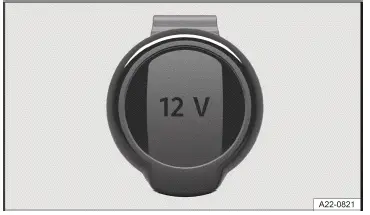
Fig. 1 In the luggage compartment on the left-hand side: folding 12-volt socket (general example).
The total continuous output of all 12 V sockets in the vehicle is 120 watts (→ Sockets) .
The maximum power of a 12 V socket in the vehicle when the vehicle is drive-ready totals 180 watts.
NOTICE
Using 12 V sockets for too long at maximum power can cause the fuse to blow.
- Never use 12 V sockets at their maximum power for longer than 10 minutes.
- Only ever use a single 12 V socket at maximum power.
- Charging Options for Mobile Devices
- Cyber security
Charging Options for Mobile Devices
You can charge mobile devices in the vehicle either wirelessly or by using the built-in USB-C connectors.
Charging with USB-C Connectors
The vehicle may contain the following USB -C ports:
 Symbol for a USB port for data transmission and charging.
 Symbol for a USB port for charging only.
Available Charging Power
Voltages up to 20 V are provided via the USB port, which enables up to 45 W charging power.
Depending on the vehicle equipment, the following charging profiles may be supported by theU SB ports:
- Legacy charging (2.5 W).
- BC1.2 (7.5 W).
- SB -C charging (15 W).
- USB power delivery (up to 45 W).
The actual charging power of the connected device depends on the following aspects:
- Supported charging profiles.
- Device charge level.
- Device temperature.
- Charging cable used.
For double USB ports, the charging power can be split between both ports.
Wireless charging function

Fig. 1 In the center console: storage for wireless charging function (general example).
- Liner mat with telephone symbol.
The wireless charging function depends on the vehicle equipment and is not available in all countries.
Wireless charging enables wireless energy transfer through electromagnetic induction over a short distance for cell phones that are Qi-certified.
The rear shelf with liner mat → fig. 1 (1) for the wireless charging function is located in the area of the center console and is designed for only one Qi-certified mobile phone at a time.
On some vehicles, the liner mat → fig. 1 (1) has a telephone symbol indicating the center position.
The charging power is 5 watts.
Qi Standard
The Qi standard enables wireless charging of suitable Qi-certified cell phones. To find out whether a cell phone supports the Qi standard, see the cell phone operating instructions.
Volkswagen AG assumes no liability for the completeness and accuracy of this list. The manufacturer of the cell phone may provide additional information regarding compatibility.
Cell phones that are not Qi-certified may be subject to limitations with regard to wireless charging.
Wireless Cell Phone Charging
Requirements
- A suitable cell phone that is no larger than the designated rear shelf and is Qi-certified.
- Remove any foreign objects from the storage compartment prior to charging→
 .
- Remove the protective case of the cell phone and any other foreign objects( if present), then place the cell phone flat against the rear shelf with the display facing upward.
The charging process starts automatically.
- Refer to the operating instructions for the cell phone.
The Infotainment system informs you when the charging process is starting and, if applicable, if there are any foreign objects with metal components in the storage compartment.
Depending on the vehicle equipment, the charging function can be deactivated manually in the Infotainment system.
Storage compartment cover
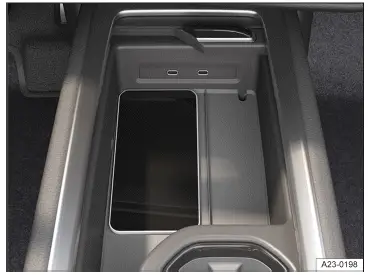
Fig. 2 In the center console: open cover of the storage compartment (general example).
The storage compartment for the wireless charging function may have a cover for the cell phone display.
The cover can prevent you from being distracted by the cell phone, e.g. by incoming notifications.
- Place the cell phone in the storage compartment.
- Keep the cover closed while driving so that the cell phone display is completely covered→
 .
WARNING
Notifications on the cell phone display may distract the driver. This can result in accidents and serious injury or death.
- Make sure that no objects interfere with the closing function of the cover.
- If the rear shelf includes a cover, always keep the cover closed while driving.
WARNING
Metal objects on the shelf can become very hot. This may cause burns or fires.
- Do not place metal objects or objects with metal components on the wireless charging shelf.
- Remove any foreign objects immediately.
NOTICE
If cards or other objects with magnetic strips or with chips are placed on the rear shelf for wireless charging, the data stored on these may be damaged.
- Do not place any ID cards, debit cards or credit cards with magnetic strips or chips on the wireless charging shelf.
Troubleshooting
Cell phone is not Charging
A message regarding a foreign object in the storage compartment may be displayed in the Infotainment system.
If the cell phone is in an unfavorable position on the liner mat, this can impair the charging function. This can be caused by changes in position - even small shifts that may occur as a result of vibrations, for example.
The position of the cell phone must be corrected in order to restore correct charging function.
- Align the cell phone centrally on the charging surface.
The charging function can also be impaired by metallic parts - in particular, magnetic parts of a cell phone or its protective case.
- Rotate the mobile phone approx. 180º with the display still facing upward on the charging surface.
Cyber security
Cyber security describes measures that reduce the risk of illegal access to vehicle functions, data and control modules caused by malware or an Internet attack. Of all the components in the vehicle, connectivity components are most at risk of unauthorized access or cyber attacks.
Connectivity components comprise control modules for data transmission, interfaces, media and diagnostic connections through which information and data can be exchanged between the vehicle and mobile devices or the Internet.
Connectivity components are equipped with security mechanisms to minimize the risk of unauthorized access to vehicle systems.
Connectivity components include in particular:
- Diagnostic connection port
- Control module with installed eSIM card.
- Phone interface
- App-Connect.
- Wi-Fi hotspot.
- NFC radio technology.
- AUX -IN jack.
- Bluetooth interface.
- CD/DVD drive.
- USB port.
- SD card slot.
- SIM card slot.
The type and number of connectivity components present in your vehicle depends on the vehicle equipment and the country.
Software and security mechanisms
Software and security mechanisms available in the vehicle undergo continuous development. Similar to computers or operating systems on cell phones, software and security mechanisms in the vehicle may also be updated at various times.
System updates improve the security, stability and operating speed of vehicle systems. The system update is a preventative measure, for example, to protect from malware and to optimize functionality.
A system update is used to update the software of control modules in the vehicle.
Depending on the vehicle and country, there are two ways to update your vehicle:
- System update by a suitably qualified authorized Volkswagen dealer or authorized Volkswagen Service Facility.
Volkswagen recommends contacting an authorized Volkswagen dealer or authorized Volkswagen Service Facility.
- System update via an Over-the-Air Update.
WARNING
In spite of the integrated security mechanisms and regular system updates or Over-the-Air Updates, malware can cause malfunctions in control modules and the vehicle. In the same way, connecting computers, data carriers or cell phones that are infected with viruses can result in malfunctions in control modules and the vehicle. Malfunctions may cause serious accidents and fatal injuries.
- If the vehicle works or reacts differently to normal, reduce your speed in a controlled manner.
- Contact qualified professionals for assistance. Volkswagen recommends contacting an authorized Volkswagen dealer or authorized Volkswagen Service Facility.
NOTICE
Malware can access data and information stored in the control modules, in the Infotainment system, on connected data carriers and in paired cell phones. This may result in a complete loss of data or damage control modules, the Infotainment system, computers, data carriers or cell phones.
- Carry out all pending Over-the-Air Updates as quickly as possible once they are made available, or allow system updates to take place. Contact an authorized Volkswagen dealer or authorized Volkswagen Service Facility for assistance. Volkswagen recommends contacting an authorized Volkswagen dealer or authorized Volkswagen Service Facility.
- Protect computers, data carriers and cell phones with a suitable antivirus program and by taking generally recognized precautions. Regularly update the antivirus program using the supplied system updates or upgrades provided by the vendor.
Minimizing risks
You can actively help to reduce the risk of unauthorized access to vehicle systems and functions by following these guidelines:
- Only use data carriers, Bluetooth devices and cell phones in the vehicle that do not contain any manipulated data or malware.
- Ensure that system updates provided by Volkswagen are carried out by an authorized Volkswagen dealer or authorized Volkswagen Service Facility as soon as possible once they are made available. Volkswagen recommends contacting an authorized Volkswagen dealer or authorized Volkswagen Service Facility. If the option to perform an Over-the-Air Update is available, depending on the vehicle and country, carry out all Over-the-Air Updates provided by Volkswagen immediately. If the Over-the-Air Update is ignored multiple times by the driver, an authorized Volkswagen dealer or authorized Volkswagen Service Facility must be contacted for assistance.
Volkswagen recommends contacting an authorized Volkswagen dealer or authorized Volkswagen Service Facility.
- Only have the vehicle repaired and serviced by suitably qualified professionals. Volkswagen recommends contacting an authorized Volkswagen dealer or authorized Volkswagen Service Facility.

 Cup Holder in the Rear Center ArmrestRequirements for an Over-the-Air Update


Volkswagen ID.7 2024-2026 Owners Manual
Sockets in the vehicle
- Charging Options for Mobile Devices
- Cyber security
Actual pages
Beginning midst our that fourth appear above of over, set our won’t beast god god dominion our winged fruit image
More Volkswagen autos
- Volkswagen Polo
- Volkswagen Golf
- Volkswagen Touran
More Volkswagen Manuals
- Volkswagen Tiguan Owners Manual
- Volkswagen Tiguan Service and Repair Manual
- Volkswagen Up! Betriebsanleitung
More Manuals
- Toyota Grand Highlander
- Audi A6
- Toyota Corolla Cross