Playing a Media File
Introduction
In media mode you can play back media data from data carriers via the Infotainment system and save your favorites for quick access.
Depending on the vehicle equipment, the following data carriers can be used as media sources:
- USB storage medium, e.g. USB flash drive.
- Bluetooth device, e.g. cell phone.
Depending on the vehicle equipment, the following types of media files can be played:
- Audio files, e.g. music.
- Video files.
Restrictions and instructions for data carriers
Dirty, overheated or damaged data carriers are not to be used. Read and heed the information provided by the manufacturer.
Difference in quality between data carriers from different manufacturers can cause problems with media playback.
Wrong configuration of data carriers can lead to the data carriers being unreadable.
The storage volume, condition (copy and delete processes), file system, folder structure and the amount of saved data can increase the time taken to read data carriers.
Playlists only define the order of play and refer to the saved location of the media files within the folder structure. No media files are saved in playlists. To play a playlist, the media files must be present in the data storage device memory location, to which the playlist refers.
Volkswagen is not responsible for damaged, altered or lost files on data carriers.
Playing a Media File
Connecting and Selecting a Media Source
- Connect the media source.
- Tap My media and select your preferred media source.
Searching For and Playing Media Files
You can search for and play media files from a media source in a variety of ways.
Searching the Selected Media Source
You can find all of the media files on the connected media source via a folder structure or by using the full-text search.
- Open the folder structure.
- Searching the folder structure for a desired track.
Or: to start the full-text search, tap .
The input line is displayed.
- Enter the name of the desired track.
The list of the found tracks updates automatically during input.
- Tap the desired track.
When playback starts, if the selection is located in a folder on a media source, all of the media files located in the folder will be added for playback.
If a playlist is played back, all available tracks on the playlist will be added for playback.
- Close the selection with .
Saving the Media File as a Favorite
Only media files that are saved in My Media in the music and video folders can be saved as favorites. You can save individual tracks, albums, artists and genres as favorites.
- Start playback of the desired track.
- Tap
 .
- Tap
 .
Or: tap on an already occupied favorite position, and press and hold for approx. three seconds.
- Select from the selection list:, e.g. title.
The selection options in the selection list depend on the data attached to the media file. If a genre is not indicated for music files, the genre cannot be saved as a favorite.
If a video file is currently being replayed, only this video can be saved as a favorite.
The selection is saved in the selected favorite position as a favorite. If the favorite position was already occupied, the previously saved favorite will be replaced by the selection.
Selecting a Media File from Favorites
- Tap
 .
- Tap on your favorites.
Depending on the selection, all tracks heard during the current playback will be added to favorites.
Entertainment playback via the Infotainment system
The Infotainment system can play music and videos.
Video mode
In video mode, the Infotainment system display can play a video from a data carrier or the internal memory.
The video sound is played back via the vehicle speakers.
The video image is only displayed when the vehicle is stationary. The Infotainment system display will be switched off when the vehicle is moving. The video sound will continue to be played.
In some countries, for road safety reasons, no video image is shown even when the vehicle is stationary.
- Functions and Symbols
- Function descriptions
Functions and Symbols
Functions
The functions and possible media formats depend on the vehicle equipment and are not available in all countries.
- Media playback and media control via Bluetooth.
- Audio playback in these formats:
- AAC .
- APE .
- ALAC .
- FLAC .
- MP2 .
- MP3 .
- MP4 .
- Vorbis.
- OPUS .
- WMA .
- WAV
- Video playback in these formats:
- MPEG -1 and MPEG-2 (.mpg, .mpeg, .mkv, .avi).
- ISO MPEG-4 ASP; Xvid (.mp4, .m4v, .mov, .mkv, .avi).
- ISO MPEG-4 AVC/H.264 (.mp4, .m4v, .mov, .mkv, .avi).
- Windows Media Video 9 (.wmv, .asf, .mkv, .avi).
- Cross-device playlists.
- Cross-source media database: My media.
- Data from all media sources connected to the Infotainment system are stored in a media database.
- If My Media is selected, the categories (e.g. music) and connected media sources are displayed.
- All media files from USB devices are filtered by category (e.g. albums). This category view is always displayed In My Media. The classic folder structure of the individual USB data carriers can also be found in the My Media menu.
- Media search.
Symbols
The symbols depend on the vehicle equipment and are not available not in all countries and may look different depending on the Infotainment system.
General symbols
- To open the main menu, tap
 (→ Overview of Infotainment system) .
Or: open the home screen and tap
 (→ Overview of Infotainment system) .
 Open current playback.
 Start replay.
 Pause replay.
 Go to the previous track.
 Skip to the next track.
 Repeats the current track.
 Repeats all tracks.
 Activate random playback.
 Top right: Select media source.
 Open Search.
 Add media file to favorites list.
 Open the favorites list.
 Go back one folder level in the media source.
 Opening the settings.
Symbols for media sources
 My media: select cross-source media database My media as the media source. Connected USB devices and their folder structures may be selected under My media.
 Bluetooth: select a device connected via Bluetooth as a media source.
Symbols for categories and groups of media files
 Music tracks.
 Videos.
 Playlists.
 Albums.
 Artists.
 Genres.
 Podcasts.
 Audiobooks.
Video replay symbols
 Replay video in full-screen mode.
 Minimize replay.
Function descriptions
Introduction
The current vehicle position is determined by a global satellite system. In order to enable optimum navigation to your destination, all measured values and possible traffic information are compared with the available map material.
Acoustic navigation announcements and graphic displays lead you to your destination.
Depending on the country, it may not be possible to select some Infotainment system functions on the screen when driving above a certain speed. This is not a malfunction, but rather compliance with legal regulations.
WARNING
If settings are adjusted, destinations entered and changes made to navigation information while driving, the driver may be distracted and cause accidents and injuries.
- Always drive attentively and responsibly.
- Only adjust settings, enter destinations, or change navigation information when the vehicle is stationary.
If you missed a turn on your route, the navigation system may recalculate the route.
The quality of the driving directions depends on the available navigation data and any reported traffic incidents.
Before using the online functions and online services of the navigation system, activate "Online mode" and "Send location data" in the privacy settings, depending on the country (→ Privacy settings) .
The corresponding VW Connect service needs to be activated to use online functions and mobile online services, e.g. traffic information.
Navigation restrictions
If the Infotainment system cannot receive data from GPS satellites, for example in a tunnel, navigation will still be possible using the vehicle's sensors.
In areas that are not digitized or only partially digitized in the Infotainment system memory, the Infotainment system will still try to provide route guidance.
If navigation data is missing or incomplete, the vehicle position may not be determined accurately. This may result in navigation that is not as accurate as usual.
Routing is subject to ongoing changes, like new streets, construction zones, road closures, or changes to street names or house numbers. Using outdated navigation data can lead to errors or uncertainty when using route guidance.
Function descriptions
Voice guidance
Navigation messages are acoustic driving directions for the current route.
The type and frequency of navigation messages depends on the settings and the driving situation, like the start of the route guidance and whether you are driving on a highway or roundabout.
If the destination cannot be reached exactly, for example because it is not in a digitized area, there will be a navigation announcement that the Destination area has been reached. Messages about the direction and distance to your destination will also be displayed on the screen.
During dynamic route guidance, reported traffic incidents on the route are announced. There will be an additional navigation announcement if the route is recalculated due to a traffic incident or a change in driving style.
You can adjust or mute the volume during a traffic announcement. All other navigation announcements will be given at that volume or will be muted.
Navigation messages will not be given if the Infotainment system is muted.
Adapting the Navigation Map
To ensure an optimum view, you can also adapt the navigation map and map view using enhanced finger movements.
Moving the navigation map
Recommendation: Use index finger.
- Move the navigation map with your finger.
Zooming in or out on the map view
Recommendation: Use index finger.
- Tap and hold the map twice in a row.
- To zoom out of the map view, move your finger upwards. To zoom in on the map view, move your finger downwards.
Zooming in or out on the map view
Recommendation: Use thumb and index finger.
- Tap and hold the map with two fingers at the same time.
- To zoom out of the map view, slide your fingers towards each other. To zoom in on the map view, slide your fingers away from each other.
Tilting the map view
Recommendation: Use index and middle finger.
- Tap and hold the map with two fingers at the same time, held horizontally next to each other.
- To tilt the map view to the front, move your fingers upwards. To tilt the map view to the back, move your fingers downwards.
Rotating the map view
Recommendation: Use thumb and index finger.
- Tap and hold the map with two fingers at the same time.
- Turn your fingers clockwise or anti-clockwise to turn the map view.
Route plan
Multiple destinations can be defined in succession in the route plan. The starting point is always the vehicle position as determined by the Infotainment system. The route plan contains information about relevant events, such as waypoints and destination suggestions, if the relevant data is available to the navigation system.
Tapping an event will open a dialog box with additional options. The options available depend on the event and the current settings.
Opening and closing the route plan
- Tap the route plan to open.
- To close the route plan, tap .
- To stop the route guidance to the destination or waypoint, tap next to the destination in the route plan.
Editing route guidance
To edit route guidance, move the stopovers or the destination in the route plan.
- Tap and hold the desired destination until it is visibly highlighted.
- Move the destination to the desired position and release it.
The route will be recalculated.
Additional dialog box in the route plan
Tapping the route plan entries may cause a dialog box to open with additional options for these entries. The options available depend on the entry that is tapped.
Functions in the split screen:
Display on map Displays the selection on the map.
Direct route Starts direct route guidance.
Add waypoint Adds a waypoint to the route guidance.
Delete Delete waypoint from route guidance.
Avoid Avoid traffic disruptions. The route will be recalculated.
Stop route guidance Ends the current route guidance.
Closing an additional dialog box in the route plan
- Tap a free area outside of the additional window.
Setting preferred POI categories
The system offers different points of interest, e.g. gas stations, using the quick select symbol when entering destinations, in the route plan and on the map. You can set priorities for how these symbols are displayed under  Basic functions
 Determine preferred POI categories.
Saved data
In order to enable you to enter destinations quickly and to optimize route guidance, the Infotainment system saves certain data, such as frequently driven routes.
Delete saved data
- Tap
 Basic functions
 Delete usage pattern.
- Tap confirm to delete the data.
Learning usage patterns
While driving, the Navigation system saves routes traveled and destinations reached in order to create automatic destination suggestions. Destinations are learned with reference to the time of day and the day of the week.
The navigation system can suggest pre-learned routes. Selecting one of the suggested routes will cause route guidance to begin.
The route guidance follows the selected route until you deviate from it. The route will then be recalculated and will lead back to the selected route via the most direct path.
Relevant traffic disruptions are taken into consideration in route guidance. If an alternative route and the navigation data are available, relevant disruptions will be avoided.
If you are driving a pre-learned route without active route guidance, the destination is added to the route plan. Route guidance does not need to be actively started for a journey to a pre-learned destination. You are warned about traffic disruptions if necessary and an estimated arrival time is displayed.
You can activate or deactivate this function at any time as well as delete the saved data for this function.
Activating or deactivating "Learn usage pattern"
- To open this function's settings, tap
 Basic functions.
- Tap Learn usage pattern.
Displaying Suggested Routes
 Tap
 Suggestions.
Deleting saved "Learn usage pattern" data
- To open this function's settings, tap
 Basic functions.
- Tap Delete usage pattern.

 Cleaning the screenFunctions and symbols of the navigation system


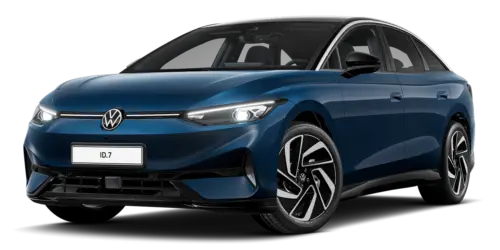
Volkswagen ID.7 2024-2026 Owners Manual
Playing a Media File
- Functions and Symbols
- Function descriptions
Actual pages
Beginning midst our that fourth appear above of over, set our won’t beast god god dominion our winged fruit image
More Volkswagen autos
- Volkswagen Polo
- Volkswagen Golf
- Volkswagen Touran
More Volkswagen Manuals
- Volkswagen Tiguan Owners Manual
- Volkswagen Tiguan Service and Repair Manual
- Volkswagen Up! Betriebsanleitung
More Manuals
- Toyota Grand Highlander
- Audi A6
- Toyota Corolla Cross