Volkswagen Digital Cockpit information displays
Possible displays in the digital instrument cluster
Depending on the vehicle equipment, different information may be shown in the Volkswagen Digital Cockpit:
- Outside temperature display.
- Detected road sign from the traffic sign recognition.
- Active driver assistance systems.
- Speed warnings.
- Speed warning for winter tires.
- Range display.
- Open doors, hood and trunk lid.
- Seat-occupied recognition.
- Remaining charging time for the high-voltage battery.
- Service display.
- Warning and information texts.
Outside temperature display
When outside temperatures are colder than about +4 ºC( about +39 ºF), a snowflake symbol  appears in the digital instrument cluster from above. This symbol remains on until the outside temperature rises above +6 ºC (+43 ºF).
In the following situations, the temperature displayed may be higher than the actual outside temperature due to heat radiating from the vehicle:
- When the vehicle is stationary
- When the driving speed is very low
The measurement range is from -45 ºC (-49 ºF) to +76 ºC (+169 ºF)
WARNING
Roads may be icy when outside temperatures are low, even if they are above the freezing point. There is an increased risk of an accident on icy roads. This could result in serious or fatal injuries.
- If the
 symbol is displayed in the instrument cluster display, drive with extra caution.
- Always adapt your speed and driving style to the visibility, weather, road and traffic conditions.
- Never rely solely on the outside temperature display.
Open doors, hood and trunk lid
If, after unlocking the vehicle and while driving, any doors and/or the hood or trunk lid are open, this is displayed in the Volkswagen Digital Cockpit and an audible signal may also sound.
Seat-occupied recognition
When the vehicle's drive system is activated, occupied seats are detected in the instrument cluster and the system indicates whether safety belts are fastened on the occupied seats.
Speed warning for winter tires
If the set maximum speed is exceeded, this will be shown in the digital instrument cluster.
Settings for the speed warning can be adjusted in the vehicle settings in the Infotainment system (→ Vehicle settings menu) .
Odometer displays
The odometer registers the total distance that the vehicle has driven.
If the odometer is not working, the message Unable to display total distance. Please visit workshop. will be displayed in the digital instrument cluster. Have the system checked immediately by a suitably qualified workshop. Volkswagen recommends contacting an authorized Volkswagen dealer or authorized Volkswagen Service Facility.
Range display
The approximate distance in kilometers which can still be driven with the remaining battery capacity, if driven in the same manner and with the same energy consumption. The calculation is based on the current energy consumption.
Some displays in the Volkswagen Digital Cockpit may be hidden due to events that occur suddenly, e.g. speed warnings.
Depending on the equipment, some settings and displays may also appear in the Infotainment system.
- Charge status and range in the digital instrument cluster
- Operating the Head-Up Display
- ID. Light
- Service menu
- Entry menu
- Vehicle settings menu
- System Limitations of Drowsiness Monitor
- Warning Levels of the Drowsiness Monitor
- System Limitations of the Advanced Driver Attention Monitor
- System Limitations of Advanced Road Sign Display
Charge status and range in the digital instrument cluster
Charge status display
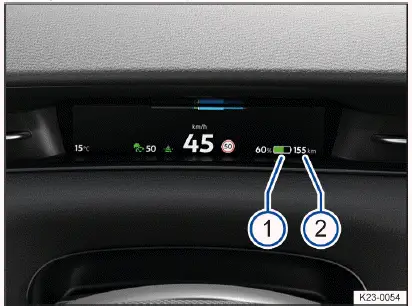
Fig. 1 In the Volkswagen Digital Cockpit: The high-voltage battery charge level 1 and vehicle range 2 (general example).
The current battery charge level of the high-voltage battery is shown by the  symbol with a percentage value in the Volkswagen Digital Cockpit → fig. 1 (1) . The battery level on the symbol changes with the charge status.
Range display
The vehicle range is displayed in kilometers (km) or miles (mi), depending on the setting → fig. 1 (2) .
The range may vary even with a fully charged high-voltage battery. The value displayed can be calculated and updated according to various criteria:
- Driving style.
- Environmental conditions.
- Selected route → Setting a 360º range display and Electric Vehicle Route Planner
Reserve range
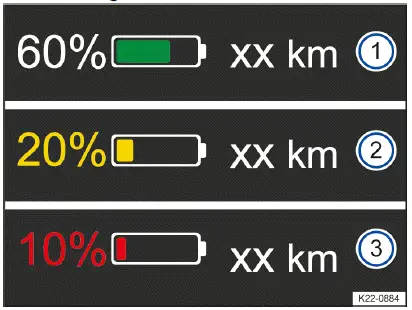
Fig. 2 In the digital instrument cluster: range and reserve display (general example).
- Battery charge level and range
- Reserve display warning level 1 and range.
- Reserve display warning level 2 and range.
Warning levels for the reserve range  :
Green
The battery has a sufficient charge level → fig. 2 .
Yellow
The charge status is equal to 20% or less than 20% → fig. 2 .
Red
The charge status is equal to 10% or less than 10% → fig. 2 .
Charge the high-voltage battery as soon as possible to prevent vehicle breakdowns→ fig. 2 !
WARNING
Driving with the high-voltage battery low on charge could lead to breakdowns in road traffic, accidents and serious or fatal injuries.
- Always ensure your high-voltage battery has a sufficient battery charge level.
WARNING
If the charge level of the high-voltage battery has reached the reserve charge level, the handling characteristics, e.g.
the acceleration behavior, of the vehicle may be altered. This can cause accidents and serious injuries.
- Always adapt your speed and driving style to the current visual, weather, road, and traffic conditions, as well as the charge level of the high-voltage battery.
- Always ensure your high-voltage battery has a sufficient battery charge level.
NOTICE
Self-discharging of the high-voltage battery, for example due to a long stationary period of several months, may damage the high-voltage battery in high ambient temperatures and with a low battery charge level.
- Always ensure your high-voltage battery has a sufficient battery charge level.
In very low outside temperatures, when the high-voltage battery is very cold, you may experience a limited range for electric driving.
Power display

Fig. 1 In the Volkswagen Digital Cockpit: Power display (general example).
During travel, the power display shows the current performance of the electric drivetrain and the current electric drive power or energy recuperation power.
Display concept
If the vehicle's drive system is activated, the  indicator light lights up green in the instrument cluster.
Using a bar split down the middle, the power display always shows the availability of energy recuperation→ fig. 1 1 (green) to the left and forward motion → fig. 1 (2) (blue) to the right. If the respective bar is completely filled, there is unlimited availability. If there is any limitation, the fill level of the respective bar will reduce accordingly.
The current drive power is displayed dynamically using a lighter bar, either as recuperation power( light green) to the left or as propulsive power (light blue) to the right.
If the current drive power and the currently available performance are equal in size (bars filled to the same extent), the power limit of the electric drivetrain has been reached.
The power limit cannot be reached at all vehicle speeds.
Influencing factors
In additional to vehicle speed, the following influencing factors exist:
- The availability of forward motion and energy recuperation depends on the battery charge level of the highvoltage battery. The energy recuperation can be limited if the battery charge level is high, as can the forward motion if the battery charge level is low.
- The high-voltage battery being at a very low or very high temperature can lead to a decrease in the available drive power. This affects forward motion and energy recuperation.
WARNING
If the drive power of the electric drivetrain is reduced, the handling characteristics, e.g. the acceleration behavior, of the vehicle may be altered. This can cause accidents and serious injuries.
- Always adjust your speed and driving style to the current visibility, weather, road, and traffic conditions, and to the battery charge level of the high-voltage battery.
- Always ensure your high-voltage battery has a sufficient battery charge level.
Introduction

Fig. 1 In the driver's field of vision: indicators on the headup display (general example).
- Immediate area.
- Long-distance with AR function.
The head-up display projects selected information displays or warning messages from assist systems or from the Infotainment system in the visual range of drivers.
Displays
Explanations of the display areas shown in the head-up display (HUD ) → fig. 1 : HUD immediate area Information about the speed, battery charge level, consumption, navigation and driver assistance systems is displayed in the HUD close range image plane (1).
Augmented Reality HUD (AR-HUD)
In the AR HUD (2) , information regarding the situation can be projected directly into the driver's field of vision. This is done for navigation, for example.
Depending on the vehicle equipment, the amount of information shown and the scope thereof may vary.
Operating the Head-Up Display
Switching the head-up display on and off
The head-up display can be switched on and off in the vehicle settings in the Infotainment system.
- Tap the Vehicle function key.
- In the Vehicle selection, select the Inside view and tap the Head-up display function key.
- Switch the head-up display on or off as required. The activated functions are highlighted in color.
Height adjustment
To adapt the vertical image position to your individual seating position, set the head-up display in the corresponding menu in the vehicle settings of the Infotainment system:
- Setting the optimal seat position.
- Use the function keys to set the preferred position and angle of the head-up display.
The rotation of the immediate area can also be adjusted in the vehicle settings of the Infotainment system.
Settings in the Infotainment system
Additional settings for the head-up display can be adjusted in the vehicle settings in the Infotainment system.
In the Head-up display settings submenu:
- Setting the brightness of the head-up display.
- Select the display contents for the head-up display, for example messages from the driver assistance systems.
- Alternative head-up display colors in poor weather conditions, e.g. snow.
Selecting Displays Via the Multi-Function Steering Wheel
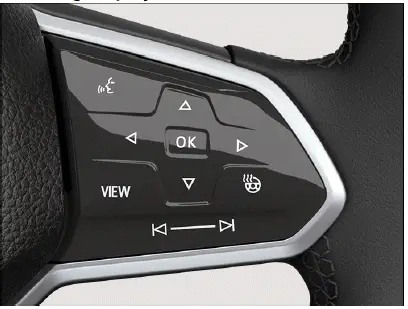
Fig. 1 Right-hand side of the multi-function steering wheel.
In the HUD close range image plane:
- Use the
 and
 buttons on the multi-function steering wheel to select the preferred display in the head-up display → fig. 1 .
- Briefly pressing the
 button enables you to focus your preferred display and to hide the remaining display options.
Switching the Long Range Image Plane With Augmented Reality HUD On and Off
- To switch on the long range image plane with AR-HUD, focus the HUD close range image plane and press and hold the
 button on the multi-function steering wheel for a few seconds.
- To switch off the long range image plane with AR-HUD, focus the HUD close range image plane again and press and hold the
 button on the multi-function steering wheel again for a few seconds.
A message that briefly appears in the instrument cluster provides information about the relevant selected status of the AR-HUD.
ID. Light
ID. Light is an intelligent lighting concept that shows you further information about your vehicle status. When the vehicle's drive system is activated and while driving, information about the current driving situation is displayed via the ID. Light.
The ID. Light shows information and warnings of the following systems and functions:
- Locking and unlocking.
- Entry and exit lighting.
- Charging processes.
- Voice operation.
- Telephone calls.
- Navigation
- Reduced driving power.
- Control pause.
- Steering wheel contact detection.
- Eco assist.
- Park Assist Plus.
- Traffic hazard alert (V2X).
- Adaptive Cruise Control (ACC)
- Autonomous Emergency Braking (Front Assist).
Some of the selection options displayed may not work.
You can change and expand which information is displayed by running an over-the-air update.
Brightness
- Tap the Vehicle function key in the Infotainment system.
- Select display content for Inside. Then tap the ID. Light function key.
- Set the brightness with the touch control.
- Tap
 to return to the previous menu.
Settings in the Infotainment system
Certain ID. Light functions can be activated or deactivated in the vehicle settings in the Infotainment system.
The activated functions are highlighted in color.
- Tap
 to return to the previous menu.
Service menu
Opening the Service Menu
- Tap the Vehicle function key in the Infotainment system.
- Tap the Status function key.
- Tap the Service function key to display the service information.
The activated functions are highlighted in color.
The mileage or the number of days until the next inspection service are displayed.
- Tap
 to return to the previous menu.
Resetting the trip odometer
- Tap the Vehicle function key in the Infotainment system.
- In the Vehicle menu, tap the Status function key.
- Tap the Distance driven function key.
- Tap the 0.0 function key to reset the value.
Displaying the Vehicle Identification Number (VIN)
- Tap the Vehicle function key in the Infotainment system.
- In the Vehicle menu, tap the Status function key.
- To display the vehicle identification number (VIN ), tap the Service function key.
The vehicle identification number (VIN ) is displayed.
Service display
Displays about service events appear in the Volkswagen Digital Cockpit and in the Infotainment system.
Service notification
If an inspection service is due in the near future, a service reminder will be displayed when you switch on the ignition.
The specified mileage or time is the distance or time that can be driven until the next inspection service.
One of the following displays may appear:
- Inspection service in xx km.
- Inspection service in xx days.
Service event
When an inspection service is due, a warning chime will sound and a wrench symbol  may appear on the Volkswagen Digital Cockpit for a few seconds, together with the following indicator, when you switch on the ignition:
- Please have an inspection service performed
Checking a service interval in the Infotainment system
- Tap the Vehicle function key.
- Tap the Status function key.
- Tap the Service function key to display the service information.
The activated functions are highlighted in color.
The mileage or the number of days until the next inspection service are displayed.
Resetting the service display
The service display can only be reset as part of an inspection service by suitably qualified professionals. Volkswagen recommends contacting an authorized Volkswagen dealer or authorized Volkswagen Service Facility.
The service message disappears automatically after a few seconds when the vehicle has been made driveready or when the  button on the multi-function steering wheel is pressed.
Time and date
Setting the time and date in the Infotainment system
- Tap the Settings function key (→ Vehicle settings menu) .
- Select the Time and date menu item.
The time and date are only displayed in the Infotainment system.
The automatic time display may be restricted or not available depending on the vehicle equipment and country. Set the time manually in this case.
Entry menu
You can restore your individual settings for certain vehicle functions from your last journey that were reset when starting the vehicle due to statutory requirements.
The following vehicle functions are automatically reset to the standard setting when the vehicle is started:
- Speed warning from the Advanced Road Sign Display.
- Advanced Driver Attention Monitor.
- Drowsiness Monitor.
- Lane Assist
- Electronic Stability Control (ESC ).
- Driving Mode Selection
Restoring Settings Immediately After Starting the Vehicle
When the vehicle is started, a message is displayed in the Infotainment system for about ten seconds that enables you to restore your individual settings immediately after starting the vehicle.
- To open Restore settings menu, tap the message.
- Restore your individual settings from the last journey by tapping or swiping.
Restoring Settings at a Later Time
- Tap
 .
- To open the Restore settings menu, tap
 .
- Restore your individual settings from the last journey by tapping or swiping.
Activating and Deactivating the Message After Starting the Vehicle
You can manually deactivate the message to restore your individual settings from the last journey when the vehicle is started:
- Tap
 .
- To open the Restore settings menu, tap
 .
- Activate or deactivate the message as preferred.
Exit menu
You can adjust the settings of some functions in the exit menu before leaving the vehicle. If you deactivate the vehicle's drive system and open the driver door, the exit menu is displayed in the Infotainment system.
The entries shown depend on the vehicle equipment and may only be available under certain conditions. The adjustable functions include, for example:
- Charging the high-voltage battery.
- Stationary air conditioning.
- Interior monitoring.
Hide
The exit menu is automatically hidden when you leave the vehicle.
- To hide the exit menu manually, tap
 .
The exit menu can be opened again by restarting the vehicle's drive system and deactivating it again immediately.
Settings
You can select the entries individually and arrange their order.
- Tap
 .
- Select the entries as desired and rearrange their order if necessary.
- Tap again
 .
Vehicle settings menu
You can switch individual functions and systems on and off and adjust settings in the vehicle settings menu in the Infotainment system.
Opening the Vehicle settings Menu
- Switch the ignition on.
- If necessary, switch on the Infotainment system.
- Tap the Vehicle function key.
- Depending on the equipment: Tap the Vehicle menu item and choose between the Interior and Exterior function keys.
Or: select the
 menu item.
- Open the preferred item from the submenus and set as desired.
System settings and vehicle information display
Depending on the version, information can be displayed or settings set in theV ehicle settings menu:
- Depending on the vehicle equipment: 3D vehicle view (Interior or Exterior).
- Depending on vehicle equipment: Performance monitor .
- Depending on vehicle equipment: Lap timer .
- Driving Data.
- Vehicle status.
After activating the vehicle's drive system when the 12 V vehicle battery is severely drained or has been replaced or jump-started, system settings, e.g. personal convenience settings and programming, may be adjusted or deleted. Check and correct the settings after the 12 V vehicle battery is sufficiently recharged.
WARNING
If the driver is distracted, accidents and serious injuries can occur. Operating the Infotainment system can distract you from traffic.
- Always drive attentively and responsibly.
- Adjust settings in the Infotainment system only when the vehicle is stationary.
Introduction

Fig. 1 In the instrument cluster display: Drowsiness Monitor symbol.
The Drowsiness Monitor informs the driver if their driving behavior indicates fatigue.
The Drowsiness Monitor determines the driver's driving behavior while they are driving and uses this to create a fatigue assessment. If the system detects that a driver is fatigued, it will visually inform you on the instrument cluster display with a warning light or an indicator light in conjunction with an additional message and a warning tone → Warning Levels of the Drowsiness Monitor . The message in the instrument cluster display is displayed for about four to six seconds.
When is it active?
The driving behavior is evaluated only at speeds above approx. 65 km/h and subsequently only at speeds above about 60 km/h.
WARNING
The Drowsiness Monitor is not a replacement for the driver's attention and works only within the system limitations.
This means that the Drowsiness Monitor cannot detect the driver's fatigue in all situations and may not issue a warning, or may issue a warning with a delay or in a way that is not desired. There is a risk of accidents and serious or fatal injuries.
- Always stay attentive and do not rely solely on the system. It is always your responsibility to make sure that you are fit to drive.
- Observe the system limitations (→ Drowsiness Monitor) .
- Never drive a vehicle when tired.
- On longer journeys, take regular breaks and make sure that you feel adequately rested before setting off again.
- Pay attention to indicators in the instrument cluster display and respond to the prompts accordingly (→ Drowsiness Monitor) .
System Limitations of Drowsiness Monitor
The Drowsiness Monitor has system-related limitations. The following conditions may cause the Drowsiness Monitor to only work with limitations or not at all:
- Speeds below approx. 60 km/h.
- Speeds above approx. 130 km/h.
- Winding roads.
- Poor road surfaces.
- Inclement weather.
- Construction sites.
- Sporty driving.
- Journeys with heavy or long trailers (→ Trailer towing) .
- If you are very distracted.
The Drowsiness Monitor has only been developed for driving on highways and well-constructed roads.
Microsleep
There is no immediate warning for microsleep!
Resetting the Drowsiness Monitor
The Drowsiness Monitor is reset in the following situations:
- When the ignition has been switched off.
- When you have taken off your safety belt and opened the driver door.
- When the vehicle is stationary for more than approximately 30 minutes.
Driving with the Drowsiness Monitor
Switching on and off
Depending on the country, the Drowsiness Monitor is always switched on when the vehicle's drive system is activated. In this case, the Infotainment system automatically displays an overview of individual systems and functions in the entry menu (→ Entry menu) .
If necessary, you can manually switch off the Drowsiness Monitor in the Infotainment system:
- Open the Assistance systems menu.
- Switch the Drowsiness Monitor on or off in the relevant submenu (→ Vehicle settings menu) .
Setting the Sensitivity
You can manually adjust the sensitivity of the Drowsiness Monitor and thus influence how quickly the system responds to your driving behavior.
In the Infotainment system:
- Open the Assistance systems menu.
- Open the Drowsiness Monitor.
- Select Sensitivity in the Sensitivity submenu (→ Vehicle settings menu) .
Hiding Messages Via the Multi-Function Steering Wheel
- Press the
 button on the multi-function steering wheel.
Warning Levels of the Drowsiness Monitor
If the system detects that a driver is fatigued, it will visually inform you on the instrument cluster display with a warning light or an indicator light in conjunction with an additional message and a warning tone. There are three levels of messages.
Drowsiness Monitor - Level 1
 Onset of drowsiness detected.
A warning tone sounds. A white indicator light appears with a message in the instrument cluster display.
Consider taking a break.
Drowsiness Monitor - Level 2
 Increasing drowsiness detected.
A warning tone sounds. A red warning light appears with a message in the instrument cluster display. Consider taking a break soon.
Drowsiness Monitor - Level 3
 Acute risk detected.
A warning tone sounds. A red warning light appears with a message in the instrument cluster display. Acute risk to road traffic. End the journey as quickly as possible and urgently drive to the nearest rest stop!
Time-dependent information
 The Drowsiness Monitor detects a driving duration of 4.5 hours without a break and without detecting driver fatigue.
A white indicator light appears with a message in the instrument cluster display. Consider taking a break.
Troubleshooting
 Drowsiness Monitor is only available to a limited extent
A warning tone sounds. A yellow indicator light appears with a message in the instrumet cluster display. The Drowsiness Monitor is only available to a limited extent.
- Malfunction or fault. Deactivate the vehicle's drive system and activate it again.
- If the problem persists, contact an authorized Volkswagen dealer or authorized Volkswagen Service Facility.
Volkswagen recommends contacting an authorized Volkswagen dealer or authorized Volkswagen Service Facility.
 Drowsiness Monitor is not available
A warning tone sounds. A yellow indicator light appears in combination with the yellow central warning light. A message is also displayed in the instrument cluster display and in the Vehicle Status menu.
- Malfunction or fault. Deactivate the vehicle's drive system and activate it again. Check the settings of the Drowsiness Monitor in the Infotainment system (→ Vehicle settings menu) .
- System limitations are not adhered to.
- f the problem persists, contact an authorized Volkswagen dealer or authorized Volkswagen Service Facility.
Volkswagen recommends contacting an authorized Volkswagen dealer or authorized Volkswagen Service Facility.
System Limitations of the Advanced Driver Attention Monitor
The Advanced Driver Attention Monitor has system-related limitations. The following conditions may cause the Advanced Driver Attention Monitor to only work with limitations or not at all:
- Speeds below approx. 10 km/h.
- Considerable driver distraction due to external factors, e.g. traffic situation.
- Considerable driver distraction due to the use of non-vehicle-related equipment, e.g. mobile devices.
Introduction
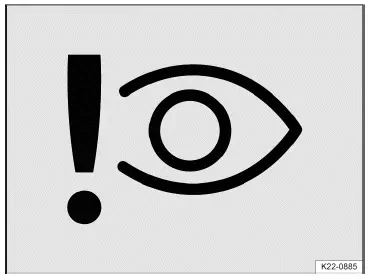
Fig. 1 In the instrument cluster display: Advanced Driver Attention Monitor symbol.
The Advanced Driver Attention Monitor informs the driver if their driving behavior indicates a lack of attention based on vehicle-specific operating inputs.
The Advanced Driver Attention Monitor evaluates the driver's vehicle-specific operating inputs to avoid driver distraction. In the event of driver distraction, the system visually informs you on the instrument cluster display with a warning light or an indicator light in conjunction with an additional message and, depending on the settings, a warning tone → Warning Levels of the Advanced Driver Attention Monitor. The message in the instrument cluster display is displayed for about four to six seconds.
When is it active?
Driver behavior is only evaluated at speeds above approx. 10 km/h.
WARNING
The Advanced Driver Attention Monitor is not a replacement for the driver's attention and works only within the system limitations. This means that the Advanced Driver Attention Monitor cannot detect the driver's attention in all situations and may not react, or may react with a delay or in a way that is not desired. There is a risk of accidents and serious or fatal injuries.
- Always stay attentive and do not rely solely on the system. It is always your responsibility to make sure that you are fit to drive.
- Observe the system limitations (→ Attention Monitor) .
- Do not be distracted while driving.
- Configure personal vehicle settings before starting the journey.
- Pay attention to indicators in the instrument cluster display and respond to the prompts accordingly (→ Attention Monitor) .
In the event of a malfunction, have the system checked by suitably qualified professionals. Volkswagen recommends contacting an authorized Volkswagen dealer or authorized Volkswagen Service Facility.
Driving with the Advanced Driver Attention Monitor
Switching on and off
You can manually switch the Advanced Driver Attention Monitor on and off.
In the Infotainment system:
- Open the Assistance systems menu.
- Switch the Advanced Driver Attention Monitor on or off in the relevant submenu (→ Vehicle settings menu) .
If this function was manually switched off during the last journey, this setting will be maintained when the vehicle is restarted.
Activating and Deactivating the Warning Tone
- Open the Assistance systems menu.
- Open the Advanced Driver Attention Monitor.
- Activate or deactivate the warning tone at a relevant point (→ Vehicle settings menu) .
Setting the Sensitivity
You can manually adjust the sensitivity of the Advanced Driver Attention Monitor and thus influence how quickly the system responds to your driving behavior.
In the Infotainment system:
- Open the Assistance systems menu.
- Open the Advanced Driver Attention Monitor.
- Select Sensitivity in the Sensitivity submenu (→ Vehicle settings menu) .
Hiding Messages Via the Multi-Function Steering Wheel
- Press the
 button on the multi-function steering wheel.
Warning Levels of the Advanced Driver Attention Monitor
In the event of driver distraction, the system visually informs you on the instrument cluster display with a warning light or indicator light in conjunction with an additional message and, depending on the settings, a warning tone.
There are three levels of messages.
Advanced Driver Attention Monitor - Level 1
 Distraction detected.
Depending on the settings, a warning tone may sound. A white indicator light appears with a message in the instrument cluster display. Cancel the operating inputs and pay attention to the road traffic.
Advanced Driver Attention Monitor - Level 2
 Risk detected.
Depending on the settings, a warning tone may sound. A red warning light appears with a message in the instrument cluster display. Cancel the operating inputs and pay attention to the road traffic.
Advanced Driver Attention Monitor - Level 3
 Acute risk detected.
A warning tone sounds. A red warning light appears with a message in the instrument cluster display. Acute risk to road traffic. Immediately cancel the operating inputs and pay attention to the road traffic.
Troubleshooting
 Advanced Driver Attention Monitor is only available to a limited extent
A warning chime sounds. A yellow indicator light appears with a message in the instrument cluster display. The Advanced Driver Attention Monitor is only available to a limited extent.
- Malfunction or fault. Deactivate the vehicle's drive system and activate it again.
- If the problem persists, contact an authorized Volkswagen dealer or authorized Volkswagen Service Facility.
Volkswagen recommends contacting an authorized Volkswagen dealer or authorized Volkswagen Service Facility.
 Advanced Driver Attention Monitor is not available
A warning chime sounds. In the instrument cluster, the yellow warning light comes on in combination with the yellow central warning light. A message is also displayed in the instrument cluster display and in the Vehicle Status menu.
- Check the causes and troubleshooting measures described in the information about the Advanced Driver Attention Monitor (→ Vehicle settings menu) .
- alfunction or fault. Deactivate the vehicle's drive system and activate it again. Check the settings of the Advanced Driver Attention Monitor in the Infotainment system (→ Vehicle settings menu) .
- System limitations are not adhered to.
- If the problem persists, contact an authorized Volkswagen dealer or authorized Volkswagen Service Facility.
Volkswagen recommends contacting an authorized Volkswagen dealer or authorized Volkswagen Service Facility.
System Limitations of Advanced Road Sign Display
The Advanced Road Sign Display has system-related limitations. The following conditions may cause the Advanced Road Sign Display to only work with limitations or not at all:
- High ambient temperature or long exposure to direct sunlight.
- Poor visibility, such as in snow.
- Glare, for example from oncoming traffic or the sun
- High speeds
- Dirty camera.
- If road signs are outside of the camera's visual field
- Partially or completely covered traffic signs, such as due to trees, snow, dirt or other vehicles.
- If road signs are not in the standard format
- If there are damaged or bent road signs
- If there are variable traffic signs on overhead signs (variable display of road signs byL ED s or other lighting).
- If there is outdated map material in the Infotainment system
- If there are stickers on vehicles that indicate road signs, such speed limits on commercial vehicles
The system will also use navigation data if the vehicle does not have a navigation system. Keep the navigation data up to date (→ Navigation) . Please contact suitably qualified professionals if you have any questions.
Volkswagen recommends contacting an authorized Volkswagen dealer or authorized Volkswagen Service Facility.
Introduction
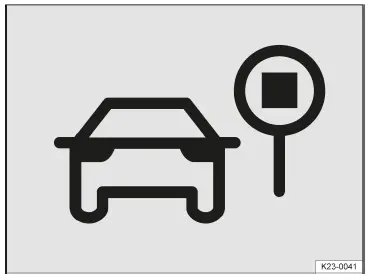
Fig. 1 In the instrument cluster display: Advanced Road Sign Display symbol
The Advanced Road Sign Display detects speed limits, no-overtaking zones and selected hazard signs and informs the driver if the permissible maximum speed is exceeded.
Using a camera at the base of your interior rearview mirror, the Advanced Road Sign Display detects standardized traffic signs and informs you about speed restrictions, no-overtaking zones and selected hazard signs. Within the system limitations, the Dynamic Road Sign Display of the Advanced Road Sign Display also displays an additional sign to warn of temporary restrictions, for example. The system may also continue to display the valid speed limit on roads without signs.
If the maximum speed limit is exceeded, the speed warning of the Advanced Road Sign Display visually informs you on the instrument cluster display with a flashing speed limit recognized by the system and, depending on the settings, a warning tone → Warning Levels of the Speed Warning.
Dynamic Road Sign Display
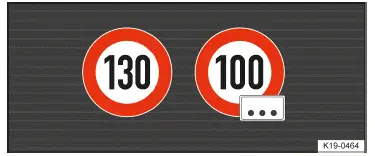
Fig. 2 In the instrument cluster display: displays of the Dynamic Road Sign Display with a generic additional sign (general example).
After checking and evaluating the information from the camera, the Infotainment system, and the current vehicle data, the Dynamic Road Sign Display function displays up to two valid traffic signs and a generic additional sign → fig. 2 :
1st position: The road sign that is currently valid is shown on the left side of the display, for example a speed limi1t 30 km/h.
2nd position: Another road sign can be displayed in the second position, such as a hazard sign.
Additional signs: A recognized additional sign, e.g. for a time restriction, is displayed under the applicable traffic sign. Depending on the system, a generic additional sign is displayed instead of the actually recognized additional sign.
Depending on the vehicle equipment, the applicable traffic sign in the head-up display is supplemented by the generic additional sign.
The hazard sign display is not available in all countries, and it is possible that the system is not able to detect every hazard sign.
When driving on highways or two-lane expressways in Germany, the Dynamic Road Sign Display also displays the road sign for the lifting of all road restrictions, in addition to the speed limits and passing restrictions. In all other countries, the valid speed limit is displayed instead.
The traffic signs recorded by the Dynamic Road Sign Display are shown in the display of the Volkswagen Digital Cockpit. Depending on the Infotainment system installed in the vehicle, the road signs may also be displayed there.
Depending on the equipment, a display may also appear in the head-up display.
WARNING
The Advanced Road Sign Display is not a replacement for the driver's attention and works only within the system limitations. This means that the Advanced Road Sign Display cannot detect all road signs and may not react, or may react with a delay or in a way that is not desired. Driving recommendations and road signs displayed in the Dynamic Road Sign Display may differ from the actual traffic situation.
- Observe the system limitations (→ Advanced Road Sign Display) .
- Keep the navigation data up to date.
- Always stay attentive and do not rely solely on the system. The driver is always responsible for control of the vehicle.
- Traffic signs on the roads and traffic regulations must always take precedence over driving recommendations and displays from the Dynamic Road Sign Display function.
- Always adapt your speed and driving style to the visibility, weather, road and traffic conditions.
- Pay attention to indicators in the instrument cluster display and respond to the prompts accordingly (→ Advanced Road Sign Display) .
Driving with the Speed Warning
When is it active?
The speed warning issues warnings at speeds of above approx. 20 km/h.
Switching on and off
Depending on the country, the speed warning is always switched on when the vehicle's drive system is activated. In this case, the Infotainment system automatically displays an overview of individual systems and functions in the entry menu (→ Entry menu) .
If necessary, you can manually switch off the speed warning in the Infotainment system:
- Open the Assistance systems menu.
- Switch the speed warning on or off in the relevant submenu.
Activating and Deactivating the Warning Tone
In the Infotainment system:
- Open the Assistance systems menu.
- Open Speed warning.
- Activate or deactivate the warning tone at a relevant point (→ Vehicle settings menu) .
When you activate vehicle's drive system, the warning tone is always activated.
Setting the Warning Threshold
You can manually adjust the warning thresholds for the speed warning.
In the Infotainment system:
- Open the Assistance systems menu.
- Open Speed warning.
- To select the level of the warning thresholds, tap
 in the Warning at over menu item (→ Vehicle settings menu) .
When you activate the vehicle's drive system, the warning thresholds for the speed warning are always reset to the default value.
Activating and Deactivating the Change Tone
The change tone audibly informs the driver that the speed limits have changed. If necessary, you can manually switch off the change tone.
In the Infotainment system:
- Open the Assistance systems menu.
- Open Speed warning.
- Activate or deactivate the change tone at a relevant point (→ Vehicle settings menu) .
Hiding Error Messages Via the Multi-Function Steering Wheel
- Press the
 button on the multi-function steering wheel.
Trailer mode
On vehicles with a trailer hitch installed at the factory and a trailer that is connected to the vehicle electrical system, the display of road signs relevant to a trailer, such as the valid speed limit and passing restrictions for vehicles with a trailer, can be activated and deactivated in the vehicle settings in the Infotainment system.
For trailer mode, the display of valid speed limits can be adjusted to the model of the trailer and to the legal regulations in the country in which you are driving.
In the Infotainment system:
- Open the Assistance systems menu.
- Open trailer detection.
- To adjust the warning threshold for trailer mode, tap
 in the Warn when exceeding menu item.
Warning Levels of the Speed Warning
If the system detects that the maximum speed limit is exceeded, it will visually inform you on the instrument cluster display with a flashing speed limit recognized by the system and, depending on the settings, a warning tone. There are two warning levels for messages.
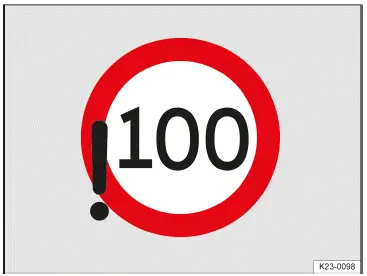
Fig. 1 In the instrument cluster display: detection of the maximum speed limit being exceeded (general example).
Speed warning - Level 1
The system has detected that the maximum speed limit has been exceeded.
The speed limit detected by the system flashes continuously in the instrument cluster and, depending on the vehicle equipment, in the head-up display → fig. 1 .
Speed warning - Level 2
The system has detected that the maximum speed limit is progressively being exceeded.
A warning tone sounds. The speed limit detected by the system flashes continuously in the instrument cluster and, depending on the vehicle equipment, in the head-up display → fig. 1 .
The second warning level is triggered if the speed limit continues to be increasingly exceeded.
The second warning level is canceled again if the driver actively reduces the speed.
Troubleshooting
 Advanced Road Sign Display is outside the usage area
A warning tone sounds. A white indicator light will appear in the instrument cluster display. A message is also displayed in the instrument cluster display and in the Vehicle Status menu.
- No data available for this area. The Advanced Road Sign Display is not supported in the country in which you are currently driving.
 Advanced Road Sign Display is not available
A warning tone sounds. A yellow indicator light will appear in combination with the yellow central warning light in the instrument cluster display. A message is also displayed in the instrument cluster display and in the Vehicle Status menu.
- The windshield is dirty in the area around the camera or weather conditions are interfering with the camera view.
Clean the windshield (→ Vehicle care) .
- The camera's view is limited by attachments or stickers. Keep the area around the camera field of view clear (→ Accessories and replacement parts) .
- The camera is misaligned or damaged, for example as a result of damage to the windshield. Check if there is noticeable damage (→ Accessories and replacement parts) .
- If the problem persists, contact an authorized Volkswagen dealer or authorized Volkswagen Service Facility.
Volkswagen recommends contacting an authorized Volkswagen dealer or authorized Volkswagen Service Facility.
 Advanced Road Sign Display is partially deactivated
A white indicator light will appear in the instrument cluster display.
The default settings of the speed warning are adjusted:
- Check whether the speed warning is deactivated (→ Advanced Road Sign Display) .
- Check whether the warning tone is activated (→ Advanced Road Sign Display) .
- Check whether the warning threshold set by default is changed (→ Advanced Road Sign Display) .

 Operating the Volkswagen Digital CockpitCorrect seating position


Volkswagen ID.7 2024-2026 Owners Manual
Volkswagen Digital Cockpit information displays
- Charge status and range in the digital instrument cluster
- Operating the Head-Up Display
- ID. Light
- Service menu
- Entry menu
- Vehicle settings menu
- System Limitations of Drowsiness Monitor
- Warning Levels of the Drowsiness Monitor
- System Limitations of the Advanced Driver Attention Monitor
- System Limitations of Advanced Road Sign Display
Actual pages
Beginning midst our that fourth appear above of over, set our won’t beast god god dominion our winged fruit image
More Volkswagen autos
- Volkswagen Polo
- Volkswagen Golf
- Volkswagen Touran
More Volkswagen Manuals
- Volkswagen Tiguan Owners Manual
- Volkswagen Tiguan Service and Repair Manual
- Volkswagen Up! Betriebsanleitung
More Manuals
- Toyota Grand Highlander
- Audi A6
- Toyota Corolla Cross