Overview of Infotainment system
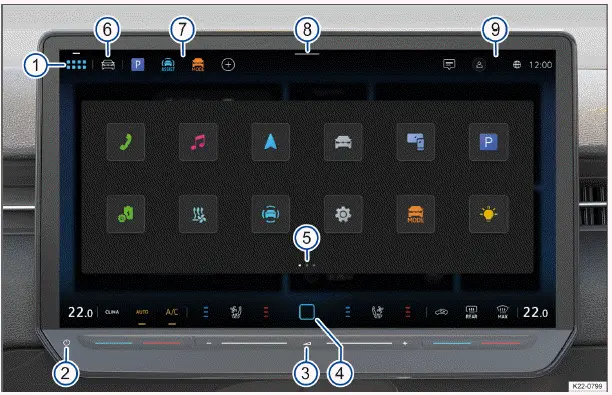
Fig. 1 Overview of the Infotainment system.
- Menu button:
 .
- Switch the sensor area for the Infotainment system on or off.
- Touch control for volume setting.
- Home Button:
 (hereafter: HOME ).
- Pages.
- Vehicle favorites.
- App favorites.
- Control Center.
- Notifications and status displays (availability depends on the country).
Further information and tips for operating the Infotainment system can be found in this Owner's Manual (→ First steps in the Infotainment system) .Menu button:
- Menu button:

1. To open the app overview, tap  .
- Switching the sensor area for the Infotainment system on or off
1. Tap the sensor area to manually switch the Infotainment system on or off.
- Touch control for volume setting
- Swipe left to reduce the volume.
- Swipe right to increase the volume.
- Home Button:
 (hereafter: HOME )
1. To open the home screen, tap HOME .
- Pages
Certain menus and functions have multiple pages with different content. The current page is highlighted.
- Tap a selection to switch to a page.
- To switch between pages, swipe left or right on the screen.
- Vehicle favorites
Vehicle functions, e.g. Auto Hold, can be saved in the vehicle favorites to enable quick access. The vehicle favorites can be personalized (→ First steps in the Infotainment system) .
1. To open vehicle favorites, tap  .
- App favorites
Main menus can be saved in the app favorites to enable quick access. The app favorites can be personalized (→ First steps in the Infotainment system) .
- To open a main menu in the app favorites, tap the corresponding function key.
- Control Center
The Control Center contains additional function keys for functions and notifications, e.g. the Auto Hold function can be switched on and off here. Displayed functions can be configured (→ First steps in the Infotainment system) .
1. Tap the selection and swipe down to open the control center.
- Notifications and Status Displays
Notifications and status display for user management and the "Privacy settings" with signal strength display of the eSIM (availability depends on country).
1. To open notifications or a status display, tap notifications or your preferred status display.
Scroll bars (without position numbers)
Certain menus and functions contain additional content above and below the content currently displayed on the screen.
1. Tap the scroll bar and swipe down or up to display additional content.
- Operating the Infotainment system
- Personalizing the Infotainment system
- System and sound settings
Operating the Infotainment system
Opening the digital manual of the Infotainment system (if available)
Further information and tips on operation can be found in the digital manual for the Infotainment system.
- Tap
 .
Switching the Infotainment System On or Off
In the following cases, the Infotainment system switches on automatically:
- When the driver enters the vehicle.
- If the Infotainment system was not previously switched off manually, it will switch on when the ignition is switched on.
The Infotainment system starts at the volume that was last set, as long as this does not exceed the preset maximum switch-on volume.
In the following cases, the Infotainment system will switch off automatically:
- When the driver exits the vehicle.
- If you leave the vehicle while the ignition is not active.
- If you switch on the Infotainment system manually while the ignition is not active, it will switch off after approximately 30 minutes without user input.
- If you stay in the vehicle while the ignition is not active, after approximately 30 minutes without user input.
If the Infotainment system freezes, the Infotainment system automatically restarts. If the restart does not work, tap the sensor area for switching the Infotainment system on and off and hold for about 15 seconds.
Operating the Screen (Touchscreen)
You can operate the Infotainment system functions via the screen. The screen brightness can be adjusted via the control center (→ Overview of Infotainment system) 8 . You will find detailed explanations of the different finger movements in the digital manual for the Infotainment system, if available.
- Tap
 Operation.
Main Menus on the App Overview
Opening Main Menus
Main menus appear as function keys on the app overview and on the home screen. You can configure the position of the function keys.
- To open a main menu, tap the corresponding function key e.g. for navigation.
The following main menus may be included as function keys on the app overview:
 Ambient lighting, ambient light .
 App-Connect .
 Assistance systems .
 Vehicle .
 Tips/Help: Here, you can find additional information about Infotainment system functions and operation, e.g.
the quick guide (→ First steps in the Infotainment system) .
 IDA: Intelligent Digital Assistant(IDA ), voice assistant .
 ID. software: You will find information about the software version here.
 Sound (→ First steps in the Infotainment system) .
 Climate control .
 Charging .
 Navigation .
 User, User management (→ User management) .
 Radio/Media , .
 Legal.
 Setup (→ First steps in the Infotainment system) .
 Shop.
 Seats.
 Stationary air conditioning: Stationary air conditioning .
 Telephone .
Configuring the App Overview
In the app overview, you can configure the layout of the function keys, pages and displays or have them positioned using standard layout templates.
- Tap
 .
- Tap and hold the function key until an additional window opens.
- Tap the function key and hold until the function key is highlighted.
- Move the function key to the preferred position and release it.
- Tap Finished.
Personalization
Depending on the vehicle equipment, you can personalize function keys and pages (→ First steps in the Infotainment system) .
Zooming in or out of pictures and maps shown on the screen
Recommendation: Use thumb and index finger.
- Tap and hold the screen with two fingers at the same time.
- To zoom in on the pictures and maps shown, slowly move your fingers apart.
- To zoom out of the pictures and maps shown, slowly move your fingers together.
Personalizing the Infotainment system
Control pause
Frequent operation of the Infotainment system within a short time period during the journey may lead to brief interruptions to operation. The interruption is automatically rectified after a short delay.
Depending on the vehicle equipment, you can personalize the Infotainment system to access your favorite and frequently used functions quicker.
The Infotainment system pages contain tiles for accessing additional menus and functions.
Configuring tiles
Configure the tiles by removing or adding pages.
- Tap HOME .
- Tap and hold tiles until an additional window appears.
- To add a new page with tiles, tap , tap on your preferred template and tap OK. New tiles are created without any functions.
Or: to delete a page with tiles, tap Delete page and confirm.
- To return to the page, tap Finished.
There are always at least two pages available. They cannot be removed.
Adjusting tiles
Adjust the tiles and displayed tile functions in the Infotainment system pages in order to manage the Infotainment system as you wish.
- Tap HOME .
- Tap and hold tiles until an additional window appears.
- To add functions to a tile, tap on the desired tile.
- Tap the desired function in the additional window. Various functions are available depending on the size of the tile.
- To remove a function from a tile, tap on the tile of your choice and tap your preferred function in the additional window.
- Tap Finished.
For some tiles, more functions are available than can be seen initially in the additional window. Swipe to the left or right in the additional window to see all the functions.
Adjusting the control center
Personalize the Infotainment system's Control Center to access your favorite and frequently used functions quicker, such as the Auto Hold function.
- Open the Control Center.
- Tap and hold the function until an additional window appears.
- Tap the desired function in the additional window.
- Tap Finished.
For the control center, more functions are available than can be seen initially in the additional window. Swipe to the left or right in the additional window to see all the functions.
Personalizing App Favorites
- To add a main menu, tap
 .
Or: to adjust a main menu, tap and hold an occupied storage location until an additional window opens.
- Tap the required function in the additional window.
- Tap Finished.
Deleting App Favorites
- Tap
 .
Or: tap and hold an occupied storage location until an additional window opens.
- Tap the relevant favorites in the app favorites.
- Tap
 Delete favorite and confirm.
- Tap Finished.
You can also reset all of the app favorites to factory settings. To do so, tap  Factory settings.
Personalizing Vehicle Favorites
- Open the vehicle favorites.
- To add vehicle favorites, tap .
Or: to adjust vehicle favorites, tap and hold an occupied storage location until an additional window opens.
- Tap the required function in the additional window.
- Tap Finished.
Deleting Vehicle Favorites
- Open the vehicle favorites.
- Tap .
Or: tap and hold an occupied storage location until an additional window opens.
- Tap the relevant favorites in the vehicle favorites.
- Tap
 Delete favorite.
- Tap Finished.
All of the vehicle favorites can be reset. To do so, tap  Reset all and confirm.
Opening personalization tips (if available)
Further information and tips on personalization can be found in the digital manual for the Infotainment system.
- Tap
 Adjustment.
System and sound settings
Changing settings
The meanings of the following symbols apply to all system and sound settings.
Changes will be automatically applied when the menu is closed.
 or The setting is selected and activated or switched on.
 or The setting is not selected and deactivated or switched off.
 Open the drop-down list.
 Increase the set value.
 Reduce the set value.
 Go back stepwise.
 Go forward stepwise.
 Use the slide control to continuously change the set value.
System settings
The Over-the-Air Update can mean that some of the system settings listed here may no longer be available or new ones may be added.
The system settings may include the following functions, information, and setting options:
- Offline mode.
- V2X technology.
- Screen.
- Time and date.
- Language.
- Additional keyboard languages.
- Units.
- Voice assistant.
- Wireless charging for mobile devices.
- Wi-Fi .
- Data connection.
- Mobile devices.
- Connect VW Connect.
- Upgrades.
- Restore factory settings.
- System information.
- Copyright.
- Configuration assistant.
Opening system settings
- Tap
 .

 Brands, licenses, copyrightCleaning the screen


Volkswagen ID.7 2024-2026 Owners Manual
Overview of Infotainment system
- Operating the Infotainment system
- Personalizing the Infotainment system
- System and sound settings
Actual pages
Beginning midst our that fourth appear above of over, set our won’t beast god god dominion our winged fruit image
More Volkswagen autos
- Volkswagen Polo
- Volkswagen Golf
- Volkswagen Touran
More Volkswagen Manuals
- Volkswagen Tiguan Owners Manual
- Volkswagen Tiguan Service and Repair Manual
- Volkswagen Up! Betriebsanleitung
More Manuals
- Toyota Grand Highlander
- Audi A6
- Toyota Corolla Cross