Cleaning the screen
Sound settings
The sound settings may include information and setting options for equalizer, position, volume and setup.
Opening sound settings
- Tap

Adjusting the volume of external audio sources
Lower the volume of the Infotainment system before turning up the volume of an external audio source.
If the connected audio source plays too quietly, increase the output volume of the external audio source. If that does not correct the problem, set the input volume to Medium or Maximum.
If the connected external audio source plays too loudly or the sound is distorted, lower the output volume of the external audio source. If that does not correct the problem, set the input volume to Medium or Quiet.
When cleaning the screen, please note this checklist:
- The Infotainment system is switched off.
- Use a soft, clean cloth that has been moistened with water.
Or: use a cleaning cloth which is available from an authorized Volkswagen dealer or authorized Volkswagen Service Facility.
- For stubborn dirt:
- Wet and soak dirt with just a little water.
- Carefully remove dirt using a soft, clean cloth.
NOTICE
If the screen is cleaned with incorrect cleaning agents or when dry, it may be damaged.
- Only apply gentle pressure.
- Do not use any aggressive cleaners or products which contain solvents. These types of cleaners can damage the device and cause glare on the screen.
NOTICE
If the cloth used to clean the screen is too moist, the screen can no longer be operated or switched off.
- Dry the screen and then leave the vehicle locked from the outside for at least two minutes.
Introduction
In radio mode, you can receive available radio stations available via various reception modes and save your favorites to enable quick access.
Available reception modes depend on the vehicle equipment and are not available in all countries. Reception modes may be discontinued, switched off or no longer offered in individual countries.
In some countries, depending on the vehicle equipment, you can also use Internet Radio (→ Radio online functions) .
The radio stations are responsible for transmitted content.
Other electrical devices connected in the vehicle can impair radio signal reception and cause noise in the speakers.
Decals or metal-coated stickers on the vehicle windows can impair radio reception in vehicles with window antennas.
- Function descriptions
- Functions and Symbols
- Online Functions
Function descriptions
Searching For and Selecting a Station
Selecting a Reception Mode
Various stations are available, depending on the reception mode. The available reception modes depend on the vehicle equipment and are not available in all countries.
- To open the list of reception modes, tap .
- Select a reception mode, e.g. FM
Searching For and Selecting a Station
You can search for and select stations in a variety of ways. The options vary based on the reception mode.
Searching for a Station in SCAN mode
In SCAN mode, the stations in the reception mode are set automatically in succession and played for approx.
five seconds each. SCAN mode is only possible in the additional window in which the current playback is displayed.
- To start SCAN mode, tap SCAN.
SCAN mode starts and the current station is shown on the display.
- To select a station, tap SCAN.
SCAN mode stops and the station is tuned.
Selecting a Station Using the Multi-function Steering Wheel
You can select stations from the station list or from favorites via the multi-function steering wheel.
- To select the previous station, press the
 on the multi-function steering wheel.
- To select the next station, press the
 on the multi-function steering wheel.
Selecting a Station Using a Frequency Band
- Open the settings and switch off the summarized station list in the settings.
- To open the frequency band, tap .
- Tap the cursor to press and slide to the frequency band and release at the desired frequency.
Or: tap a point on the frequency band. The cursor automatically jumps to the corresponding frequency.
The station at the set frequency will be tuned.
Selecting a station from the station list
The station list displays the stations that currently can be received. The station list updates automatically.
- Open the station list.
- Tap the desired station.
The selected station will be tuned. The best reception mode is selected automatically depending on station availability.
Selecting a Station and Saving as a Favorite
You can save up to 36 stations or frequencies from different frequency bands and reception modes as favorites.
Saving a Station as a Favorite
- Tune the desired station.
- Tap
 .
Or: tap and hold the station on the station list.
The storage locations are displayed.
- Tap
 .
Or: Tap and hold a storage location that is already occupied until the station is saved.
The station is saved at the selected storage location.
If a station was already saved at the storage location, this station will be removed from the storage location and replaced by the new station.
Showing or hiding the display of station logos and the DAB slideshow
- To open the dialog box with the current playback, tap
 on the right edge of the screen and swipe right to left.
- Tap radio text in the current playback.
Other Functions in Radio Mode
The functions listed below depend on the vehicle equipment and are not available in all countries.
Traffic program function (TP function)
The traffic program function (TP function) monitors the messages of a set traffic report station and automatically tunes it in the current radio mode or media mode. To enable traffic reports to be received, there must be reception for a traffic report station and the TP function must be activated in the settings → Traffic program function (TP function). Traffic news stations are not available in all countries. Some stations without their own traffic program still support the TP function using a corresponding traffic report station (EON).
If there is reception for a traffic report station, a traffic report station will be tuned automatically in the background in media mode.
If it is not possible to receive a traffic news station, No TP appears on the display. The device automatically searches for a traffic news station that can be received. As soon as a new traffic news station can be received, the status on the display switches back to TP.
Switching on the TP function
- In radio mode, tap
 Radio and tap and activate Traffic program (TP).
Or: in media mode, tap
 Media and tap and activate Traffic program (TP).
Station logos
Station logos can be preinstalled for some frequency bands in the Infotainment system.
If the Automatic station logo selection function is activated in the settings, the station logos are automatically assigned to the stations.
In Internet radio mode, the Infotainment system obtains the station logos from an online database and assigns them automatically to the stations.
Switching on Automatic Station Logo Assignment
- In radio mode, tap
 and activate
 Automatic station logo selection.
Assigning station logos manually
- In radio mode, tap
 Radio
 Station logos.
- Select a station to which a station logo is to be assigned.
- Select the station logo.
- This process can be repeated for additional stations.
- To finish assigning station logos, tap
 .
Functions and Symbols
Functions
The functions and possible reception modes depend on the vehicle equipment and are not available in all countries.
- FM dual tuner (diversity aerial).
- Summarized station list.
- Merging of FM and DAB stations in a single list.
- Summarized preset list for favorites.
- Display of station logos.
- Antenna amplifier
- DAB /DAB+.
- DAB slideshow.
- Still images are transmitted ongoing parallel to the current program.
- Internet radio.
Symbols
The symbols depend on the vehicle equipment and are not available not in all countries and may look different depending on the Infotainment system.
General symbols
- To open the main menu, tap
 (→ Overview of Infotainment system) .
Or: open the home screen and tap
 (→ Overview of Infotainment system) .
 FM Select a FM reception mode.
 FM/DAB Select a FM /DAB reception mode.
 Internet Radio Select the Internet Radio reception mode.
 Select the band or reception mode.
 Open Favorites.
Displayed small in a station list: stations already saved as favorites.
 Open current playback.
 Mute the radio.
 Open the frequency band for manually selecting the FM frequency.
Only possible when the summarized station list is switched off in the settings in radio mode.
 Switch between radio and media mode.
 My playlist.
 Add stations as favorites.
 Select the previous station from the station list or station on the previous station preset button.
 Select the next station from the station list or from favorites.
 Opening the settings.
 Traffic program function (TP function) for traffic news monitoring is activated.
 The selected report news station is not available.
 Automatic station tracking (AF ) is switched off.
 The radio data system (RDS ) is switched off.
Symbols in the FM and FM/DAB band
 DAB reception not possible.
 The DAB station supports Slideshow.
 Slideshow is not available for the DAB station.
Symbols for Internet Radio operation
 Open full-text search.
 Unable to receive Internet radio.
 Open the Internet radio station that was last listened to.
 Open the 100 most popular Internet radio stations.
 Open available Internet Radio podcasts.
 Open Internet radio stations that originate from the preferred country.
 Open Internet radio stations that transmit programs in the preferred language.
 Open Internet radio stations whose programs are of the preferred genre.
 Open the station selection.
 Open podcast episodes
 Open associated stations and podcasts.
 Skip 15 seconds of podcast episode.
 Jump back 15 seconds of podcast episode.
Online Functions
Depending on the vehicle equipment, the Infotainment system features online functions in radio mode.
Online functions in radio mode are not available in all countries and vehicle models.
Online functions in radio mode include Internet Radio, for instance.
Prerequisites for using online functions in radio mode:
- The vehicle is equipped with VW Connect or VW Connect Plus.
- You have an active VW Connect or VW Connect Plus user account.
- Your vehicle is assigned to your user account.
- You have ordered the service and activated it in your vehicle.
Internet radio
Internet Radio is a reception mode for Internet Radio stations and podcasts independent ofF M and DAB. Due to its transmission over the internet, receipt is not regionally limited.
Internet radio is only available if the Infotainment system has an active Internet connection. Costs for streaming data online may result when using Internet radio.
This function of the Internet Radio in some countries depends on your vehicle privacy settings.
Searching For and Filtering Stations
In Internet Radio mode, stations can be filtered according to category or searched for using a full-text search.
- To start the full-text search, tap
 .
- Enter the name of the desired station.
The list of the found stations updates automatically during input.
- Tap the desired station.
 Overview of Infotainment systemPlaying a Media File

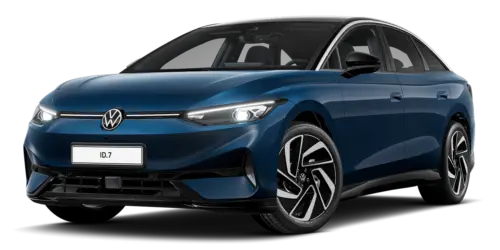
Volkswagen ID.7 2024-2026 Owners Manual
Cleaning the screen
- Function descriptions
- Functions and Symbols
- Online Functions
Actual pages
Beginning midst our that fourth appear above of over, set our won’t beast god god dominion our winged fruit image
More Volkswagen autos
- Volkswagen Polo
- Volkswagen Golf
- Volkswagen Touran
More Volkswagen Manuals
- Volkswagen Tiguan Owners Manual
- Volkswagen Tiguan Service and Repair Manual
- Volkswagen Up! Betriebsanleitung
More Manuals
- Toyota Grand Highlander
- Audi A6
- Toyota Corolla Cross