Coupling, connecting and managing
Introduction
Using the phone interface, you can connect your cell phone to the Infotainment system and control the phone functions via the Infotainment system. The sound is played back via the vehicle speakers. You can connect up to two cell phones to the Infotainment system at the same time (→ Phone interface) .
The functions depend on the vehicle equipment, are not available in all countries and depend on the cell phone used and its operating system.
High speeds, poor weather and road conditions, a lot of background noise, even outside the vehicle, and the network quality can impair phone calls in the vehicle.
The phone interface may contain an antenna amplifier that improves the reception quality of the cell phone.
You generally only need to pair a device like a cell phone once. The connection of the device with the Infotainment system via Bluetooth or Wi-Fi can be restored at any time without re-pairing the device.
For a phone call via the hands-free system or at a high volume, a conversation may also be heard by third parties outside the vehicle.
Locations with special regulations
Switch off the cell phone and phone interface at locations where there is a risk of explosions. These locations are not always clearly identified. These include, for example:
- Areas near pipes and tanks containing chemicals
- Lower decks in ships and ferries
- Areas near vehicles powered by liquefied petroleum gas, such as propane and butane.
- Areas with chemicals or particles in the air, such as flour, dust, or metal powder
- All other locations where the engine, the vehicle's drive system or the cell phone must be switched off.
WARNING
In potentially explosive environments, e.g. in the vicinity of gas stations and at other similar locations with specific regulations, ignition sparks caused by electrostatic discharge or cell phones, for example, can cause an explosion or a fire and lead to serious or fatal injuries.
- Switch off the cell phone and phone interface at locations where there is a risk of explosions, e.g. in the vicinity of gas stations, and locations with specific regulations.
- Do not use the cell phone and phone interface at locations where there is a risk of explosions, e.g. in the vicinity of gas stations, and locations with specific regulations.
NOTICE
Radiation from cell phones that are switched on can interfere with sensitive technical and medical devices, potentially causing malfunctions or damage to the devices.
- Always switch off the cell phone in areas with special regulations relating to or prohibiting the use of cell phones.
Types of phone interface
Depending on the country and vehicle equipment, your vehicle may have the following mobile phone interfaces:
- Phone interface basic configuration.
The phone interface uses the Hands-Free Profile (HFP ) Bluetooth profile for transmission. This enables the use of phone functions via the Infotainment system and played back via the vehicle speakers.
- Convenience phone interface.
Just like the basic configuration of the phone interface, the Convenience phone interface uses the HFP Bluetooth profile.
The Convenience phone interface can be equipped with the wireless charging function (→ Charging Options for Mobile Devices) . In order to use the features of the wireless charging function, you need to place a suitable cell phone correctly in the storage compartment. Depending on the vehicle equipment and cell phone compatibility, the cell phone connects to the vehicle aerial when you place the phone in the storage compartment → Introduction . This improves reception and call quality.
Wireless Charging Function and Connection to the Vehicle Aerial
Depending on the vehicle equipment and in some countries, a connection to the vehicle aerials is automatically established on the driver's side for using the wireless charging function by using the storage compartment (→ Charging Options for Mobile Devices) . This can reduce interfering signals in the cell phone reception, if necessary.
If the reception or the quality of the conversation is not improved or there are still audible interfering signals in the mobile phone reception, the cell phone must be positioned the other way around, with the screen facing up, in the storage compartment for the wireless charing function for an improved connection.
Depending on the vehicle equipment and in some countries, the wireless charging function can charge several cell phones simultaneously. In this case, the connection to the outside antenna can only be established if only the storage compartment on the driver's side is used.
Coupling, connecting and managing
To use the phone interface functions, pair and connect a cell phone with the Infotainment system.
You can connect up to two cell phones to the Infotainment system at the same time. However, only one device is active at a time and can be used to make calls. The second connected device can receive calls via the Infotainment system and be used to play media.
The available functions depend on the cell phone used and its operating system.
The function is only available for cell phones that support Bluetooth (version 2.1 or above).
Pairing a cell phone
Before connecting for the first time, you need to pair the cell phone with the Infotainment system. A user profile is then automatically saved in the Infotainment system (→ Phone interface) . The coupling process may take a few minutes.
Requirements:
- Bluetooth is activated on the cell phone.
- Bluetooth is activated on the Infotainment system.
- Open the list of available Bluetooth devices on your cell phone and select the device name for the Infotainment system.
- Pay attention to messages on the cell phone and in the Infotainment system and confirm these if necessary.
If the pairing is successful, the data on the cell phone will be saved in the user profile.
- Optional: Confirm the message for transferring the data on the cell phone.
- Function descriptions
- Functions and symbols of the phone interface
Function descriptions
User profiles
An individual user profile is automatically created for each paired cell phone. Data from this cell phone, e.g. contact data, is stored in the user profile. A maximum of ten user profiles may be saved in the Infotainment system simultaneously.
Deleting a user profile
- Tap
 .
The user profiles are located in the Select cell phone area or in Mobile devices.
- Tap the desired user profile and tap to delete.
Active and passive connection
In order to use the phone interface functions, at least one cell phone must be connected to the Infotainment system.
If several cell phones are connected to the Infotainment system, you can switch between an active and an inactive connection. In order to operate the phone interface with your preferred cell phone, establish an active connection to the Infotainment system.
Difference between the types of connection
Active
The cell phone is paired and connected. You can carry out phone interface functions using data from this cell phone.
Passive
The cell phone is paired and connected. You can only take incoming calls via the phone interface. Other functions are not available.
Paired cell phones are saved in the Infotainment system even if they are not currently connected.
Change connection type (inactive to active)
Precondition:
- Several cell phones are connected to the Infotainment system simultaneously.
- Tap .
The actively connected cell phone is highlighted.
- Tap the name for the preferred cell phone.
The connection with the other cell phones will be inactivated automatically.
Connection management
Precondition:
- The cell phone is paired and connected.
- Tap
 Mobile devices.
Or: Open the home screen and tap
 Mobile devices.
- Tap to connect the desired technology.
Phonebook
This first time a cell phone is paired with the Infotainment system, the phonebook is saved in the Infotainment system. If necessary, confirm the transfer on the cell phone.
Depending on the vehicle equipment, you can save up to 5000 contacts in your phonebook.
The phonebook is updated after each new connection. During the update, the present phone directory can still be used.
If teleconferences are supported, the phonebook can be opened during a phone call and another participant can be added to the phone call.
If an image is stored for the contact, it can be displayed in the list next to the entry.
Using a phone
Select a telephone number to make a call. Various functions are available for selecting a telephone number.
Using contact data
If a contact has multiple telephone numbers, you must select the number you wish to call accordingly.
- Tap
 .
- To search for a contact, tap
 and enter the name of the contact.
Or: To call a favorite, tap Favorites.
Or: Tap All.
- Tap on a contact in the list to make the call.
When searching for a contact, enter the last name and first name separated by a space.
Using a call list
The mobile phone interface stores the incoming and outgoing calls on a call list. Recently used telephone numbers are saved under favorites. Make a call via the call list.
- Tap
 and filter entries in the call list, e.g. by missed calls.
- Tap on a number or, where applicable, a contact in the list to make the call.
Manually entering the telephone number
- Tap
 and enter a telephone number.
- Tap
 to make the call.
While you are entering a telephone number, the contact related to the number is displayed on the Infotainment system screen.
Favorites and speed dial keys
A speed dial key can be assigned with a favorite from the phonebook. If the entry contains an image, this is displayed on the speed dial key.
Speed dial keys must be programmed manually and are assigned to a user profile (→ Phone interface) .
Programming a speed dial key
- Tap
 .
- Tap a contact in the phonebook. If a contact has multiple telephone numbers, tap a number on the list.
Editing the speed dial key
- Tap and hold the speed dial key until the phonebook opens.
- Tap the new contact in the phone directory. If a contact has multiple telephone numbers, tap a number on the list.
Calling a favorite
- Tap a programmed speed dial key.
Favorites are not automatically updated. If the phone number for a contact changes, the speed dial key must be reassigned.
Deleting a favorite from the speed dial key
- Tap Favorites
 .
- To delete a favorite, tap the preferred speed dial key
 .
Sending text messages
Depending on the cell phone and the Infotainment system in use, you can send and receiveS MS text messages and, depending on your country, e-mails via the phone interface.
Sending and receiving e-mails is also dependent on the app used on the cell phone.
Sending an SMS
- Tap
 SMS
 New message and enter the message.
- Enter the desired contact in the search bar.
- Tap OK to send the message.
Sending an e-mail
- Tap
 E-MAIL and enter the message.
- Enter the desired contact in the search bar. If required, a contact can be searched for usingS earch for contact.
- Tap OK to send the message.
Switching between SMS and e-mail
To send an e-mail or SMS , activate the relevant option. The active option is displayed on the screen, e.g.S MS.
- Tap
 .
- Tap the desired option.
Functions and symbols of the phone interface
Functions
The functions depend on the vehicle equipment and are not available in all countries. The available functions depend on the cell phone used and its operating system.
- Hands-free system.
- SMS functions via Bluetooth:
- Read SMS .
- Write SMS , inc. templates.
- Have an SMS read out.
- Message thread.
- E-mail functions via Bluetooth:
- Read e-mail.
- Write e-mail.
Symbols
The symbols depend on the vehicle equipment and are not available not in all countries and may look different depending on the Infotainment system.
Symbols in the main menu
- To open the main menu, tap
 (→ Overview of Infotainment system) .
Or: open the home screen and tap
 (→ Overview of Infotainment system) .
 Open contact list.
 Open incoming and outgoing calls lists.
 Dial telephone number.
 Open messages (SMS and, depending on your country, e-mail).
 Select the active device from two or more connected cell phones.
 Opening the settings.
Symbols for telephone calls
 Handle and display a call.
 End or decline a call.
 Mute the hands-free system.
 Put a call on hold.
 Decline a call with a SMS template.
 Add participants to a phone conference or begin a phone conference
 Make an emergency call (SOS).
 Receive breakdown assistance.
 Voice mail.
 Receive information about Volkswagen and various value added traffic and travel services.
Symbols in the contact list
- To open the contact list, tap
 .
 Input to search for contacts.
 Address.
 Editing favorites.
 Add favorites.
 Remove favorites.
Call list symbols
- To open the call lists, tap on
 .
 Received incoming call.
 Outgoing call.
 Missed call.
 Frequent calls or favorites from your cell phone, if supported by your cell phone.
 Telephone number (company).
 Telephone number (private).
 Cell phone number.
 Fax device.
 Fax device (company).
 Fax device (private).
Text message symbols
- To open the text messages, tap on
 .
 Top left: Select active input.
 Received text message.
 Sent text message.
 Template for text messages.
 Functions and symbols of the navigation systemIntroduction to the Voice Assistant

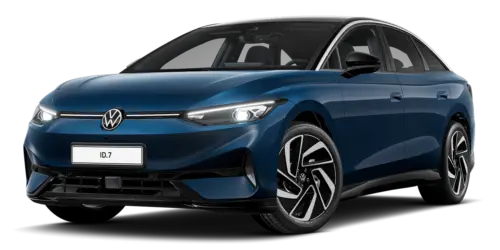
Volkswagen ID.7 2024-2026 Owners Manual
Coupling, connecting and managing
- Function descriptions
- Functions and symbols of the phone interface
Actual pages
Beginning midst our that fourth appear above of over, set our won’t beast god god dominion our winged fruit image
More Volkswagen autos
- Volkswagen Polo
- Volkswagen Golf
- Volkswagen Touran
More Volkswagen Manuals
- Volkswagen Tiguan Owners Manual
- Volkswagen Tiguan Service and Repair Manual
- Volkswagen Up! Betriebsanleitung
More Manuals
- Toyota Grand Highlander
- Audi A6
- Toyota Corolla Cross