Applications
This chapter provides an overview of using Apple CarPlay® in the Ford Mustang (6th Gen, 2014–2023). It explains the initial connection, the functions and the safety benefits when using iPhone apps via the SYNC system. With voice control via Siri, the system can be operated intuitively.
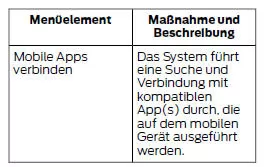
The system allows you to operate AppLink-enabled smartphone apps using voice control, the steering wheel and the touchscreen.
When an app is running via AppLink, the main functions of the app can be controlled using voice commands and steering wheel controls.
Note: The available AppLink-enabled apps vary by country.
Note: To access AppLink, you must pair and connect your smartphone to the system via Bluetooth.
Note: iPhone devices must be connected to the USB port.
Note: For information on the available apps and supported smartphones, as well as troubleshooting tips, see the regional Ford website.
Note: Make sure you have an active account for the downloaded app. Some apps work automatically without further setup. Other apps require you to configure your personal data and personalize the app by creating stations or favorites. We recommend doing this at home or outside the vehicle.
Note: It is recommended that you review the service and privacy terms of the smartphone app, as Ford is not responsible for the app or its use of data.
Note: AppLink is an internal function of the SYNC system. Access to mobile apps via AppLink is only possible when Android Auto or Apple CarPlay is deactivated. Some apps can only be accessed in the vehicle via AppLink, or only via Android Auto or Apple CarPlay. To deactivate Android Auto or Apple CarPlay, see the section on smartphone connection.
Note: To use an app with the system, the app must be running in the background on the phone. If you close the app on the phone, the app is also closed on the system.
Note: If an AppLink-enabled app is not shown in the app area, make sure that the desired app is running on the mobile device.
Activating Mobile Apps for SYNC 3
To activate mobile apps, SYNC 3 requests the user's consent for authorization information and app updates to be sent and received according to the data plan of the connected device.
The connected device sends data to Ford in the USA. The information is encrypted and includes the vehicle identification number (VIN), SYNC 3 module number, odometer reading, usage statistics and debugging information. We only retain this data for as long as necessary and legally permitted to provide this service, carry out troubleshooting, make improvements to products and services, and offer you products and services that may be of interest to you.
Updates to app permissions may be carried out automatically.
Note: When you first select a mobile app via the system, you must activate mobile apps for each connected system.
Note: Standard data charges apply. Ford assumes no liability for any additional charges your service provider bills you for sending and receiving vehicle data via the connected device. This includes roaming charges incurred when you are outside your regular mobile network.
You can activate and deactivate apps through Settings. See Settings.
App Permissions
The system groups app permissions into categories. These group permissions can be assigned individually. You can change the status of a permission group at any time in the Settings menu. The Settings menu also shows the data included in each group.
When you open an app with SYNC 3, the system asks you to grant certain permissions, for example,
vehicle data, driving behavior, GPS and speed, and/or push notifications. When you first see app permission requests, you can enable all groups or none of the groups. The Settings menu lets you control each individual permission.
Note: You are only asked to grant permissions when you use an app with SYNC 3 for the first time.
Note: If you turn off group permissions, apps remain enabled for use with SYNC unless you select Disable All Apps in the Settings menu.
The map display features of the Ford Mustang (VI Gen, 2014–2023) make navigation easier and safer than ever. The driver can choose from several views tailored to the driving situation, from the classic 2D display to a dynamic 3D perspective. The Ford Mustang 2014–2023 combines a sporty driving feel with precise technology.
A particular highlight is the ability to adjust the map display to your personal preferences to improve orientation and safety. The Ford Mustang VI Generation shows that modern technology not only makes driving easier but also safer.
Frequently Asked Questions
Can I adjust the brightness of the map display?
Yes, you can adjust the brightness manually in the system settings or have it adjust automatically to the ambient light.
Is there a night mode for the map display?
Yes, night mode reduces glare in the dark and makes night driving more comfortable.
Test yourself
A quick Ford Mustang quiz: every answer comes with an explanation and a link to the manual page.