Settings
Android Auto™ expands the SYNC system of the Ford Mustang VI Gen with many features. This section describes how to connect via USB cable, install the required app, and grant permissions. Once set up, Google Maps, music services, and communication apps are available directly on the vehicle screen. Especially useful is voice control through Google Assistant for messages, navigation, and media. This section also includes information on disconnecting your account and switching between SYNC and Android Auto. For Android users, this chapter is the key to seamlessly integrating digital content into your drive.
This menu lets you access and adjust the settings for many system functions. To access additional sessions, swipe left or right.
Sound
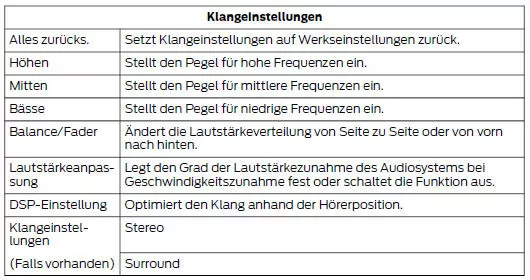
Your vehicle may not have all of these features.
Telephone
To use the hands-free functions, a Bluetooth mobile phone is required, which must be paired with the system before first use.
Activate Bluetooth on the device before starting the pairing process. See your phone's manual if necessary.
To add a phone, select:

- Follow the instructions on the screen.
- A message prompts you to search for your vehicle make on your phone.
- Select the vehicle model as shown on the phone.
- Confirm that the six-digit number displayed on the phone matches the six-digit number on the touchscreen.
- Successful pairing is shown on the touchscreen.
- Your phone may ask you to consent to access information. To check whether your phone is compatible, see your phone's manual or visit the regional Ford website.
Alternatively, a phone can be added by selecting:
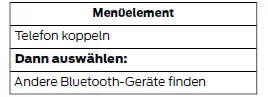
- Follow the instructions on the screen.
- A message prompts you to search for your vehicle make on your phone.
- Select the phone name when it appears on the touchscreen.
- Confirm that the six-digit number displayed on the phone matches the six-digit number on the touchscreen.
- Successful pairing is shown on the touchscreen.
- The phone may ask you to grant access to information. To check whether your mobile phone is compatible, see the phone's manual or the website.
Other functions, such as text messaging via Bluetooth and automatic downloading of the phone book, depend on the phone.
To check your mobile phone's compatibility, see your phone's manual or visit the regional Ford website.
After pairing a device, you can adjust the following options.
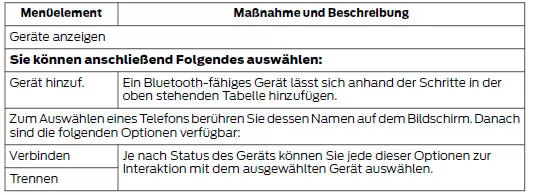
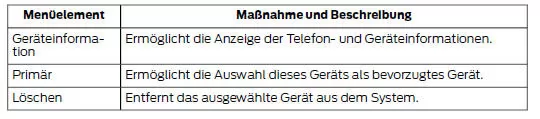

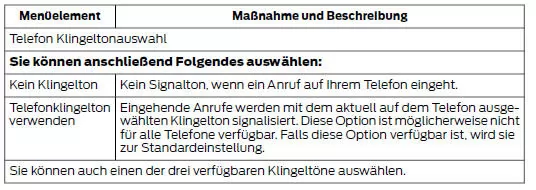
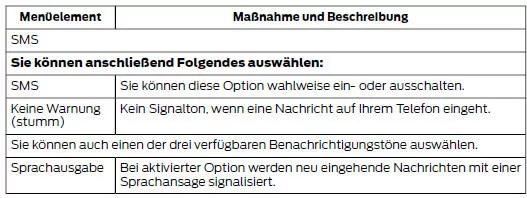
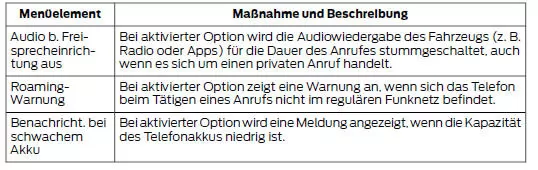
You can also turn the following options on and off:
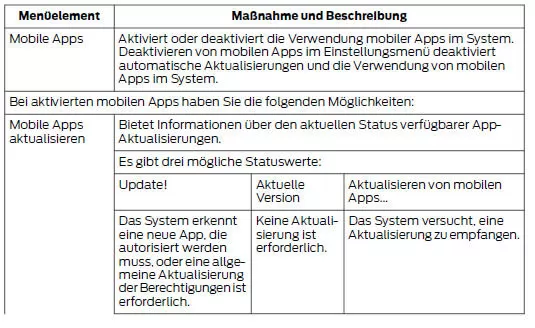
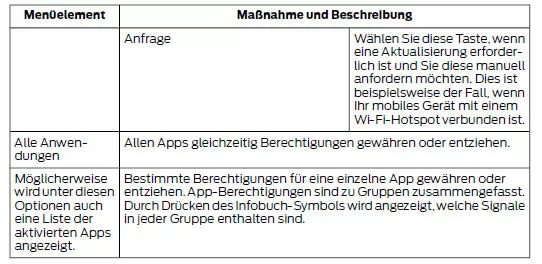
Mobile Apps
You can allow operation of compatible mobile apps running on your Bluetooth or USB device. To turn on mobile apps, the system asks the user to consent to sending and receiving authorization information and app updates using the data plan of the connected device.
The connected device sends data to Ford in the USA. The encrypted information includes the vehicle identification number (VIN), the system module number, anonymized usage statistics, and debugging information. Automatic updates may occur.
Note: Standard data charges apply. Ford assumes no liability for any additional charges your service provider bills you for sending and receiving vehicle data via the connected device. This includes roaming charges incurred when you are outside your regular mobile network.
Note: Ford assumes no responsibility or liability for damage or loss of privacy related to using an app or to sharing vehicle data that you have authorized Ford to forward to an app.
Vehicle
Note: Your vehicle may not have all of these features.
Door Keypad Code (if equipped)
This button lets you add or delete a personal code for the door keypad. To add or
delete a personal code, first enter the five-digit factory code. This code is on the owner's card in the glovebox, or you can obtain it from your dealer.
Camera Settings (if equipped)
To adjust settings using the touchscreen, select the following:
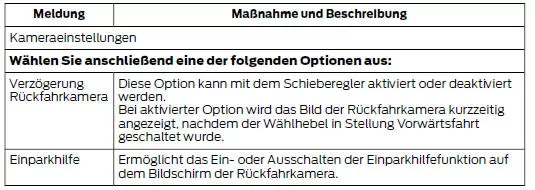
See Rear View Camera.
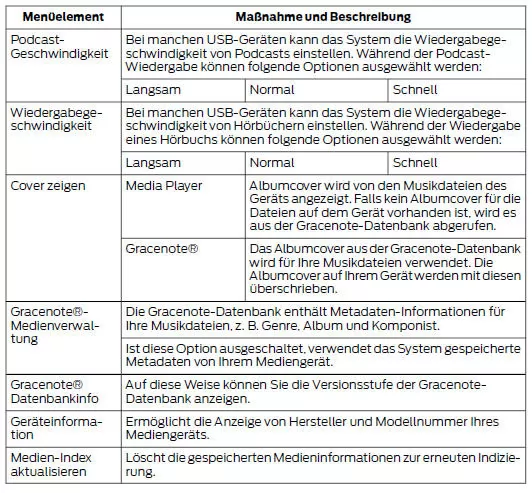
Media Player
This button is available when a media device (for example, Bluetooth Stereo or USB device) is the active audio source.
Press the button to access the following options for active devices only.
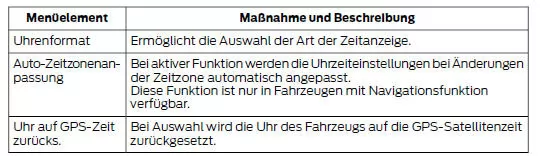
Clock
To set the time, press the up and down arrow buttons on either side of the screen. The arrows on the left set the hour, and the arrows on the right set the minutes. You can then select AM or PM.
The system automatically saves all changes you make to the settings.
Bluetooth
Press this button to access the following features:

To pair a Bluetooth-enabled device, Bluetooth must be turned on.
The procedure for pairing a Bluetooth device is the same as pairing a phone. See "Pairing a Device" in the phone settings for pairing a device and the available options.
SOS Assistant
Use this button to switch this feature on or off.
Once the mobile phone contacts have been downloaded, you can adjust the following option:

Radio
This button is available when a radio source (e.g., AM, FM or DAB) is the active media source. Press the button to access the following features:
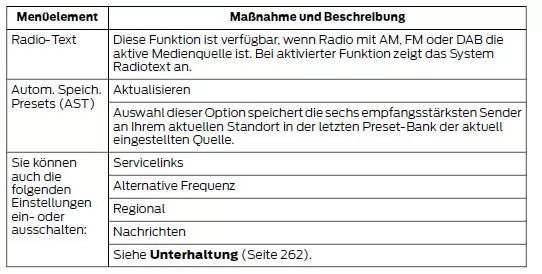
Navigation
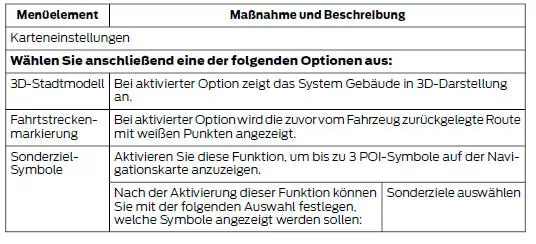
Map Settings
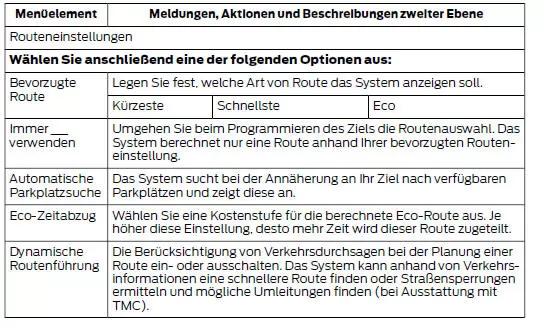
Route Settings
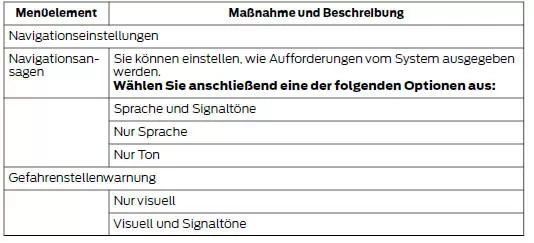
Navigation Settings
General Information
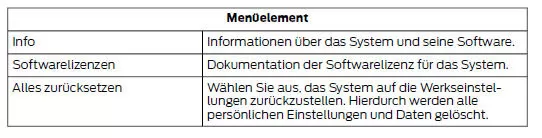
Access and adjust system settings, voice features, and phone, navigation and wireless settings.
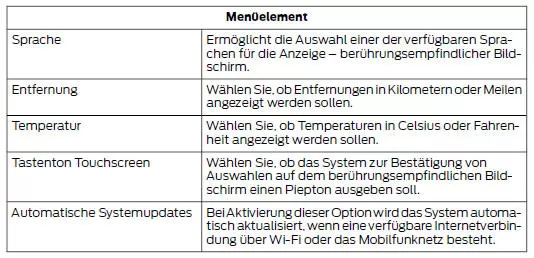
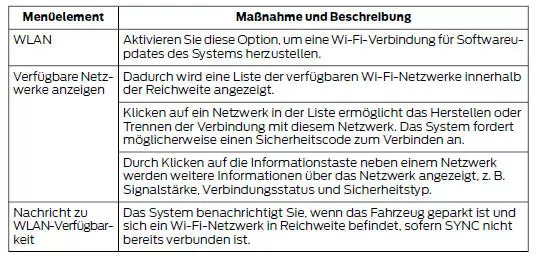
Wi-Fi
You can then adjust the following settings:
Ambient Lighting
Tap a color once to activate the ambient lighting.
Sets the color to the highest intensity.
Drag the colors up or down to increase or decrease the intensity.
To turn off the ambient lighting, tap the active color once or drag the active color all the way down to intensity zero.
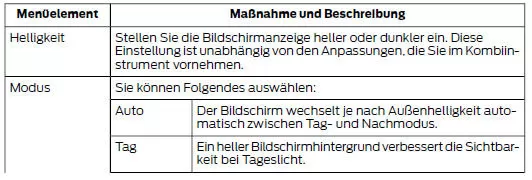
Display
To adjust settings using the touchscreen, select the following:
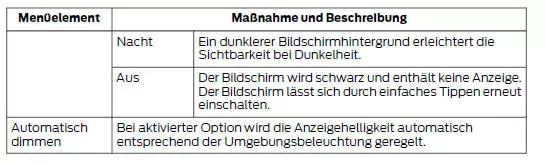
Voice Control
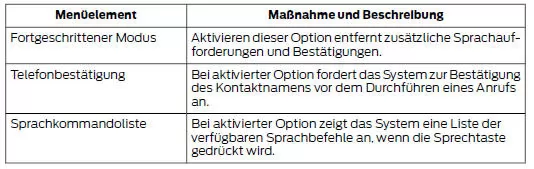
Parked Mode
Parked Mode allows you to lock the system. No information is available until the system is unlocked with the correct PIN.
When you select Parked Mode, a message appears stating that a four-digit code must be entered to activate and deactivate Parked Mode. The PIN can be chosen freely, but it must be the same one used to deactivate Parked Mode. The system prompts you to enter the code.
Note: If the system becomes locked and you need to reset the PIN, contact an authorized dealer.
To activate Parked Mode, enter your selected PIN. The system will then prompt you to enter the PIN again to confirm.
The system is then locked.
To unlock the system, enter the same PIN. The system reconnects to your phone, and all options are available again.
Destination entry in the navigation system of the Ford Mustang (6th Gen, 2014–2023) is designed for maximum ease of use. Whether an address, a point of interest or a saved favorite, the Ford Mustang 2014–2023 allows quick and intuitive entry so the driver can stay fully focused on the road.
The suggestion feature is particularly convenient: it displays matching destination suggestions while you type, speeding up the process. The Ford Mustang 6th Generation shows its strength here by making modern technology easy to use in everyday driving.
These features show that the Ford Mustang (6th Gen, 2014–2023) impresses not only with its performance but also with well-thought-out solutions for relaxed travel.
Test yourself
A quick Ford Mustang quiz: every answer comes with an explanation and a link to the manual page.