Telephone
This chapter describes how to set the time precisely in the Ford Mustang using the SYNC display. Users receive step-by-step instructions for manual or automatic time adjustment, including time zone selection and daylight saving time setting. Settings stored during a power loss are also taken into account, so the time display stays accurate at all times.
WARNING
Distraction while driving can lead to loss of vehicle control, accidents and injuries.
We strongly recommend using these devices and their functions only with extreme caution, so that your attention is not diverted from the road. The safe operation of your vehicle is entirely your responsibility. We advise against using handheld devices while driving and recommend using voice-controlled systems where possible.
Make sure you are informed of all local laws that may affect the use of electronic devices while driving.
Making calls via the hands-free system is one of the main functions of the system. Once you have paired your mobile phone, you can access many options via the touchscreen or voice commands. Although the system supports numerous functions, many depend on the capabilities of your mobile phone.
Initial Pairing of Your Mobile Phone
To use the hands-free functions, a Bluetooth mobile phone is required, which must be paired with the system before first use.
Activate Bluetooth on the device before starting the pairing process. See your phone's manual if necessary.
To add a phone, select:
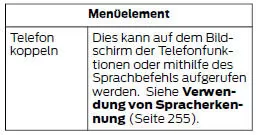
- Follow the instructions on the screen.
- A message prompts you to search for your vehicle model on the phone.
- Select the vehicle model as shown on the phone.
- Confirm that the six-digit number displayed on the phone matches the six-digit number on the touchscreen.
- Successful pairing is shown on the touchscreen.
- The phone may ask you to grant access to information. To check whether your mobile phone is compatible, see the phone's manual or the website.
Alternatively, a phone can be added by selecting:
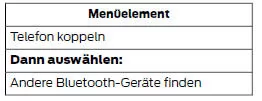
- Follow the instructions on the screen.
- A message prompts you to search for your vehicle model on the phone.
- Select the phone name when it appears on the touchscreen.
- Confirm that the six-digit number displayed on the phone matches the six-digit number on the touchscreen.
- Successful pairing is shown on the touchscreen.
- The phone may ask you to grant access to information. To check whether your mobile phone is compatible, see the phone's manual or the website.
Most mobile phones with Bluetooth technology support at least the following functions:
- Answering a call
- Ending a call
- Dialing a number
- Call waiting
- Caller ID.
Other functions, such as text messaging via Bluetooth and automatic downloading of the phone book, depend on the phone.
To check your mobile phone's compatibility, see your phone's manual or visit the regional Ford website.
Phone Menu
This menu is available after a phone has been paired.
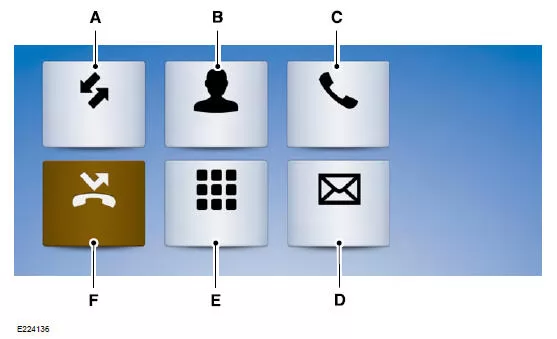
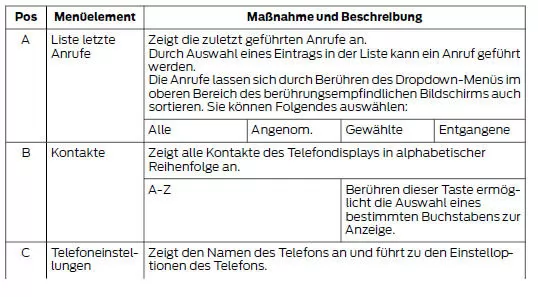
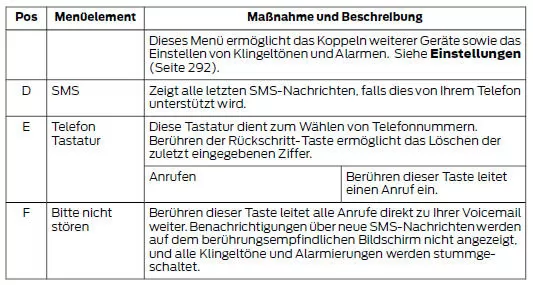
If the phone supports voice recognition, the menu may contain a button to activate this function. This function can also be activated by pressing and holding the voice button on the steering wheel. See Voice Control.
Making Calls
The system offers many ways to make calls, including voice commands. See Using Voice Recognition.
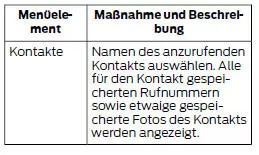
To call a number stored in your contacts, select:
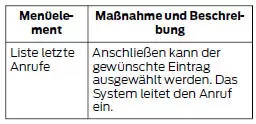
To call a number from the recent calls list, select:
To call a number not stored on the phone, select:

Touching the backspace key deletes the last digit entered.
Answering Calls
When there is an incoming call, a ring tone sounds. If caller information is available, it appears on the touchscreen.
To answer the call, select:

Note: You can also answer the call by pressing the phone button on the steering wheel.
To decline the call, select:

Note: You can also decline the call by pressing the phone button on the steering wheel.
You can also simply ignore a call by doing nothing. The system logs this as a missed call.
During a Phone Call
During a phone call, the contact's name and phone number appear on the touchscreen.
Phone status indicators are also visible:
- Signal strength.
- Battery.
- Emergency call assistant. See Settings.
During an active call, all of the following options can be selected:
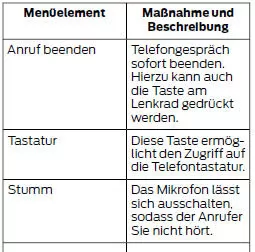
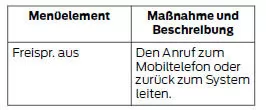
SMS
Note: Downloading and replying to text messages via Bluetooth are phone-dependent features.
Receiving a Text Message
When a new message arrives, an audible signal sounds and a pop-up message with the caller ID appears on the touchscreen, if supported by your mobile phone.
You can select the following:
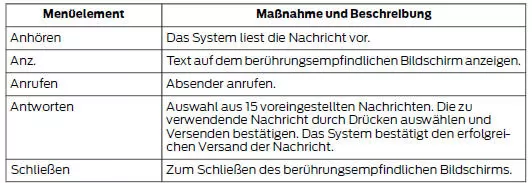
Smartphone Connection
The system allows the use of Apple CarPlay and Android Auto to access your phone.
With Apple CarPlay or Android Auto, you can:
- Make calls.
- Send and receive messages.
- Listen to music.
- Use the voice recognition function of the phone.
- Use the navigation function of the phone.
Apple CarPlay and Android Auto disable some system functions.
Most functions of Apple CarPlay and Android Auto use mobile data.
Apple CarPlay
Apple CarPlay requires an iPhone 5 or later with iOS 7.1 or later. Updating to the latest version of iOS is recommended.
- Connect the phone to a USB port. See USB Port.
- On the touchscreen, select Apple CarPlay.
To disable Apple CarPlay on the phone, open the settings on the touchscreen and select:
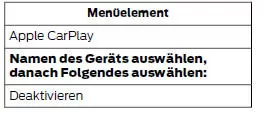
To return to the system, go to the Apple CarPlay home screen and select the SYNC app.
Android Auto
Android Auto is compatible with most devices running Android 5.0 or later.
- Download the Android Auto app from Google Play to your device.
- Connect the phone to a USB port. See USB Port.
- On the touchscreen, select Android Auto.
To disable Android Auto on the phone, open the settings on the touchscreen and select:
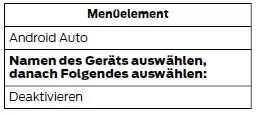
To return to the system, select the speedometer icon in the Android Auto menu bar at the bottom of the touchscreen, then touch the option to return to SYNC.
The phone features of the Ford Mustang (VI Gen, 2014–2023) offer modern communication and maximum safety. Whether hands-free calling, voice control or smartphone service integration, the Ford Mustang 2014–2023 offers well-thought-out equipment that supports the driver while minimizing distractions.
Particularly noteworthy is the seamless pairing with various devices, the quick operation, and the clear focus on lawful use while driving. The Ford Mustang VI Generation demonstrates how technology can make everyday life easier while making it safer.
These phone solutions underline the aim of the Ford Mustang (VI Gen, 2014–2023) to ideally combine sporty dynamics and smart connectivity.
Test yourself
A quick Ford Mustang quiz: every answer comes with an explanation and a link to the manual page.